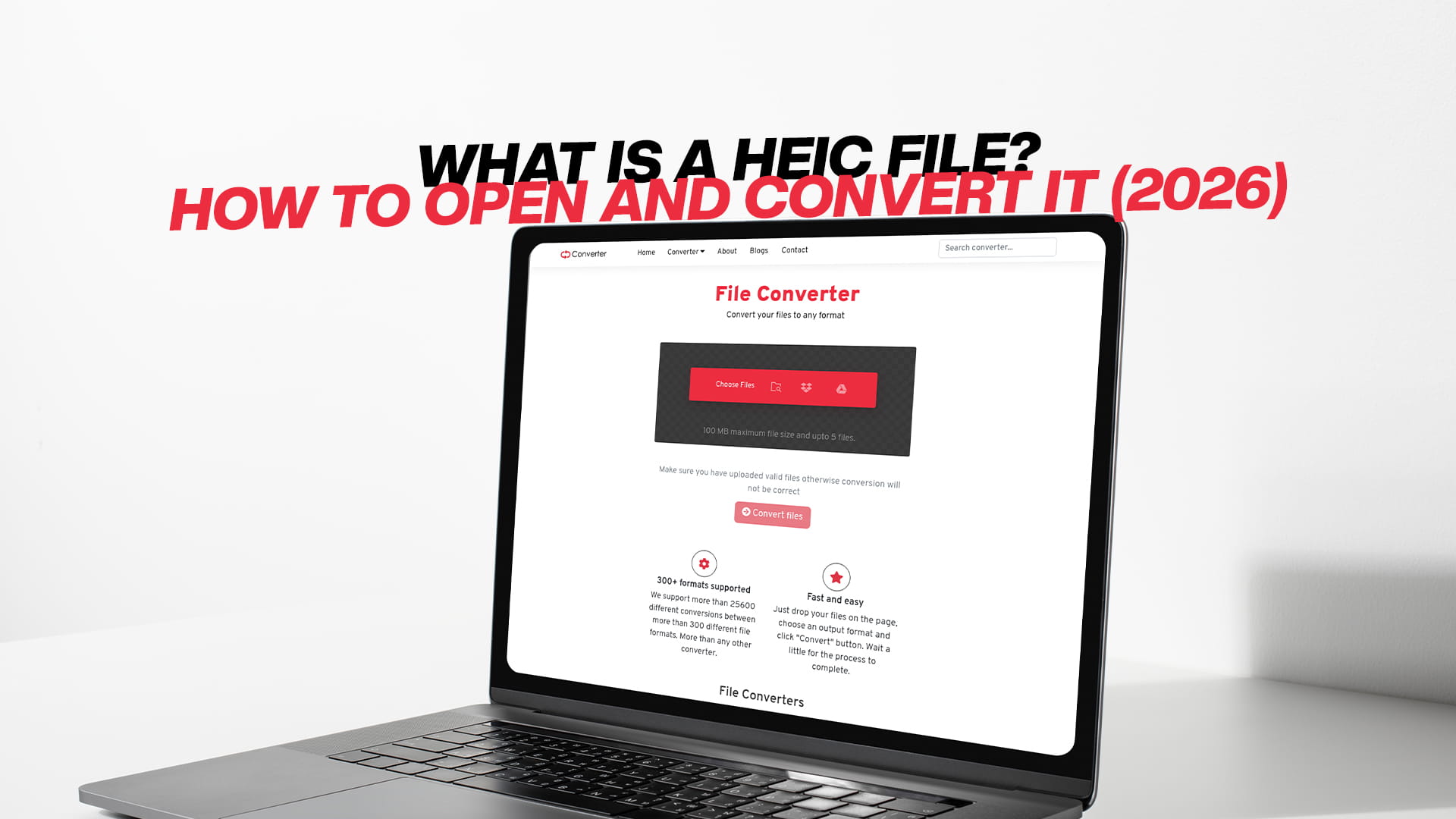
What Is a HEIC File? How to Open and Convert It (2026)
A HEIC file is a high-efficiency image saved in the format that iPhones and iPads use by default for the photos you take. The short version is this: HEIC stores a picture at roughly half the file size of a JPEG while keeping the same or better quality, which is great for saving space on your phone but frustrating the moment you try to open or upload that photo somewhere that doesn't understand the format. If you've ever emailed an iPhone photo to someone who couldn't open it, or tried to upload one to a website that rejected it, HEIC is almost certainly the reason.
The good news is that HEIC is easy to work with once you know what it is. You can open it on most modern devices, and converting it to a universally accepted format like JPG or PNG takes seconds. This guide explains exactly what a HEIC file is, why Apple uses it, how to open one on any device, and the simplest ways to convert it when you need broader compatibility.
What HEIC Actually Stands For
HEIC stands for High Efficiency Image Container. It's Apple's name for a file that uses the HEIF standard (High Efficiency Image Format), and the reason it's so compact is the compression technology inside it: the same efficient HEVC (H.265) compression used in modern video. That's a big leap over JPEG, which uses technology from the early 1990s.
The practical result is dramatic. A HEIC photo is typically about half the size of the equivalent JPEG at comparable quality, which means you can store roughly twice as many photos in the same space. On a phone where the camera roll competes with apps, messages, and video for storage, that efficiency adds up fast.
But HEIC isn't only about smaller files. The format is also more capable than JPEG in several ways. It supports 16-bit color, compared to JPEG's 8-bit, which means smoother gradients and richer detail in skies and shadows. It can store transparency, hold multiple images in a single file (which is how Live Photos and burst shots work), and carry extra data like depth maps and HDR information. In short, HEIC is a modern format doing modern things, packed into a smaller file.
Why Your iPhone Creates HEIC Files
Apple made HEIC the default camera format starting with iOS 11 in 2017, and it has remained the default on iPhones and iPads ever since. Every photo you take is saved as a .heic file unless you change a setting.
The motivation is storage efficiency. As phone cameras climbed to 12, 48, and beyond megapixels, JPEG files grew large, and Apple wanted a way to keep high-quality photos without eating through storage. HEIC solved that, letting the same iPhone hold far more photos and shoot richer image data at the same time.
The trade-off Apple accepted is compatibility. Because HEIC is newer and built on licensed HEVC technology, not every device, program, or website understands it, which is exactly the friction most people run into when they move an iPhone photo off the phone.
How to Open a HEIC File on Any Device
Where a HEIC file opens easily and where it doesn't depends entirely on how modern the software is.
On an iPhone, iPad, or Mac, HEIC files open natively with no effort. The Photos app and Preview handle them automatically, since it's Apple's own format. You'll rarely even notice the extension.
On Windows 10 and 11, support has improved but isn't always automatic. Windows 11 can often open HEIC in the Photos app out of the box, but on many machines you'll need to install the free HEIF Image Extensions from the Microsoft Store, and sometimes the accompanying HEVC Video Extensions, before the Photos app will display them. Once those extensions are installed, HEIC files open like any other image.
On Android, phones running Android 10 or later can generally open HEIC files, and Google Photos handles them well across devices. Older Android versions may struggle.
In a web browser or cloud service, Google Photos, iCloud, and similar services display HEIC images fine because they convert them behind the scenes. The problem usually appears when you download the raw .heic file and try to open it in older desktop software, or upload it to a site that only accepts JPG or PNG.
If a HEIC file simply won't open, or a website refuses to accept it, that's your cue to convert it rather than fight the software.
How to Convert a HEIC File to JPG or PNG
Converting is the most reliable way to make an iPhone photo work everywhere, and it takes only a moment. The most common and useful target is JPG, since it's accepted by virtually every device, website, and application on earth.
The simplest approach is a browser-based tool. To make an iPhone photo universally openable, convert HEIC to JPG: upload the file, convert, and download a standard JPEG that works in any program or upload form. This is the right choice for the vast majority of situations, from emailing photos to relatives on older devices to uploading images to a job portal that rejects HEIC.
If you specifically need transparency or a lossless copy (for design work, for example), you can instead convert HEIC to PNG, which preserves an alpha channel and avoids JPEG's lossy compression. PNG files are larger, so reserve this for cases where you genuinely need what PNG offers.
When you have a mix of formats to deal with, not just HEIC, a general image converter handles them all in one place, letting you standardize a whole folder of photos into JPG or another format of your choice. And if a website asks you to convert to JPG and you'd like a fuller walkthrough of the process, this guide to using a free online JPG converter covers the steps and common pitfalls in more detail.
One thing to keep in mind: converting HEIC to JPG discards some of HEIC's advantages (the smaller size and richer color data), because JPEG is an older, less capable format. For everyday sharing, that's a perfectly fine trade, since compatibility matters more than a slightly larger file. Just keep your original HEIC files if you want to preserve the highest-quality version.
Managing File Size After Converting
There's a subtlety worth knowing. When you convert a compact HEIC file to JPEG or PNG, the resulting file can be noticeably larger, because those formats are less efficient. A HEIC that was 2MB might become a 4MB JPEG or an even bigger PNG. Usually that's fine, but if you're uploading to a form with a size limit or trying to keep a web page fast, the converted file might be bigger than you want.
In that case, run the converted image through an image compressor to bring it back down to a sensible size. A little compression on the JPEG typically shrinks it substantially with no visible difference, giving you the best of both worlds: a universally compatible format at a reasonable file size.
Should You Stop Your iPhone Making HEIC Files?
If you find HEIC more trouble than it's worth, you can tell your iPhone to shoot JPEG instead. In the Settings app, under Camera and then Formats, choosing "Most Compatible" makes the camera capture standard JPEG photos going forward, while "High Efficiency" keeps HEIC.
There's a genuine trade-off here. Switching to Most Compatible means every photo just works everywhere, but you lose the storage savings and the richer image data HEIC provides, and your camera roll will fill up faster. A middle-ground approach that many people prefer is to leave the camera on High Efficiency to save space, and simply convert individual photos to JPG whenever they need to share or upload them. That way you keep the storage benefit day to day and only convert on demand.
Apple also helps here automatically in some cases: when you share HEIC photos through certain channels or AirDrop them to non-Apple contexts, iOS sometimes converts them to JPEG on the fly. But that behavior isn't guaranteed everywhere, which is why knowing how to convert manually is so useful.
Final Thoughts
A HEIC file is simply a modern, space-saving photo format that your iPhone uses by default, offering roughly half the size of a JPEG with equal or better quality and richer image data. Its only real drawback is compatibility: newer Apple and updated Windows and Android devices open it fine, but older software and many upload forms don't. When you hit that wall, converting to JPG makes the photo work anywhere, converting to PNG preserves transparency and quality, and a quick compression step keeps the resulting file manageable. Understand those few moves and HEIC stops being a headache and becomes what it was designed to be, a smarter way to store your photos.