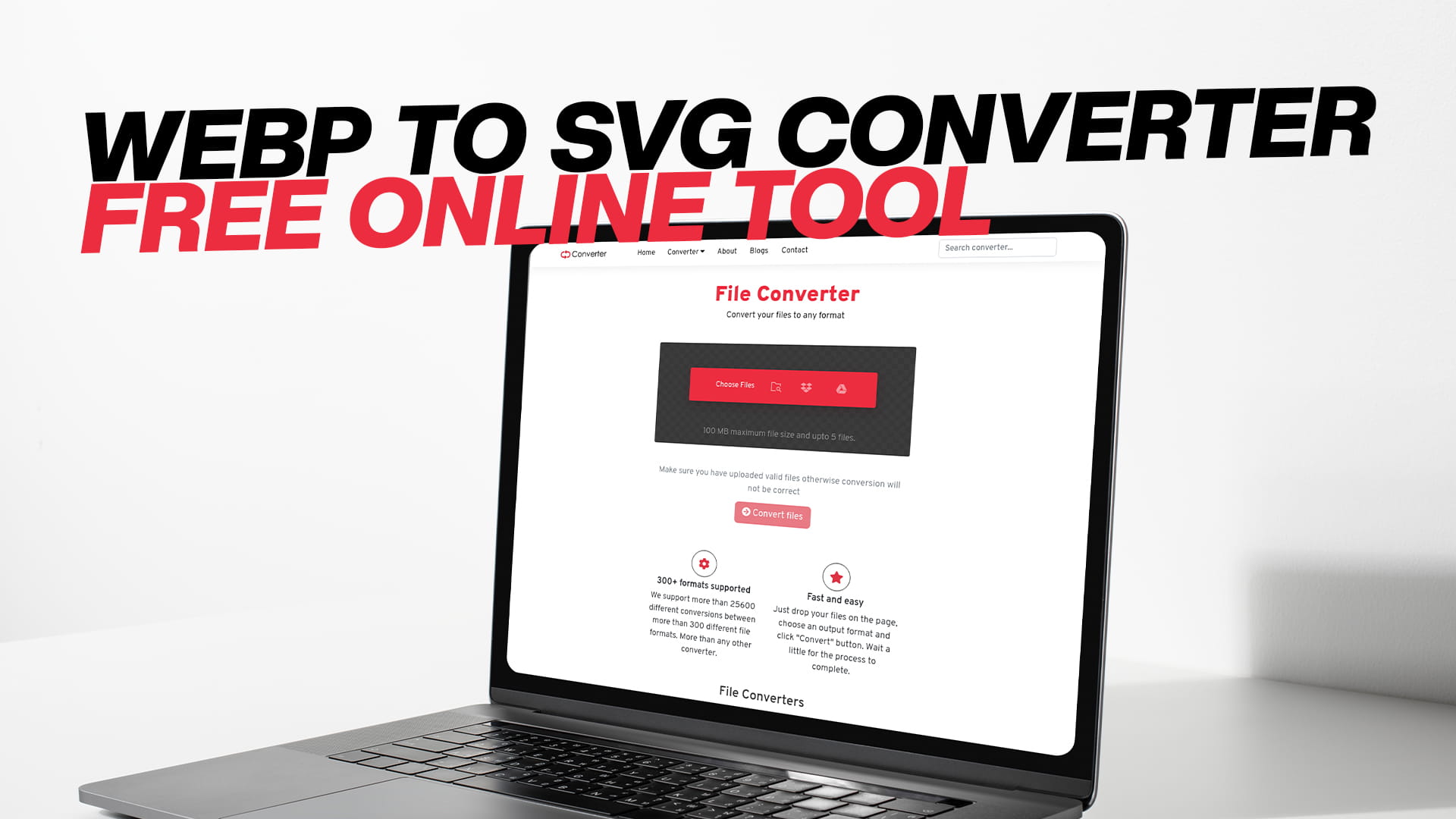
WebP to SVG Converter — Free Online Tool
You have a WebP image and you need it as an SVG. Maybe you're working on a website and want a logo that scales perfectly on every screen size. Maybe a designer sent you a WebP file but your project requires a vector format. Maybe you just want your image to look sharp at any size without the file growing larger. Whatever the reason, converting WebP to SVG is a real need, and Convertio is a free online tool that handles it without asking you to install anything or create an account.
This guide walks through everything worth knowing about WebP and SVG, explains why converting between them makes sense in certain situations, and shows exactly how the conversion works using Convertio. It also covers what to expect from the output, when the conversion works best, and what else Convertio can do for you beyond image conversion.
What Is a WebP File?
WebP is an image format developed by Google. It was introduced in 2010 and has steadily grown into one of the most common image formats on the web. If you've ever right-clicked to save an image from a website and noticed the file downloaded as a .webp file instead of .jpg or .png, that's WebP at work.
Google built WebP to solve a specific problem: images on the web were too large, and large images made websites slow. WebP addresses this by using advanced compression methods that reduce file size significantly compared to older formats like JPEG and PNG, while keeping visual quality very close to those formats.
WebP supports both lossy compression and lossless compression. Lossy compression is similar to what JPEG does — it discards some image data to reduce file size, in a way the human eye doesn't easily notice. Lossless compression is similar to what PNG does — it reduces file size without discarding any data, preserving every pixel exactly. WebP also supports transparency, which JPEG doesn't, and animations, which neither JPEG nor PNG supports natively.
The result is a format that can often match JPEG quality at 25–35% smaller file sizes, or match PNG quality at around 25% smaller sizes. For websites that serve thousands of images to millions of visitors, that difference adds up to meaningful improvements in load time and bandwidth costs.
Browser support for WebP is now universal among modern browsers. Chrome, Firefox, Safari, Edge, and all major mobile browsers handle it without any plugins or special handling. This is why so many websites have switched to WebP for their image assets.
Despite its strengths, WebP has real limitations. It's a raster format, which means it stores images as a grid of pixels. Every pixel has a defined color, and the image is made up of a fixed number of them. When you scale a raster image up beyond its original size, the pixels get stretched, and the image becomes blurry or blocky. This is not a flaw in WebP specifically — it's true of all raster formats including JPEG, PNG, BMP, and GIF. It's simply the nature of how raster images work.
For photographs, artwork, and detailed images, raster formats like WebP are the right choice. For logos, icons, illustrations, and graphics that need to scale, raster formats are often the wrong choice. That's where SVG comes in.
What Is an SVG File?
SVG stands for Scalable Vector Graphics. It's a completely different kind of image format compared to WebP, and understanding that difference is the key to understanding why someone would want to convert between them.
Instead of storing an image as a grid of pixels, SVG stores it as a set of mathematical instructions. An SVG file might say something like: draw a circle at this position with this radius and this fill color, then draw a rectangle here, then draw a path along these coordinates. When software reads an SVG file, it follows those instructions to draw the image at whatever size is needed.
The practical result of this approach is that SVG images scale infinitely without any loss of quality. A small SVG logo looks just as sharp on a mobile screen as it does stretched across a 4K monitor. There are no pixels to blur or distort, because the image is redrawn from scratch at every size using the same mathematical instructions.
This property makes SVG the preferred format for anything that needs to appear at multiple sizes or across different display densities. Website logos, navigation icons, brand marks, UI illustrations, and interface graphics are all natural candidates for SVG. Web designers and developers strongly prefer SVG for these elements because it solves the scaling problem permanently.
SVG has other advantages too. The files are often very small for simple graphics. A simple logo or icon in SVG format might be just a few kilobytes, while the same image in PNG might be much larger. SVG files are also editable in text editors and vector graphics programs like Adobe Illustrator and Inkscape, because the file is essentially a structured XML document describing the shapes. This makes SVG very flexible for design work.
SVG also works well with web technologies. Because SVG is XML-based, it integrates naturally with HTML and CSS. Designers can apply CSS styles, animations, and JavaScript interactions directly to SVG elements. You can change the color of an SVG icon based on user interaction, animate a logo on page load, or adjust the stroke width of an illustration from a stylesheet. None of this is possible with raster formats.
SVG has one significant limitation: it's built for graphics made of defined shapes and paths. Photographs don't work well as SVG files. A photograph has millions of pixels, each a slightly different color. Representing that as a set of vector paths produces an enormously complex file that looks more like an abstract interpretation than a faithful copy of the photo. For photographic content, raster formats like WebP, JPEG, or PNG are always the better choice.
For logos, icons, simple illustrations, and geometric graphics, SVG is typically superior in almost every way.
Why Convert WebP to SVG?
The decision to convert a WebP image to SVG usually comes from one of a few specific situations.
The most common reason is scalability. You have a logo, an icon, or a simple graphic in WebP format, and you need it to look sharp at any size. Maybe you're building a website and want the logo in the header to look perfect on both a small phone screen and a large desktop monitor. Converting to SVG solves this immediately. The image will scale to any size without blurring.
Another common reason is design work. If you receive a WebP version of a logo or graphic and need to edit it in vector software like Adobe Illustrator, Affinity Designer, or Inkscape, having an SVG gives you a usable starting point. SVG files are editable — you can change colors, adjust shapes, resize elements, and modify paths. A WebP file doesn't offer that kind of flexibility.
Web performance is another reason. SVG files for simple graphics are often smaller than their WebP equivalents and load faster because the browser draws them directly rather than decoding pixel data. If your site uses many icons or interface graphics, switching to SVG can improve page load times.
Print work sometimes requires SVG as well. When a graphic needs to be used in high-resolution print materials, a pixel-based WebP file won't scale cleanly to the resolution printers need. An SVG file, by contrast, prints perfectly at any size because it's not constrained by pixel density.
CSS and JavaScript integration is another driver. If you want to animate an icon, change the color of a graphic based on dark mode or user theme, or apply hover effects to an illustration, SVG enables all of that. WebP doesn't. Converting a simple graphic from WebP to SVG opens up design possibilities that weren't available before.
How to Convert WebP to SVG Using Convertio
The conversion process on Convertio is quick and doesn't require any technical knowledge. Here's the full walkthrough.
Step 1: Open Convertio in Your Browser
Navigate to Convertio on any device using any modern browser. The site works equally well on desktop computers, laptops, tablets, and phones. There's nothing to install and no account to create.
Step 2: Upload Your WebP File
On the Convertio homepage, you'll find the upload area. Click the button to browse your device and select the WebP file you want to convert. If you're on a desktop, you can also drag and drop the file directly onto the page.
If your WebP file is stored in Google Drive or Dropbox rather than on your device, Convertio lets you import directly from those services. This is useful when the image is part of a cloud-based design project and you don't want to download it to your device first.
Step 3: Choose SVG as the Output Format
After uploading, you'll see the output format selector. Open the dropdown, go to the image section, and select SVG. The format list is organized clearly, so finding SVG doesn't take long.
You can also upload multiple files and convert them all in one go if you have a batch of WebP images that all need to become SVGs.
Step 4: Convert the File
Click the Convert button. Convertio processes the file on its servers, so your device doesn't need to do any heavy work. The processing time depends on the file size and complexity. Most image files convert in well under a minute. A progress indicator shows you the status.
Step 5: Download the SVG File
When conversion finishes, the download button appears. Click it to save the SVG file to your device. The file is ready to use immediately in whatever context you need it.
The entire process typically takes two to three minutes at most for a standard image, and often much less. It's one of the more painless file conversion workflows available online.
What Happens During the Conversion
Understanding what actually happens when you convert a WebP to SVG helps set realistic expectations about the output.
WebP is a raster format. SVG is a vector format. These are fundamentally different ways of representing images, so converting between them involves a process called rasterization tracing or vectorization. The conversion software analyzes the pixel data in the WebP file and attempts to describe the shapes and colors it finds using vector paths.
For simple graphics — logos with flat colors, icons with clean lines, geometric shapes, text-based graphics, and illustrations with defined areas of color — this process works very well. The converter identifies the distinct regions of color and the lines between them, and translates those into vector paths. The resulting SVG is clean, scalable, and often looks very similar to the original.
For complex graphics — photographs, images with gradients, images with fine textures, illustrations with subtle shading and blending — the vectorization process produces more complex and sometimes imperfect results. A photograph converted to SVG will typically produce a heavily stylized image that looks like a graphic interpretation of the photo, not a faithful reproduction. This isn't a flaw in Convertio specifically; it's inherent to the challenge of converting raster data to vector format.
The key takeaway is that WebP to SVG conversion works best when the source WebP image has clearly defined shapes and limited color variation. If your WebP is a logo, a simple icon, a two-tone illustration, or any graphic with flat regions of color, the conversion will likely produce an excellent SVG. If your WebP is a photograph or a complex illustrated scene with lots of color blending, the SVG output will be an approximation rather than an exact match.
For many real-world use cases — particularly design assets like logos and icons that often end up in WebP format due to how they're exported or received — the conversion works exactly as needed.
Getting the Best Results from WebP to SVG Conversion
A few practices help you get cleaner, more usable SVG output from your WebP files.
Start with the cleanest WebP image you have. If you have the option to get the image at a higher resolution, use it. More pixels mean more detail for the vectorization algorithm to work with, which generally produces smoother paths and cleaner shapes in the SVG output.
Images with high contrast and clear edges convert better than images with soft edges or heavy anti-aliasing. A logo on a white background with sharp, defined edges will vectorize much more cleanly than the same logo with a soft drop shadow or blurred edges.
Simple color palettes convert better than complex ones. An image with five flat colors will produce a much cleaner SVG than an image with gradients and hundreds of subtle color variations. If your WebP has a lot of tonal variation, the SVG output will be more complex and may not look exactly like the original.
Transparent backgrounds help. If your WebP image has a transparent background and just the graphic element itself, the converter can focus on the main shape without trying to separate the subject from a background color. This often produces cleaner results.
After conversion, you can open the SVG file in a vector editor like Inkscape (free) or Adobe Illustrator to clean it up further. Many conversions produce a good base that benefits from a small amount of manual refinement — simplifying paths, adjusting colors, or smoothing out any curves that didn't trace perfectly.
When WebP Is the Right Format and When SVG Is
These two formats serve different purposes, and knowing which one fits your situation helps you make better decisions about when to convert and when to keep the original format.
WebP works best for photographs, complex artwork, images with gradients, and any image that needs to faithfully reproduce photographic detail. If you're showing a product photo on an e-commerce site, a portrait, a landscape, or any image with rich visual complexity, WebP is the right choice. Its compression efficiency means the image loads quickly while looking great.
SVG works best for logos, icons, brand marks, interface graphics, illustrations with flat color areas, charts and diagrams, and any graphic that needs to scale. If you're using an image as part of a UI, want it to look sharp at any size, or need to apply CSS styling to it, SVG is the better choice.
The situations that lead to a WebP-to-SVG conversion usually involve receiving a graphic in WebP format when you actually need it as a vector. This happens when a client sends you their logo as a WebP, when you download an icon from a website that serves everything in WebP, or when a WebP graphic needs to be repurposed in a context that requires scalability.
Other Image Conversions Convertio Handles
WebP to SVG is one specific conversion among many that Convertio supports. For anyone who works with images regularly, Convertio's range of supported formats is genuinely useful.
WebP to PNG is one of the most common conversions on the platform. PNG is a lossless raster format with wide compatibility and transparency support. Many image editors, design tools, and platforms accept PNG more universally than WebP, and converting is fast.
WebP to JPG is another frequent need. JPEG is the standard for photographs and is accepted everywhere. If you need to send a WebP photo to someone who can't open WebP files, converting to JPG takes seconds.
PNG to SVG follows the same logic as WebP to SVG. If you have a logo or icon in PNG format and need it as a vector, Convertio handles it the same way.
JPG to WebP is useful for web developers who want to serve more efficient images. Converting an existing library of JPEG photos to WebP reduces bandwidth and improves load times.
SVG to PNG goes the other direction — if you need to take a vector graphic and produce a raster version at a specific resolution, SVG to PNG conversion gives you a pixel-based image at whatever size you specify.
Beyond images, Convertio handles audio formats like MP3, WAV, FLAC, and AAC. It converts video formats including MP4, MOV, AVI, MKV, and WebM. It handles documents in PDF, Word, Excel, and PowerPoint formats. It also works with eBooks (EPUB, MOBI), compressed archives (ZIP, RAR, 7Z), and various software file types. The breadth of coverage makes it a practical first stop for almost any conversion task.
Using SVG Files in Web Projects
Once you have your SVG file, knowing how to use it effectively in web projects gets you the most out of the format.
The most direct way to use an SVG on a website is as an image element, just like you'd use a PNG or JPG. You point the image source at the SVG file, and the browser renders it. This approach is simple and gives you the scalability benefits without any extra setup.
Embedding the SVG code directly into the HTML is more powerful and more flexible. When you inline an SVG, its elements become part of the document and can be styled with CSS, targeted with JavaScript, and animated. This opens up a lot of creative possibilities — colored icons that respond to hover states, logos that animate on page load, illustrations that change appearance based on the site's theme.
SVGs also work as CSS background images, which is useful for decorative elements and repeating patterns. They can be used as masks and clip paths in CSS, letting you apply complex shapes to photographs and other elements.
Web development frameworks like React, Vue, and Angular all have good support for SVG. There are libraries and tools specifically built to make working with SVGs in component-based frameworks straightforward.
For email, SVG is generally not the right choice since email clients have spotty support for the format. For email, PNG or JPG is safer. But for everything else on the web, SVG has become a mature and well-supported standard.
SVG for Mobile Apps and Responsive Design
Responsive design — the practice of building websites and apps that look good at any screen size — is where SVG really proves its worth.
A decade ago, web designers often had to maintain multiple versions of the same image at different sizes: a small version for phones, a medium version for tablets, a large version for desktops, and sometimes even higher-resolution versions for retina displays. This was time-consuming to manage and added page weight from all those extra files.
SVG eliminates this problem for non-photographic graphics. One SVG file works at every screen size and every display density. The same file that looks sharp on a low-resolution budget phone looks equally sharp on a 5K Apple Studio Display. There's no maintenance burden, no multiple files to track, and no pixelation on high-density screens.
For mobile apps, many development frameworks support SVG rendering natively or through libraries. React Native, Flutter, and other cross-platform tools all have ways to use SVG assets, which simplifies asset management for apps that run on both iOS and Android.
The shift toward responsive design and the proliferation of high-density displays is a big part of why SVG has become so important in modern design and development. Converting WebP graphics to SVG when appropriate is part of adapting to that reality.
Common Reasons People End Up with WebP Files They Need to Convert
It's worth understanding why this conversion request comes up so often, because the reasons are practical and relatable.
Web scraping and downloading images from websites is one source. Modern websites serve images in WebP for efficiency, which means anything you save from a website is likely to be a WebP file. If you download a company logo from their website to use in a document or design project, it arrives as a WebP, and you may need it as an SVG.
Receiving files from others who don't know which format is needed is another common scenario. A client might send you their logo as a WebP because they exported it from a tool that defaults to WebP. They didn't know you needed SVG. You now have to convert it.
Automatic conversions from content management systems sometimes produce WebP files from original assets. If a CMS takes an SVG upload and automatically converts it to WebP for delivery, the only version you can retrieve might be the WebP, even if the original was a vector.
Screenshots and screen recordings on some devices default to WebP in certain contexts. A screenshot of a graphic element from a web browser might land as WebP, and if you need that graphic as an SVG for a project, conversion is the path forward.
In all these cases, having a reliable tool that handles the conversion cleanly and without any installation or payment is the practical solution. Convertio fills that role.
About Convertio
Convertio is a free online file conversion platform built to handle a wide range of formats. Images, audio, video, documents, PDFs, eBooks, software files, and compressed archives are all within its scope. The entire process happens in the browser — no software installations, no desktop apps, no plugins.
The design philosophy is straightforward: make file conversion as easy as possible for people who aren't technical experts. The interface is clean, the steps are minimal, and the output quality is good. You upload a file, you choose what you want it to become, and you download the result.
Convertio is free to use for standard conversions. You can start converting immediately after visiting the site, with no sign-up required. For high-volume use or very large files, there are options to upgrade, but the free tier covers the needs of most everyday users easily.
The platform has been used for millions of conversions across many file types. Whether you need to convert an image, a video, an audio file, or a document, Convertio is set up to handle it quickly.
Final Thoughts
WebP is a strong format for delivering images efficiently on the web. SVG is a strong format for graphics that need to scale, be edited, or integrate with web styling and animation systems. These two formats serve different purposes, and the need to convert between them comes up regularly for anyone who works with web graphics.
Converting WebP to SVG works well when the source image has defined shapes, flat colors, and clear edges — logos, icons, and simple illustrations are the prime candidates. For photographic content, SVG is not the right target, and a raster format like PNG or JPG is a better destination.
Convertio makes the conversion process as simple as it can be. Upload your WebP file, select SVG as the output, and download the result. No software, no account, no technical setup. The converted SVG is ready to use in websites, design projects, print materials, or anywhere else you need a scalable graphic.
If you have WebP files that need to become SVGs, Convertio is the straightforward way to get there.