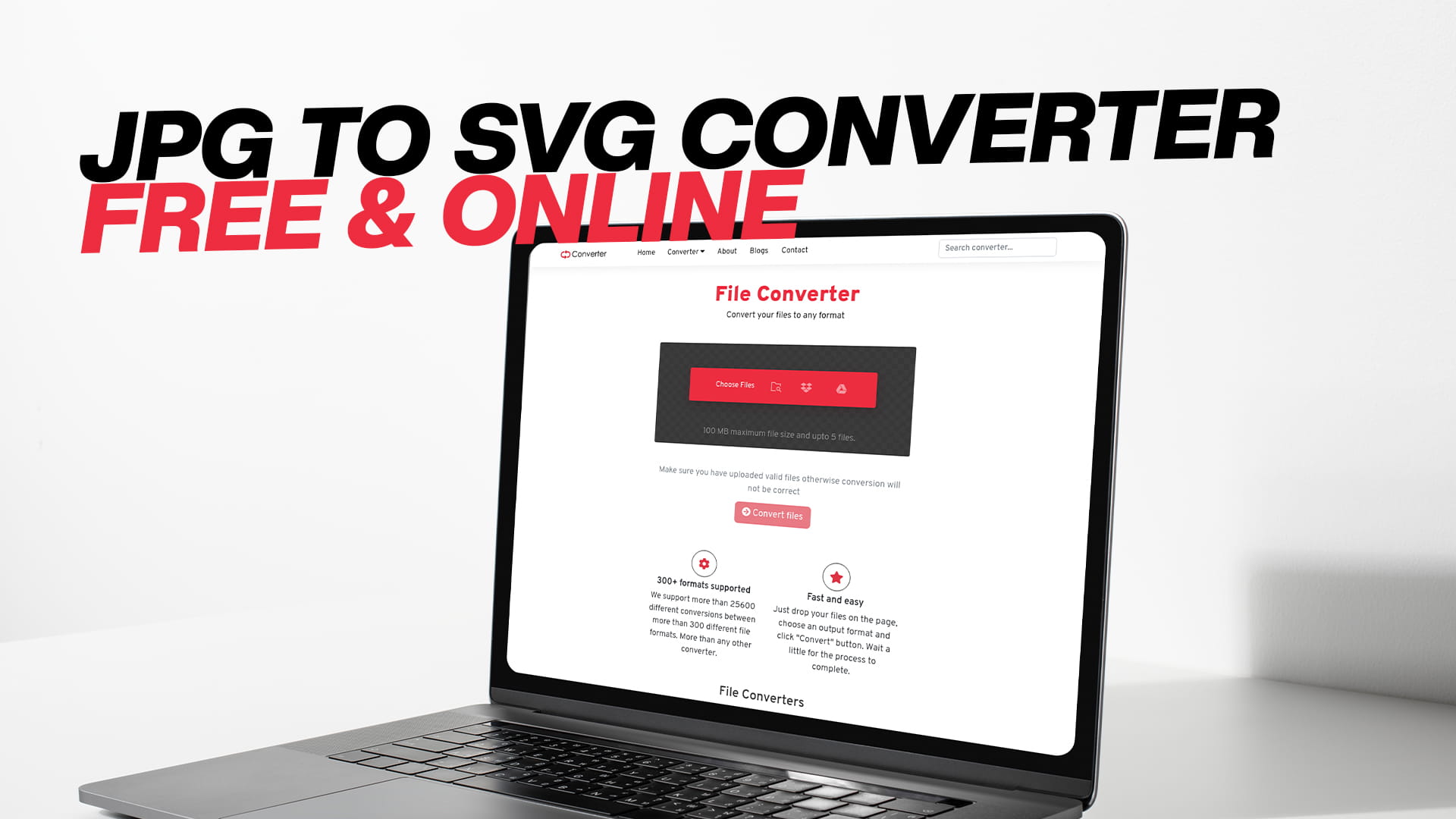
JPG to SVG Converter — Free & Online
If you have ever tried to resize a JPG image and watched it turn blurry and pixelated, you already know the frustration. Logos that look sharp on a business card fall apart on a billboard. Icons that look fine on a small screen look terrible when scaled up. The reason is simple — JPG files are made of pixels, and pixels have limits.
SVG files work differently. They use math instead of pixels, which means they stay perfectly sharp no matter how big or small you make them. And if you need to convert a JPG into an SVG, you do not need to install any software, pay for a subscription, or figure out complicated design tools. You can do it online, for free, using Convertio.
This guide covers everything you need to know about JPG to SVG conversion — what these formats actually are, why you would want to convert between them, and how to do it without any technical knowledge.
What Is a JPG File?
A JPG file, sometimes written as JPEG, is one of the most common image formats in the world. It was designed to store photographs and images with a lot of color detail while keeping file sizes small. That is why almost every photo you take on your phone, every image you download from the internet, and every banner you get from a designer is usually a JPG.
The way JPG works is by storing color information in a grid of tiny squares called pixels. Each pixel holds a color value, and when you zoom out, all those pixels together form a picture. The more pixels in an image, the sharper it looks — but also the larger the file size.
JPG files use what is called lossy compression. This means that when a JPG is saved, some image data is permanently removed to keep the file size down. You usually cannot tell the difference at normal viewing sizes, but the quality loss is real. Every time you save a JPG, it loses a tiny bit of quality.
JPG is a great format for photographs and complex images. It is not a great format for logos, icons, line art, or anything that needs to stay sharp at multiple sizes. That is where SVG comes in.
What Is an SVG File?
SVG stands for Scalable Vector Graphics. Unlike a JPG, an SVG file does not store pixels. Instead, it stores a set of mathematical instructions that describe shapes, lines, colors, and curves. When your browser or design program opens an SVG, it reads those instructions and draws the image fresh every time.
This is the key difference. Because SVG images are drawn from instructions rather than stored as pixels, they can be resized to any dimension without losing quality. You can take a small SVG logo and blow it up to cover the side of a building, and it will look just as clean as it did at thumbnail size.
SVG files are also text-based, which means they can be opened and edited in a plain text editor if needed. They are widely supported in web browsers, design software, and printing tools. Many web designers prefer SVG for icons and logos because SVG files can also be animated and styled with CSS.
SVG works best for simple graphics, logos, icons, illustrations, and text-based designs. It does not work as well for complex photographs with thousands of colors and gradients — for those, JPG or PNG are still better choices.
Why Would You Convert JPG to SVG?
There are several good reasons to convert a JPG into an SVG, and they all come down to one thing: you want your image to look better or work better in a specific context.
One common reason is logo work. Many businesses receive their logos as JPG files, especially older companies or small businesses that never had their branding done professionally. When they need to print the logo on a t-shirt, put it on a vehicle wrap, or use it on a large banner, the JPG version just does not hold up. Converting the JPG to SVG gives them a version that stays sharp at any size.
Another reason is web design. SVG files load quickly on websites and look perfect on all screen sizes, including high-resolution displays like Retina screens on Apple devices. If you have a JPG icon or illustration that you want to use on a website, converting it to SVG can improve how it looks across different devices.
Some printing services and sign shops also require artwork in vector format. If all you have is a JPG, converting it to SVG can save you from having to recreate the design from scratch in a design program.
Laser cutting machines, vinyl plotters, and CNC routers also rely on vector files to do their job. If you want to cut a shape out of wood, fabric, or vinyl, you typically need an SVG file. Starting from a JPG and converting it to SVG is often the fastest path to getting started.
Finally, some people convert JPG to SVG simply because they want to edit their image in a vector design program like Adobe Illustrator or Inkscape. These programs work natively with vector files, so having an SVG makes editing much easier.
The Challenge of JPG to SVG Conversion
It is worth being honest about something: converting a JPG to SVG is not like converting a PDF to Word or an MP3 to WAV. With those conversions, the original data is basically preserved and just moved into a new container. JPG to SVG conversion involves a process called vectorization, which means the converter has to analyze your pixel-based image and translate it into vector paths.
Simple images convert well. A logo with clean edges, bold colors, and simple shapes will trace cleanly into SVG format and look great. But a complex photograph with soft gradients, shadows, and thousands of colors will not convert into a usable SVG the same way. The result will be a technically valid SVG file, but it may look different from the original, and it will likely have a much larger file size.
This is not a limitation of any specific tool — it is just the nature of the conversion. Understanding this upfront helps you set the right expectations. If you are converting a simple graphic, icon, or logo, you will likely get excellent results. If you are converting a photograph, the results will vary.
How to Convert JPG to SVG Using Convertio
Converting a JPG to SVG with Convertio is one of the quickest ways to get it done. The process does not require any setup, account creation, or software installation. Everything works in your browser.
First, go to Convertio. On the site, you will find conversion options for images, audio, video, documents, PDFs, eBooks, compressed files, software files, and more. For image conversion, select your JPG file by clicking the upload button or dragging and dropping the file directly into the converter.
Once your file is uploaded, choose SVG as the output format. Convertio supports a wide range of formats, so you will find SVG in the image format options without any trouble.
After selecting the output format, click the Convert button. The conversion happens on Convertio's servers, so your computer does not need to do the heavy lifting. Depending on the size of your file, the conversion usually finishes in a few seconds.
When the conversion is done, you will see a download link. Click it to save your SVG file to your device. The whole process from upload to download usually takes less than a minute, even for users who have never done a file conversion before.
Convertio works in any modern web browser, which means it works on Windows, Mac, Linux, iOS, and Android. You do not need to be on a computer — you can convert files on your phone or tablet just as easily.
What Makes a Good JPG to SVG Converter?
If you are going to use an online tool for this kind of conversion, it is worth knowing what to look for. A good converter should be fast, easy to use, and should produce output that is actually usable.
Speed matters, especially if you are converting multiple files. A converter that makes you wait a long time for each file becomes a problem when you have a batch of images to process.
Ease of use is important too. Not everyone who needs to convert a file is a designer or a technical person. A tool that is simple enough for a first-time user to figure out in thirty seconds is much better than one that requires reading a manual.
Output quality is where converters differ the most. Some tools do a better job of tracing the edges and shapes in your image, which results in cleaner vector paths. Others produce blocky, rough output that needs a lot of cleanup. Convertio handles conversion reliably and produces clean output for the types of images that benefit most from vectorization.
Privacy is also worth considering. When you upload a file to any online converter, you are sending your data to a server. Reputable converters delete your files after a short period and do not share your data.
Finally, there is the question of cost. Many converters are free for basic use but charge for larger files or higher volumes. Convertio offers free conversions, making it a practical choice for users who do not want to pay for occasional file conversion tasks.
Tips for Getting Better SVG Results from Your JPG
The quality of your SVG output depends a lot on the quality and type of the JPG you start with. A few simple steps can make a real difference in the results you get.
Start with the highest resolution JPG you have. A larger image gives the vectorization process more detail to work with, which usually leads to cleaner paths and smoother curves in the SVG output.
High contrast images convert better. If your JPG has clear, sharp edges between areas of color, the converter will do a much better job tracing those edges. Soft, blurry, or low-contrast edges are harder to trace cleanly.
Reduce the number of colors if you can. Images with fewer distinct colors generally convert more cleanly than images with dozens of subtle gradients. If you have access to the original file in an image editor, simplifying the color palette before converting can help.
Crop out any unnecessary background before you convert. If your JPG has a lot of empty space or a background you do not need, removing it first will result in a cleaner, smaller SVG file.
If your image has a white or solid-color background and you want a transparent SVG, it may be worth removing the background in a free tool like Remove.bg before converting. Starting with a clean, transparent image usually gives you better vectorization results.
What Can You Do with Your SVG File After Converting?
Once you have your SVG file, a whole range of options open up that were not possible with the JPG.
You can use the SVG on a website. SVG files are natively supported in all modern browsers. You can embed them directly in your HTML or use them as the source of an image tag. They will look sharp on every screen, including high-resolution displays.
You can import the SVG into a design program. Adobe Illustrator, Inkscape, Affinity Designer, CorelDRAW, and many other design tools open SVG files natively. Once your image is in a vector editor, you can edit individual shapes, change colors, resize elements, and modify the design however you need.
You can send the SVG to a printer or sign shop. Most professional print shops and signage companies accept SVG as a production-ready format for large-format printing, vehicle wraps, banners, and displays.
You can use the SVG with a cutting machine. If you work with a Cricut, Silhouette, or similar machine, SVG is the standard file format. Your freshly converted SVG is ready to cut, no extra steps needed.
You can also animate the SVG. This is a more advanced use case, but SVG elements can be animated with CSS or JavaScript, which is useful for web designers who want moving icons or interactive graphics.
JPG vs SVG: Which Format Should You Use?
The answer depends on what you are using the image for. Neither format is better in every situation — they are built for different purposes.
JPG is the right choice for photographs, images with lots of color variation, and any situation where a small file size is more important than the ability to scale. A photo of a landscape, a product image on an e-commerce site, and a social media post photo are all good candidates for JPG.
SVG is the right choice for logos, icons, illustrations, simple graphics, and anything that needs to be displayed at multiple sizes or on high-resolution screens. If you are a designer, developer, or business owner dealing with brand assets, SVG is almost always the better format for those files.
When in doubt, keep both. Having a JPG version for web use and photo sharing alongside an SVG version for print and design work means you are covered for any situation.
Other File Conversions You Can Do on Convertio
Since you are already using Convertio for your JPG to SVG conversion, it is worth knowing that the platform handles a much wider range of file types. If you need to convert audio files between formats like MP3, WAV, AAC, or FLAC, Convertio can do that. If you have a video that needs to be in a different format, it handles that too. Documents, spreadsheets, presentations, PDFs, eBooks — Convertio covers all of them.
For images specifically, the range of supported formats goes beyond JPG and SVG. You can convert PNG, GIF, TIFF, BMP, WEBP, HEIC, and many other formats into whatever output format you need. This makes it a genuinely useful bookmarked tool rather than something you use once and forget about.
The fact that it is all browser-based and free for standard use means you do not need to keep a collection of conversion apps on your computer. Convertio handles the whole thing without cluttering your device with software.
Common Mistakes to Avoid When Converting JPG to SVG
Expecting a photograph to become a clean vector graphic is the most common mistake. JPG to SVG conversion works through tracing, and tracing is only as good as the edges it can detect. A photograph of a face, a sunset, or a crowd of people will not convert into something you would recognise as a useful vector file. For photographs, stay with JPG or PNG.
Using a low-resolution JPG is another issue. If you start with a small, compressed image, the converter has less information to work with, and the output will reflect that. Always try to start with the best quality version of your file.
Skipping a quick review after conversion is a missed opportunity. Open your SVG in a browser or design program right after downloading it to check that it looks the way you expected. If there are issues — rough edges, missing details, or wrong colors — you can go back and try again with a better source image.
Finally, do not confuse file conversion with design work. Converting a JPG to SVG gives you a vector version of your image, but if the original was a poor-quality JPG, the SVG will still reflect those quality issues. A converter is not a design cleanup tool. If your logo or graphic needs to be redrawn properly, the best long-term solution is to have it recreated as a native vector file by a designer.
Why Free Online Converters Like Convertio Are Worth Using
A few years ago, doing almost any file conversion required desktop software, license fees, and sometimes a bit of technical knowledge. That world has changed. Browser-based tools have become fast, reliable, and capable enough to handle most everyday conversion needs without any of that friction.
For someone who needs to convert a JPG to SVG once or twice, downloading and learning conversion software is not a practical use of time. For someone who converts files regularly but not at massive scale, a free online tool is often more convenient than a paid application.
Convertio sits in a useful spot on that spectrum. It is free for standard use, it is fast, and it handles a wide enough range of formats that it covers most conversion scenarios. You are not locked into one specific type of file or one specific use case. Whether you are a designer, a small business owner, a student, or just someone who needs to convert a file today, it works without getting in your way.
Final Thoughts
Converting JPG to SVG is something that used to require design expertise or expensive software. Now it takes about thirty seconds and costs nothing. If you have a JPG logo, icon, or simple graphic that needs to scale cleanly, work in a design program, or get printed at large sizes, converting it to SVG is a practical step that opens up a lot of options.
Convertio makes that conversion easy. Upload your JPG, choose SVG as the output, convert, and download. The whole thing happens in your browser, and the result is a vector file ready to use wherever you need it.
Start your conversion at Convertio and see how straightforward the process really is.