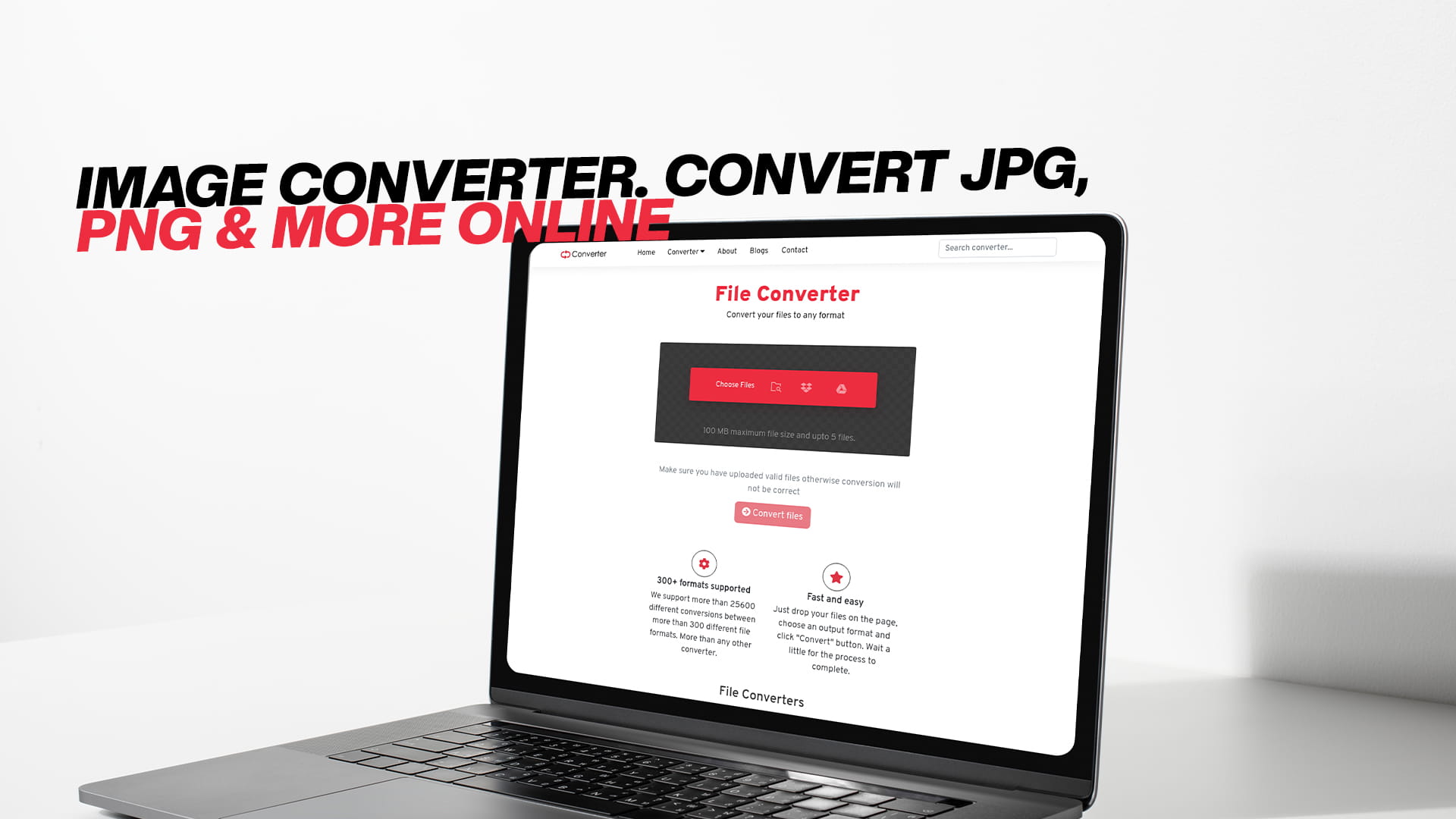
Image Converter. Convert JPG, PNG & more online
We live in a world driven by visuals. Every single day, billions of images are shared, uploaded, downloaded, edited, and stored across the internet. Whether you are a student working on a school project, a small business owner running a website, a blogger crafting your next post, a photographer sharing your work, or just someone trying to send a picture to a friend, you deal with image files all the time.
But here is a problem that almost everyone has faced at some point — the image you have is in the wrong format. Maybe you downloaded a photo, and it came as a WEBP file, but the platform you are uploading to only accepts JPG. Maybe a client sent you a PNG that is too large, and you need to convert it to a lighter format. Maybe you have a raw camera file that your editing software cannot open. These are real, everyday problems that waste time and cause frustration.
This is exactly where an image converter becomes one of the most useful tools you can have. A good online image converter lets you take any image file and turn it into a different format in seconds — without downloading any software, without spending money, and without needing technical knowledge of any kind.
Convertio is one of the best free tools available for this purpose. It supports a wide range of file types and makes the whole process smooth, simple, and fast. Whether you need to convert images, audio, video, documents, PDFs, eBooks, or compressed files, Convertio handles it all in one place. But in this article, we are going to focus specifically on image conversion — what it is, why it matters, what formats are involved, and how you can use a free online tool to do it effortlessly.
What Is an Image Converter?
An image converter is a tool — either software-based or online — that changes an image file from one format to another. For example, it can take a JPG file and turn it into a PNG, or take a BMP and turn it into a WEBP. The actual picture does not change. What changes is the format in which that picture is stored and encoded.
Every image format has its own structure. Some formats are designed to keep images looking as sharp and detailed as possible, even if that means the file size is large. Others are designed to compress the image so it takes up less space, even if a tiny amount of quality is lost. Some formats are meant for web use. Others are better for printing. Some support transparency, which means certain parts of the image can be see-through. Others do not.
When you convert an image from one format to another, you are essentially repackaging it to fit a new set of rules. The converter reads the image data in the original format and then writes it out again in the new format. This process is usually very fast, especially with a good online tool like Convertio.
Understanding why different formats exist helps you make smarter choices about which format to use and when to convert.
The Most Common Image Formats Explained
JPG (or JPEG)
JPG stands for Joint Photographic Experts Group, which is the name of the team that created this format. It is by far the most widely used image format in the world. When you take a photo on your phone, it is almost always saved as a JPG. When you download an image from most websites, it is likely a JPG.
The reason JPG is so popular is that it uses a form of compression that reduces file size significantly while keeping the image looking good to the human eye. The compression works by removing very small details that most people would not notice. This is called "lossy" compression because a little bit of image data is lost during the process. However, for most everyday uses, this loss is completely acceptable.
JPG is perfect for photographs, travel pictures, portraits, and any image that has lots of colours and gradients. It is not the best choice for images that have sharp lines, text, or flat blocks of colour, because the compression can make those look blurry or distorted.
PNG
PNG stands for Portable Network Graphics. It was developed as a better alternative to an older format called GIF. The big difference between PNG and JPG is that PNG uses "lossless" compression. This means no image data is lost during the compression process. The image looks exactly the same after compression as it did before.
PNG files are generally larger than JPG files, but they maintain perfect quality. PNG also supports transparency, which is one of its most useful features. If you have a logo or an icon and you want the background to be transparent so it looks clean on any background colour, you need to save it as a PNG.
Designers, developers, and anyone creating graphics for websites often work with PNG files for this very reason. It is also the go-to format for screenshots.
WEBP
WEBP is a newer image format developed by Google. It was designed specifically for the web, with the goal of making images load faster without sacrificing too much quality. WEBP supports both lossy and lossless compression, and it also supports transparency.
In many cases, a WEBP file can be significantly smaller than an equivalent JPG or PNG file, which means websites using WEBP load faster. Faster loading is important for both user experience and search engine rankings. Google rewards websites that load quickly, so many web developers are switching to WEBP.
However, there are still situations where you might need to convert a WEBP file. Older software may not support it. Some platforms still only accept JPG or PNG. If someone sends you a WEBP and you cannot open it, converting it to JPG or PNG solves the problem immediately.
GIF
GIF stands for Graphics Interchange Format. It has been around since the 1980s and is still widely used today, primarily for short animated images. You see GIFs all over social media, messaging apps, and websites. They loop endlessly and do not require any click to play.
GIF supports only 256 colours, which makes it less suitable for photographs but fine for simple graphics and animations. If you want to share a short looping animation, GIF is often the easiest option.
BMP
BMP stands for Bitmap. It is one of the oldest image formats and stores image data in a very simple, uncompressed way. This means BMP files tend to be very large. There is no quality loss because there is no compression at all.
BMP files are rarely used online because their size makes them impractical for web use. However, they are sometimes used in specific technical or professional settings. You might encounter a BMP when working with older software or certain design programs.
TIFF
TIFF stands for Tagged Image File Format. It is widely used in professional photography, graphic design, and printing industries. TIFF files are very high quality and support lossless compression. They can also store multiple pages in a single file, making them useful for documents.
The downside of TIFF is that the files are large. You would not use TIFF for a website image, but a professional printer or publisher might require it.
SVG
SVG stands for Scalable Vector Graphics. Unlike the other formats mentioned above, SVG is a vector format, which means the image is defined by mathematical formulas rather than pixels. This means you can make an SVG image as large or as small as you want without it ever looking blurry or pixelated.
SVG is commonly used for logos, icons, and illustrations. It is also great for the web because it can be scaled to any screen size without losing quality. However, SVG is not suitable for photographs or complex images with many colours.
ICO
ICO is the format used for icons, particularly the small images you see in browser tabs (called favicons) or on desktop shortcuts. It is a specialised format that can contain multiple sizes of the same image within a single file.
Why Do You Need to Convert Images?
Now that you understand what different image formats are, it makes more sense why you might need to convert between them. Here are some of the most common real-life reasons people use an image converter.
Compatibility Issues
Different devices, platforms, and applications support different image formats. A mobile app might only accept JPG uploads. A web browser might not display certain older formats. A client might request files in a specific format. Conversion solves all of these problems quickly.
Reducing File Size
If you need to send an image over email or upload it to a website, file size matters. Converting a large TIFF or BMP to a JPG can reduce the file size dramatically, making uploads and downloads much faster. Smaller files also save storage space on your device or server.
Adding or Removing Transparency
If you need a logo or graphic with a transparent background, you need to work with a format that supports transparency, like PNG or WEBP. If you accidentally save a transparent image as a JPG, the transparent areas will be filled in with a white background. Converting between formats lets you control this.
Improving Web Performance
Websites that load slowly rank lower on search engines and frustrate visitors. Using the right image format — particularly WEBP — can speed up your website significantly. Converting your existing JPG and PNG images to WEBP is one of the easiest ways to improve website performance.
Printing Requirements
Professional printers often require images in specific formats like TIFF or EPS. If you have a JPG and need to send it to a print shop, you may need to convert it first.
Working with Design Software
Some design tools and editing software only open certain formats. If your image is in a format that your software does not support, converting it to a compatible format is the easiest solution.
What Makes a Good Online Image Converter?
Not all image converters are created equal. When choosing an online image converter, there are several things worth looking for.
Support for Many Formats
A good converter should support a wide variety of input and output formats. The more formats it supports, the more useful it is. You never know what type of file you might encounter, so having options matters.
Ease of Use
The best tools are simple. You should not need any technical knowledge to convert an image. A clean interface where you can upload a file, choose your output format, and click convert is all you need.
Speed
No one wants to wait a long time for a simple file conversion. A good converter should process your file quickly, even for larger images.
Quality Preservation
The point of converting an image is to change its format, not to ruin its quality. A good converter preserves as much quality as possible during the conversion process.
Security and Privacy
You are uploading your personal files to an online tool. It is important that the tool handles your files securely and does not store them longer than necessary.
No Software Downloads Required
One of the biggest advantages of online converters is that you do not need to install anything. A good online tool works entirely in your browser, which means it works on any device — Windows, Mac, Linux, Android, or iPhone.
Convertio checks all of these boxes. It is free, fast, easy to use, and works directly in your browser with no software installation required.
How to Convert an Image Online Using Convertio
The process of converting an image with Convertio is designed to be as simple and quick as possible. Here is a step-by-step walkthrough of how it works.
Step One: Go to Convertio
Open your web browser and visit Convertio. You do not need to create an account to start converting files, though an account gives you access to additional features and larger file sizes.
Step Two: Upload Your Image
You will see an option to upload your file. You can either click to browse your files and select the image you want to convert, or simply drag and drop the image directly onto the page. Convertio also allows you to upload files from cloud storage services like Google Drive and Dropbox, which is very convenient if your image is already stored in the cloud.
Step Three: Choose Your Output Format
Once your file is uploaded, you need to select the format you want to convert it to. You will see a dropdown menu with a list of supported output formats. Click on the format you need — JPG, PNG, WEBP, GIF, BMP, TIFF, SVG, ICO, or any other available option — and select it.
Step Four: Click Convert
With your file uploaded and your output format selected, click the convert button. Convertio will process your file and convert it to the new format. This usually takes just a few seconds, depending on the size of the file and the format.
Step Five: Download Your Converted File
Once the conversion is complete, a download button will appear. Click it to save your newly converted image to your device. That is all there is to it.
The whole process from start to finish takes less than a minute for most images. There is no need for any special knowledge, no need to install software, and no need to spend money.
Batch Image Conversion: Converting Multiple Files at Once
One of the features that makes Convertio particularly useful is that you can convert multiple files at once. This is called batch conversion. Instead of uploading and converting one image at a time, you can select several files at once and convert them all in a single session.
This is a huge time-saver for anyone who regularly works with large numbers of images. For example, if you are a photographer who has just returned from a shoot with hundreds of raw files, you do not want to convert each one individually. With batch conversion, you can select all of them at once and process them together.
Similarly, if you are a web developer who needs to convert a whole folder of JPG images to WEBP for a website, batch conversion makes this task much faster and easier.
Image Conversion for Websites: Why It Is Important for SEO
If you run a website, image optimization is one of the most important things you can do for your search engine rankings and for the experience of your visitors. Search engines like Google pay attention to how fast your pages load, and images are often the biggest factor in page loading speed.
Here is what you need to know about using image conversion to improve your website.
Use the Right Format for Each Image
For photographs and complex images on your website, JPG or WEBP are usually the best choices. They offer good quality at small file sizes. For graphics, logos, and icons, PNG or SVG are better because they support transparency and look sharp at any size.
Switch to WEBP Where Possible
If you are using JPG or PNG images on your website and you want to make it faster, converting those images to WEBP is one of the best moves you can make. WEBP files are often 25 to 35 percent smaller than JPG files with similar quality. That means faster load times, which means better rankings and happier visitors.
Do Not Ignore Image Quality
While you want small file sizes, you also do not want images that look bad. A blurry or distorted image makes your website look unprofessional and drives visitors away. Use a converter that preserves quality while reducing file size, and always check the converted image before publishing it.
Use Descriptive File Names
Before uploading any image to your website, make sure it has a descriptive file name. Instead of "IMG_4567.jpg," use something like "red-leather-handbag-front-view.jpg." Search engines read file names, and a descriptive name helps them understand what the image is about, which can improve your rankings in image search results.
Image Conversion for Social Media
Every social media platform has its own rules about image formats and dimensions. What works on one platform might not work on another. Understanding these rules can save you a lot of time and frustration.
Facebook and Instagram generally accept JPG and PNG. Twitter also works well with these formats. LinkedIn prefers JPG or PNG as well. For profile pictures and logos, PNG is often better because it supports transparency and maintains sharpness at small sizes.
If you are creating animated content, GIF is often the simplest format to use, though some platforms now support short video files as well.
When you need to resize or convert images specifically for social media, an online image converter makes the job quick and simple. You can convert your image to the right format and then use a separate tool to resize it to the platform's recommended dimensions.
Common Mistakes to Avoid When Converting Images
Even with a simple tool like an online image converter, there are a few common mistakes that people make. Being aware of them will help you get better results.
Converting a Low-Quality Image to a High-Quality Format
If you start with a small, blurry JPG and convert it to TIFF, you will end up with a large file that is still small and blurry. Converting to a higher-quality format does not improve the original image quality. It only changes the container. Always start with the highest quality source image you have.
Losing Transparency by Converting to JPG
JPG does not support transparency. If you have a PNG with a transparent background and you convert it to JPG, the transparent areas will be replaced with a solid colour, usually white. If you need to keep transparency, use PNG or WEBP instead.
Over-Compressing Images
Some image converters allow you to set the quality level during conversion. Setting quality too low to save space can result in visible artefacts and blurriness. Find a balance between file size and quality that works for your needs.
Not Checking the Converted File
Always download and open the converted file to make sure it looks right before using it. Most conversions go smoothly, but it is always good practice to verify the result.
Convertio: More Than Just an Image Converter
While this article is focused on image conversion, it is worth mentioning that Convertio does much more than convert images. It is a comprehensive online file conversion platform that handles many different types of files.
If you need to convert audio files — for example, turning an MP3 into a WAV, or a FLAC into an AAC — Convertio handles that. If you have a video in one format and need it in another, Convertio works for that too. If you need to convert documents, such as turning a Word file into a PDF or a PDF into a Word document, Convertio is the tool for the job. It even supports eBook formats, compressed archive files, and software files.
Having all of these conversion capabilities in a single place is extremely convenient. Instead of having to find a different tool for every type of file, you can rely on one trusted platform for all your conversion needs. Everything is handled for free, directly in your browser, with no software to install and no complicated settings to deal with. All you need to do is visit Convertio and start converting.
Tips for Getting the Best Results from Image Conversion
Here are a few practical tips to help you get the best possible results every time you convert an image.
Always use the highest quality source file you have. The better your starting image, the better the final result will be after conversion.
Choose the output format based on what you need to do with the image. If it is going on a website, consider WEBP. If it needs a transparent background, use PNG. If it is a photograph being shared casually, JPG is fine.
Pay attention to file size after conversion. If a converted file is surprisingly large, try a different format or adjust quality settings if available. If it is much smaller than expected, check that quality has not been significantly reduced.
When converting for professional printing, use formats like TIFF that support high quality and large colour ranges. Check with your printer about their specific requirements before converting.
If you are converting many images at once, batch conversion through Convertio will save you a significant amount of time compared to converting them one by one.
The Future of Image Formats
Image formats continue to evolve as technology advances. WEBP was developed to replace JPG and PNG for web use, and it has gained wide adoption over the past few years. There are also newer formats like AVIF, which offers even better compression than WEBP while maintaining high quality.
As new formats emerge, the need for reliable image conversion tools only grows. Files that are created in new formats need to be converted for use in older software or on platforms that have not yet adopted the latest standards. Conversely, older file formats need to be converted to newer ones to take advantage of improvements in compression and quality.
Online tools like Convertio stay current with these changes, adding support for new formats as they become relevant. This means you can rely on Convertio not just for common conversions today, but also for newer formats in the future.
Conclusion: Make Image Conversion Simple and Free
Converting images from one format to another is something almost everyone needs to do at some point. Whether you are dealing with compatibility issues, trying to reduce file sizes, improving your website's speed, or preparing images for professional printing, having a reliable image converter makes the whole process easy.
The best part is that you do not need to spend any money or install any software. Tools like Convertio make image conversion completely free and accessible from any device with an internet connection. The process is straightforward — upload your file, choose your output format, convert, and download. It takes less than a minute.
Beyond images, remember that Convertio handles audio, video, documents, PDFs, eBooks, compressed files, and more. It truly is an all-in-one file conversion platform that covers nearly every conversion need you can think of, all in one place and completely free.
The next time you have an image in the wrong format, do not waste time searching for a solution. Just head over to Convertio and convert it in seconds. It really is that simple.