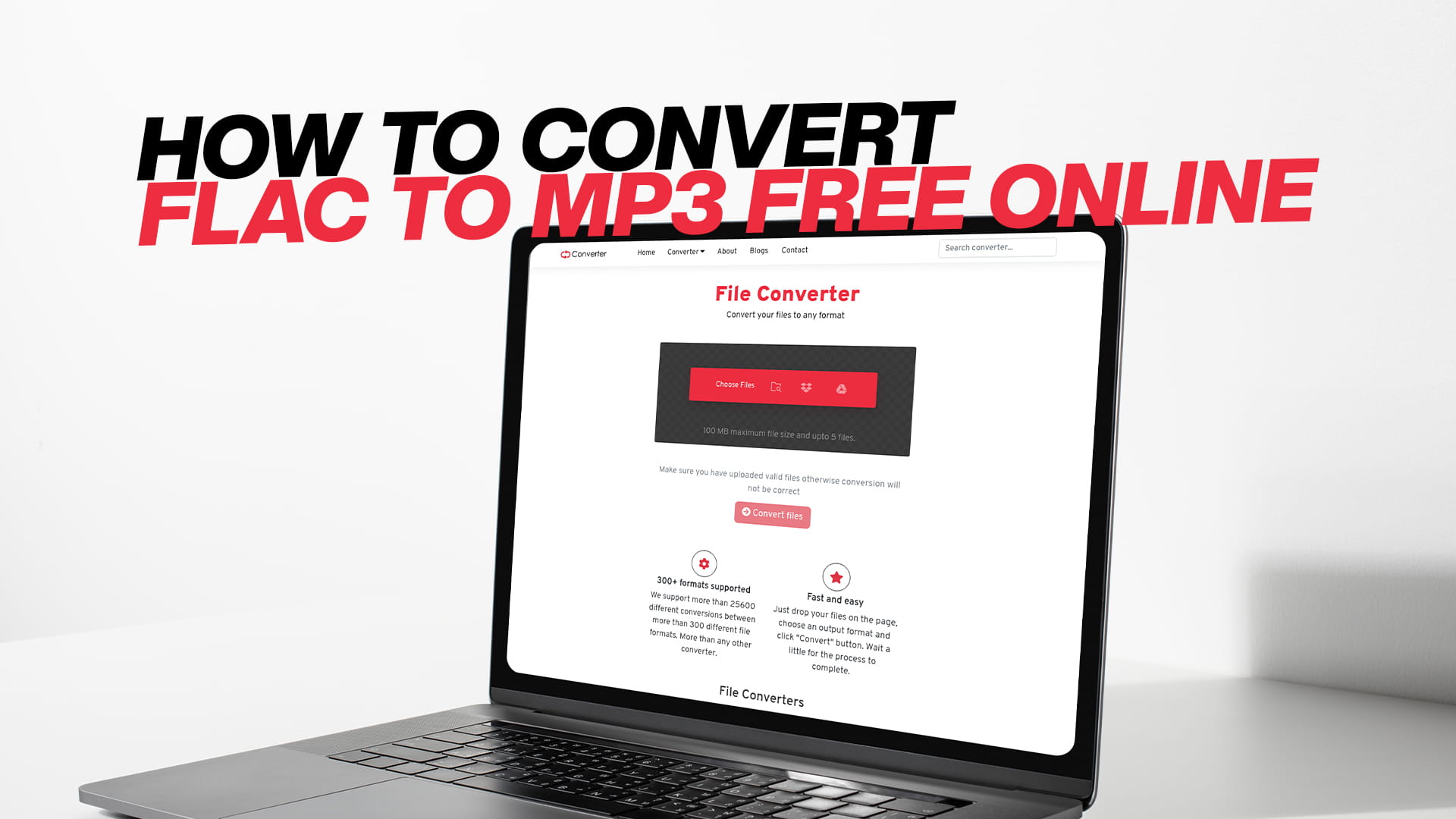
How to Convert FLAC to MP3 Free Online
Have you ever downloaded a song or a sound file and noticed it has a strange ending like .flac? Maybe you tried to play it on your phone or send it to a friend, but it just would not work. You are not alone. Many people face this problem every day. The good news is that there is a very easy fix. You can change that FLAC file into an MP3 file. And you can do it for free online without installing any software. This guide will tell you everything you need to know about how to convert FLAC to MP3 free online. We will talk about what these file types are, why you might want to change them, and the exact steps to do it using a tool called Convertio. We will also give you tips to make sure your files stay safe and sound. By the end of this guide, you will be able to handle any audio file that comes your way. Let us start from the very beginning so even if you are new to all of this, you can follow along easily.
Understanding What FLAC and MP3 Really Are
Before we jump into the conversion steps, it helps to understand what we are dealing with. Think of audio files like different types of containers for sound. Just like you can store water in a glass, a bottle, or a jug, you can store sound in different file formats. Each format has its own way of holding the sound, and each comes with its own pros and cons.
FLAC stands for Free Lossless Audio Codec. That is a big name, but the idea is simple. When a song is recorded in a studio, it has a lot of detail and richness. A FLAC file keeps all of that detail. It is like a perfect copy of the original recording. Nothing is thrown away. Because of this, FLAC files sound amazing. If you have good speakers or headphones, you can hear every little instrument and breath. The problem with FLAC files is that they are very big. A single song can take up a lot of space on your hard drive or phone. Also, many everyday devices and apps do not know how to open or play FLAC files. So while the quality is top-notch, the ease of use is not always there.
MP3 stands for MPEG Audio Layer III. This is the format that most of us know and use every day. Unlike FLAC, an MP3 file does not keep everything from the original recording. It uses something called compression. This means it looks at the sound and removes parts that the human ear is not very good at hearing. By doing this, the file size becomes much smaller. A song that is 30 megabytes as a FLAC might become just 3 or 4 megabytes as an MP3. That is a huge difference. The trade-off is that you lose a tiny bit of audio quality. But for most people listening on standard earphones, car stereos, or portable speakers, the difference is very hard to notice. MP3 files work on practically every device ever made. Your phone, your tablet, your car, your smart TV, and even old MP3 players from years ago can all play MP3 files without any problem.
So in simple terms, FLAC is about perfect quality and big size. MP3 is about good quality and small size that works everywhere. When you convert FLAC to MP3, you are making a choice to save space and make your files playable anywhere, while keeping sound that is still very pleasant to listen to.
Why You Might Need to Convert FLAC to MP3
There are many reasons why someone would want to change their audio files from FLAC to MP3. Maybe you have a music collection that you built over the years, and you want to put it on your phone. If your songs are in FLAC format, you might only be able to fit a few albums before your phone storage is full. By converting them to MP3, you can carry tens of thousands of songs in your pocket.
Another common reason is compatibility. You might have a car stereo that plays music from a USB stick. You plug the stick in, but the car does not see the FLAC files. It only understands MP3. Or maybe you use a simple MP3 player for your workouts because it is small and cheap. These devices often do not support FLAC. Even some popular apps on your phone might have trouble with FLAC files unless you download a special player. Instead of switching apps or buying new gadgets, it is much easier to just change the file format.
Some people also convert files to share them with friends or family. If you recorded a live performance or a speech in high quality and it was saved as a FLAC file, that file might be too large to send over email or a messaging app. Converting it to MP3 will shrink the file down so it sends quickly and easily. And the person receiving it can play it right away without needing any extra tools.
Video editors and content creators also find this useful. When you make a video, you often need background music or sound effects. High-quality lossless files are great for editing, but when you export the final video, you need the audio to be in a format that video platforms like YouTube or social media sites will handle smoothly. MP3 is almost always the safest choice.
So whether you are saving space, making your files work on more devices, sharing with others, or creating content, converting from FLAC to MP3 is a skill that will serve you well. And the best part is you do not need any expensive software or technical knowledge to do it.
Why Use an Online Converter Instead of Software
Now you know why you might want to convert your files. The next question is how to do it. There are two main ways. You can download and install a program on your computer, or you can use an online tool that works right in your web browser. Both can get the job done, but there are some strong reasons why online converters have become so popular.
First, online converters save you time. You do not need to search for software, check if it is safe, wait for it to download, and then go through an installation process. With an online tool, you just open your browser, go to the site, and start converting in seconds. This is especially helpful if you are using a computer that is not your own, like at a library, school, or work, where you may not be allowed to install new programs.
Second, online converters do not take up space on your hard drive. Software programs can be quite large, and over time they can clutter up your computer. If you only need to convert files once in a while, it makes little sense to install a permanent program for that one task. An online tool is there when you need it and out of your way when you do not.
Third, good online converters work on any device. Whether you are on a Windows PC, a Mac, a Chromebook, a Linux machine, or even a tablet or phone, as long as you have a web browser and an internet connection, you can use the service. There is no worry about finding the right version for your operating system.
Fourth, many online tools are completely free for basic use. They make money through ads or by offering premium features for heavy users. But for the average person who wants to convert a few files here and there, the free version is more than enough.
Of course, some people worry about safety with online tools. This is a fair concern. You are uploading your files to a server. That is why it is so important to choose a trustworthy and reputable online converter. You want one that respects your privacy, processes your files securely, and deletes them after a short time. We will talk more about that when we introduce our recommended tool.
Introducing Convertio: A Safe and Simple Solution
When you search for a way to convert FLAC to MP3 free online, you will find many options. One that stands out for its ease of use and wide range of supported formats is Convertio. This browser-based tool has been around for years and has millions of happy users. It is built to make file conversion as painless as possible.
Convertio supports an incredible variety of file types. You can use it to convert audio files like we are talking about today. But that is just the start. Convertio also works with images, videos, documents, PDFs, eBooks, software files, and even compressed archives like ZIP and RAR. This means you do not need a different tool for each type of file. You can use Convertio for almost all your conversion needs. Whether you need to turn a Word document into a PDF, shrink a large video for social media, turn a PNG image into a JPG, or extract text from a scanned PDF using OCR, Convertio has your back. This all-in-one nature makes it a handy bookmark to keep in your browser.
One of the biggest fears people have about online converters is the risk of getting a virus or malware. Nobody wants that. Convertio is completely web-based. You do not download anything to your computer except your finished converted file. The actual conversion happens on Convertio's secure servers. They also have a clear privacy policy. Files you upload are encrypted, and after the conversion is done, they are automatically deleted from the server within a short period, usually 24 hours. This keeps your personal data safe.
The user interface is clean and friendly, even for beginners. There are no confusing menus or technical settings to figure out, unless you want to dive deeper. The main page simply has a big button to upload your files. Once you pick your file, you choose what you want it to become, and you click convert. That is basically it.
Convertio offers a free tier that is perfect for everyday use. With the free version, you can convert files up to a certain size limit, typically 100 megabytes. This is more than enough for individual songs and shorter audio clips. If you have huge files or need to do many conversions at once, you might consider their paid plans, but for most people reading this guide, the free option will be perfect.
A Step-by-Step Walkthrough: How to Convert FLAC to MP3 Using Convertio
Now we come to the most important part of this guide. I am going to walk you through the exact steps you need to follow. I will write this as if I am sitting right next to you, explaining every click. Do not worry if you are not a tech expert. This process is designed to be so simple that anyone can do it. As long as you can click a mouse or tap a screen, you can convert your files.
Step 1: Open Your Web Browser
First, open the web browser you normally use. This could be Google Chrome, Mozilla Firefox, Microsoft Edge, Safari, or any other browser. Make sure you are connected to the internet.
Step 2: Go to Convertio
In the address bar at the top of your browser, type in the web address for Convertio and press enter. You will land on the main homepage. Take a moment to look at the clean design. You will see a big red or orange circle button that likely says something like "Choose Files." This is where the magic starts.
Step 3: Upload Your FLAC File
Now you need to tell Convertio which file you want to work with. Click that "Choose Files" button. A window will pop up, letting you browse through the folders on your computer. Navigate to the place where your FLAC file is saved. It might be in your Music folder, on your Desktop, or in your Downloads folder. Click on the file to select it, and then click the "Open" button in that window.
There are other ways to add files, too. Convertio supports files from your cloud storage accounts like Google Drive and Dropbox. If your audio file is stored there, you can click the small downward arrow next to the upload button and choose your cloud service. You will be asked to log in and allow Convertio to access the file. This is a great option if you are on a tablet or a computer with limited local storage. You can even provide a direct link to a file if it is hosted somewhere online.
After you select your file, you will see it appear in a list on the Convertio page. The name of the file and its current format, FLAC, will be shown clearly. The file size will also be visible.
Step 4: Choose MP3 as the Output Format
Next to your file name, you will see a drop-down menu or a button that says "to." This is where you tell Convertio what format you want to change your file into. Click on that area. A huge list of formats will appear. They are grouped by category. Since we want audio, look under the Audio section. Scroll down a little until you find MP3. Click on it.
You will notice that once you select MP3, a small gear or settings icon might appear near it. This is for advanced options. For now, you can ignore it. The default settings will give you a good balance of sound quality and file size. But if you are curious, clicking that gear lets you adjust things like the bitrate. A higher bitrate number, like 320, means better quality but a larger file. A lower bitrate, like 128, means smaller file size but slightly lower quality. If you are unsure, just leave it on the default setting. It works great for almost everyone.
Step 5: Start the Conversion
Now the exciting part. Look for a big button that says "Convert" or "Start Conversion." It is usually red and impossible to miss. Click that button.
Convertio will now get to work. It uploads your file to its server, uses its powerful software to change the file from FLAC to MP3, and then prepares the new file for you to download. A progress bar will show you how things are going. The time this takes depends on how large your original file is and how fast your internet connection is. Most individual songs will be done in under a minute. A whole album might take a few minutes. You do not have to sit and stare at the screen. You can open another tab and browse the web or check your email while you wait. When the conversion is finished, the progress bar will reach 100 percent and a new button will appear.
Step 6: Download Your New MP3 File
Once the conversion is complete, a "Download" button will show up next to your file. Click that button, and your brand-new MP3 file will download to your computer. By default, it usually goes into your Downloads folder, unless you have set your browser to ask you where to save files each time.
That is it. Six simple steps. You have just learned how to convert FLAC to MP3 free online. You can now play that MP3 file on any device, load it onto your phone, put it on a USB stick for your car, or share it with a friend. The process is so easy that after you do it once or twice, you will be able to fly through it in seconds.
Tips for Getting the Best Results with Your Audio Conversions
Converting audio files is simple, but a few small tips can help you get exactly what you need out of the process. Let us go over some of these so you feel like a pro.
Think About Bitrate
Bitrate is the amount of data used to encode one second of audio. It is measured in kilobits per second, or kbps. A higher bitrate means more data and, generally, better sound. For FLAC files, bitrate is not a fixed thing because it is lossless, but FLAC files often have bitrates over 1000 kbps. For MP3, common bitrates are 128 kbps, 192 kbps, 256 kbps, and 320 kbps. 320 kbps is the highest and will sound closest to the original FLAC. 128 kbps is the smallest and is fine for spoken word or casual listening in noisy places. If you are converting music that you really care about and you have decent headphones, choose 256 or 320 kbps. Convertio lets you choose this in the settings gear we talked about. The free version may have some limits, but it usually offers good standard quality.
Check Your Original File
A conversion can only be as good as the original file you start with. If your FLAC file is a poor recording taken from a bad source, converting it to MP3 will not magically make it sound better. Make sure your FLAC file plays correctly before you convert it. Listen to it using a media player like VLC, which can handle FLAC files. Also, check that the file is not corrupted or cut off halfway through the song.
Keep Your Files Organized
After you convert a file, your computer will now have two versions: the original FLAC and the new MP3. To avoid confusion, you might want to keep them in separate folders. For example, have a folder called "Music – FLAC" for your high-quality archive and another called "Music – MP3" for your everyday portable files. This way, you do not accidentally delete your perfect originals after you have made the smaller versions. Many people like to keep the FLAC files stored on an external hard drive as a backup master, while they use the MP3s on their everyday devices.
Batch Conversions Save Time
What if you have an entire album or dozens of FLAC files you want to convert? Doing them one by one would be very slow. Good online converters like Convertio allow you to upload multiple files at once. You can select a whole group of files from your computer and add them all in one go. Then you set the output format to MP3 for all of them, and click convert. The tool will process them one after another. When it is done, you can often download them all together in a single ZIP file, saving you even more clicks. This batch feature is a huge time saver.
Common Problems and How to Fix Them
Even with a tool as simple as Convertio, things can sometimes go a little wrong. Do not panic. Most issues have very easy fixes. Here are a few common snags and their solutions.
Problem: My File Won't Upload
If you click upload and nothing happens, first check your internet connection. Try loading another website to see if it works. Next, check the size of your FLAC file. If it is larger than the free tier limit, you might need to split the file or sign up for a premium account. Also, make sure the file really is a FLAC file and not mislabeled. The file extension should be .flac at the end of the name.
Problem: The Conversion Takes Too Long
Large files take longer. An entire album in FLAC format can be quite large. If the server is busy with many users, it might also take a few extra seconds. Be patient. If it seems stuck for a very long time with no progress, you can try refreshing the page and uploading the file again. Sometimes a simple restart fixes a glitch.
Problem: The Output MP3 Sounds Bad
If the converted file sounds muffled, hissy, or weird, the first thing to check is the bitrate setting. If you accidentally selected a very low bitrate, like 64 kbps, it will sound terrible. Go back and convert the original FLAC again, but this time choose a higher bitrate like 256 kbps. If the original FLAC file itself sounds bad, then the problem is with the source, not the conversion. Play the FLAC in VLC media player to verify.
Problem: I Can't Find the Downloaded File
Sometimes you click download and then the file seems to vanish. Most browsers save files to a Downloads folder by default. On Windows, you can find this by opening File Explorer and clicking on Downloads on the left side. On a Mac, open Finder and look for Downloads in the left sidebar. You can also press Control plus J in many browsers to open your downloads list and see the file there, ready to be clicked.
Other Ways Convertio Can Help You
We have focused entirely on audio today, but I mentioned earlier that Convertio is so much more than that. Since you are now comfortable using the website, let me briefly mention other tasks you might find it useful for in the future. This makes you see the value of having such a versatile tool in your bookmarks.
For images, you can change a PNG to a JPG, convert a WebP image to something you can open, or turn a photo into a PDF. For documents, you can convert a Word file to PDF or the other way around. You can also handle spreadsheet and presentation file conversions. For videos, you can convert MOV to MP4, AVI to MP4, or even extract the audio from a video file and save it as an MP3. This is very handy if you love the music in a video and want just the sound. For eBooks, you can convert between formats like EPUB and MOBI for different e-readers. For compressed files, you can convert a RAR archive to a ZIP file so more people can open it. There are even categories for software file formats and font files. The scope of what you can do is truly impressive. And it all works with the same simple, drag, drop, and convert process you just learned.
Keeping Your Online Conversions Safe and Private
Using online tools does come with the responsibility of protecting your own data. Convertio has built-in measures, but there are also things you should do as a user. Never upload files that contain extremely sensitive or private information, like bank details, passwords, or personal ID scans, to any online converter just to be extra safe. For audio files like music and recordings, the risk is generally very low. Still, it is wise to clear your browser cookies and cache from time to time, especially if you are on a shared computer. Always make sure you are on the real Convertio website and not a copycat site. Look for the lock icon in your browser address bar, which means the connection is secure. Convertio has a good reputation, and sticking with well-known tools helps you avoid the shady parts of the internet.
The Beauty of a Universal Music Library
After you convert your FLAC files to MP3, a whole new world of convenience opens up. You can put your entire music collection on a tiny microSD card and play it in your phone. You can make the perfect road trip USB stick with hundreds of songs. You can easily import audio into video editing projects. You can share songs with your parents or grandparents who still use old MP3 players. The goal is to make your audio work for you, not the other way around. By choosing to convert to MP3, you are not destroying your high-quality originals. You are simply making a practical copy for daily use. You get the best of both worlds: an archived lossless library for serious listening and archival, and a lightweight, portable library for everywhere else.
Many people feel intimidated by technology. Terms like "lossless codec" and "bitrate" can sound scary. But as you have seen, it all boils down to a few simple concepts and even simpler clicks. The tools today are built to help regular people, not just computer experts. Do not let the alphabet soup of file extensions stop you from enjoying your music or completing your project.
A Final Word on Your Conversion Journey
You came to this guide looking for a way to convert FLAC to MP3 free online. I hope that now you see not only how to do it, but also why it works and how to do it well. The key points are simple. FLAC files are huge and full of quality. MP3 files are small and playable everywhere. Convertio is a free, fast, and safe online tool that can change your files in a few clicks. The process involves uploading, choosing MP3, clicking convert, and downloading. You can do this from almost any device with an internet browser. The results will let you carry your music in your pocket, share it easily, and use it for all your projects without worrying about compatibility.
The digital world is full of content that sometimes feels locked behind confusing formats. Now you hold the key to one of the most common and useful conversions out there. With the knowledge from this guide, you can not only convert your own files but also help friends and family who run into the same problem. The next time someone says, "I can't open this audio file," you can smile and say, "Give me a minute, I can fix that for you."
Remember that the internet is always changing. New tools appear, and old ones update their features. But the basic skill of converting formats is timeless. It keeps your digital life flexible and makes sure you are never stuck with a file you cannot use. So go ahead. Find that FLAC album on your computer, head to Convertio, and give it new life as an MP3. It is fast, free, and feels great to be in control of your media.