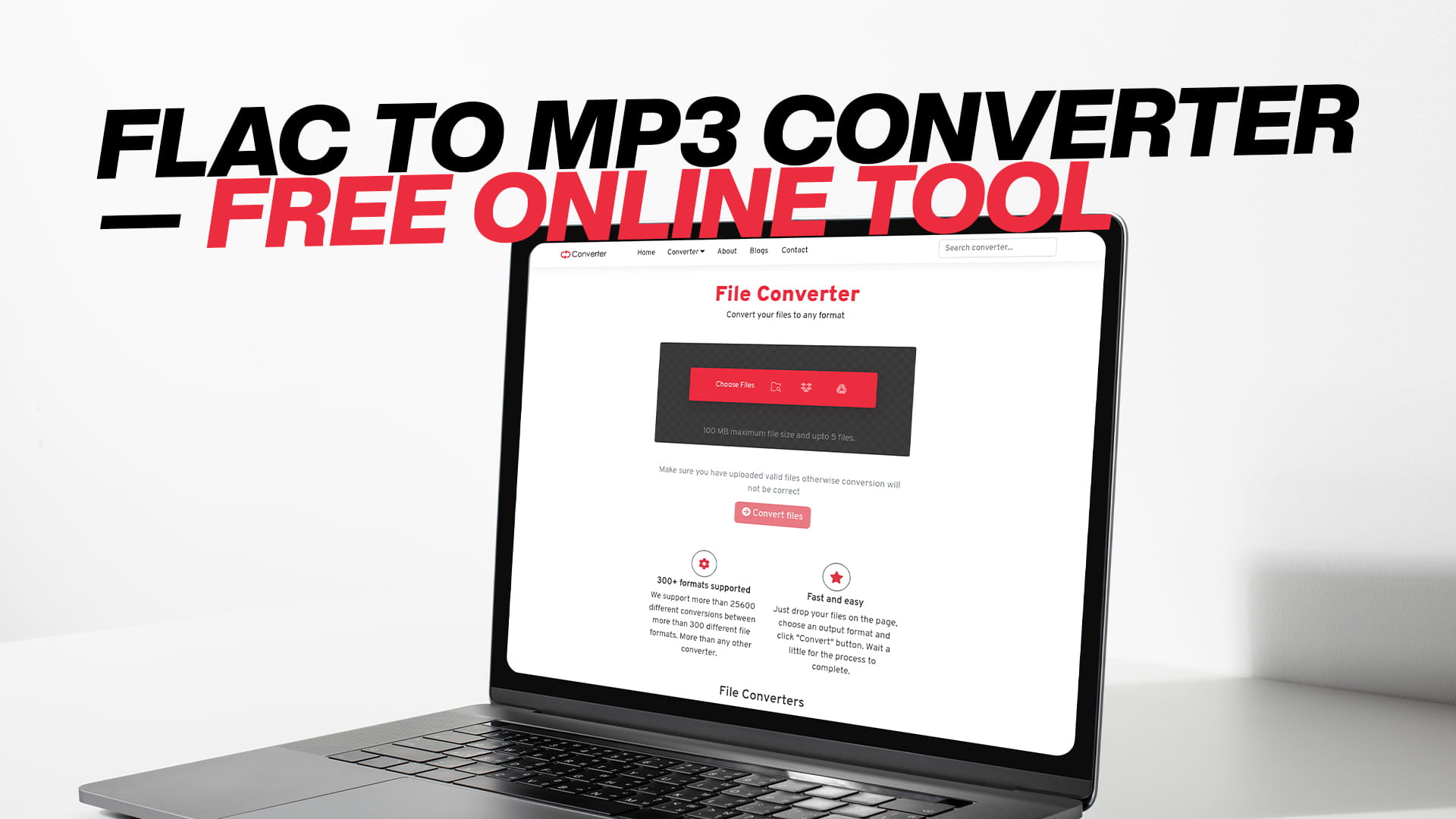
FLAC to MP3 Converter — Free Online Tool
If you have ever tried to play a FLAC file on your phone or send it to a friend, you already know the problem. The file does not play. The app does not support it. Or the file is just too large to share easily. This is one of those small tech problems that wastes more of your time than it should.
The good news is that converting FLAC to MP3 does not need to be complicated. You do not need to install software. You do not need to learn anything technical. Convertio is a free online tool that handles the conversion for you in seconds, right from your browser.
This guide covers everything you need to know about FLAC files, MP3 files, why you might want to convert between them, and exactly how to do it without spending a single dollar.
What Is a FLAC File?
FLAC stands for Free Lossless Audio Codec. That name tells you almost everything. It is a format designed to store audio without losing any of the original sound data. When audio is recorded or produced at a studio level, every detail of the sound is preserved in the FLAC file.
Because it holds all that data, a FLAC file is large. A single song in FLAC format can take up anywhere from 20 to 40 MB, sometimes more. An entire album could easily take up 300 to 500 MB. That is a lot of space, especially on a phone where storage fills up fast.
FLAC was developed specifically for people who care a lot about audio quality. Audiophiles, musicians, audio engineers, and recording professionals tend to prefer FLAC because it sounds exactly like the original recording. Nothing is cut out, compressed, or reduced. If the original session had a quiet breath between notes, FLAC keeps it.
The format is also open source, which means it is free to use and not owned by any single company. That is part of why it became popular in music communities that focus on high-resolution audio.
What Is an MP3 File?
MP3 is probably the most well-known audio format in the world. It has been around since the early 1990s and became the standard way to share music online and store it on personal devices.
The way MP3 works is different from FLAC. Instead of keeping all the audio data, an MP3 file uses a process called lossy compression. It removes parts of the audio that most people cannot hear easily, such as very high frequencies, very quiet sounds that sit behind louder ones, or brief sounds that happen right before a loud noise covers them.
The result is a much smaller file. A typical MP3 of the same song that would be 30 MB as a FLAC might be around 4 to 8 MB. That is a big difference, and it is why MP3 became so popular when hard drive space and internet speeds were limited.
For most everyday listening, the difference in quality between a FLAC and a good-quality MP3 is hard to notice. If you are listening through earbuds on a busy street or through laptop speakers, you almost certainly will not hear a difference. If you are sitting in a quiet room with high-end headphones and you are paying close attention, you might notice.
MP3 files work on every device, every platform, and every music player. That universal compatibility is another reason they have stayed popular for decades.
Why Convert FLAC to MP3?
There are several practical reasons to convert a FLAC file to MP3, and none of them are complicated.
The most common reason is compatibility. Many smartphones, especially older ones, do not support FLAC playback by default. Most music streaming apps and basic media players also do not handle FLAC well. MP3, on the other hand, works everywhere. Android, iPhone, Windows, Mac, Linux, car audio systems, old MP3 players — all of them handle MP3 without any issues.
Storage space is another big reason. If you have a large collection of FLAC files, converting them to MP3 can free up a significant amount of storage. Going from 400 MB per album to under 100 MB adds up quickly across dozens of albums.
Sharing is easier with MP3. If you want to send a song to a friend over WhatsApp, email, or a messaging app, a 5 MB MP3 file is far more practical than a 35 MB FLAC file. Upload limits, slow connections, and storage limits on receivers' devices all make smaller files the better choice for casual sharing.
Email attachments have size limits. Most email services cap attachments at 25 MB. A single FLAC track might already be too large to send. The MP3 version will almost always fit.
Social media platforms and video tools also tend to work better with MP3. If you are adding a song as background music to a video, most video editors accept MP3 without any issues.
Why Use an Online Converter Instead of Software?
Installing software just to convert a file seems like a lot of effort for a simple task. You have to find a trustworthy download, install it, figure out how to use it, and then deal with it taking up space on your device afterwards.
Online converters like Convertio skip all of that. You open a browser tab, upload your file, click convert, and download the result. The process takes maybe two minutes for a typical song.
There is also no risk of accidentally downloading something you do not want. Shady software download sites are full of installers that come bundled with extra programs, toolbars, or worse. A browser-based tool does not install anything.
It also does not matter what operating system you use. Whether you are on Windows, Mac, Linux, a Chromebook, or even a tablet, an online converter works the same way. The browser handles it.
For people who only need to convert files occasionally, an online tool simply makes more sense than dedicated software
.
How to Convert FLAC to MP3 Using Convertio
The process is simple. You do not need an account. You do not need to pay anything.
Go to Convertio in your browser. The homepage gives you a clear upload area right away. Click to upload your FLAC file, or drag the file directly into the upload area if you prefer. You can also add files from Google Drive or Dropbox if your audio is stored in the cloud.
Once the file is uploaded, you will see an option to choose the output format. Select MP3 from the audio format options.
Before you click convert, you can choose to adjust some settings if you want. You can set the bitrate, which controls how much audio data is kept in the MP3 file. A higher bitrate means better quality but a larger file size. 192 kbps is a solid choice for general listening. 320 kbps is the highest quality option and produces an MP3 that sounds very close to the original. 128 kbps works if file size is more important than quality.
If you do not want to deal with settings, just leave the defaults as they are. Convertio picks reasonable quality settings automatically.
Click convert. The tool processes your file and shows you a download link when it is finished. Click download and the MP3 file saves to your device.
The whole process for a standard song usually takes under a minute. Larger files or slower connections might take a bit longer, but it is still fast.
Understanding Bitrate and Audio Quality
Bitrate is one of those terms that sounds technical but is actually easy to understand once you see it explained simply.
Bitrate measures how many bits of audio data are stored for each second of sound. A higher bitrate means more data per second, which means more audio detail is preserved.
For MP3 files, bitrate is measured in kilobits per second, written as kbps. Common options are 128 kbps, 192 kbps, 256 kbps, and 320 kbps.
At 128 kbps, the file is small and the quality is acceptable for background listening. You might notice some muddiness or loss of detail in complex sounds if you are paying close attention.
At 192 kbps, the quality is noticeably better and still produces a reasonably sized file. This is a good default for most people.
At 320 kbps, the quality is about as good as an MP3 can get. Most listeners cannot tell the difference between a 320 kbps MP3 and the original FLAC in blind listening tests.
When converting from FLAC, the source audio is high quality, so you are not adding quality — you are choosing how much to reduce it. Picking a higher bitrate reduces the quality loss from the conversion.
What Happens to Audio Quality When You Convert?
This is a fair question and the honest answer is that some quality is lost, but how much depends on the bitrate you choose and how carefully you are listening.
FLAC is lossless. It holds all the original data. When you convert to MP3, the codec analyzes the audio and removes information that falls outside of what most human ears can detect. This removal cannot be undone. Once the file is an MP3, that data is gone.
At high bitrates like 320 kbps, the removed data is minimal. Most people in most listening situations would genuinely not notice. At lower bitrates, more data is removed and the difference becomes more apparent, especially in music with a lot of detail — orchestral pieces, acoustic recordings, or tracks with a lot going on at once.
For casual listening, podcasts, background music, or anything going through average speakers or earbuds, a 192 kbps MP3 made from a FLAC original sounds very good. Good enough that the difference in file size is almost always worth the trade.
If you need the absolute best quality for professional work, keep the FLAC original and only use the MP3 for distribution or sharing.
Can You Convert Multiple FLAC Files at Once?
Yes. Convertio supports batch conversion, which means you can upload several FLAC files at once and convert them all together. This saves time if you have an album or a large collection you want to convert.
The process is the same as converting a single file. Upload all the files you need, set the output format to MP3 for each one, choose your quality settings, and convert. The tool handles each file and gives you download links for all of them when the conversion is done.
If you have a full album with many tracks, batch conversion makes the job much faster than converting one file at a time.
Is Convertio Safe to Use?
Security is a reasonable thing to think about when using an online tool. Nobody wants to upload personal files to a site they cannot trust.
Convertio handles files with care. Uploaded files are automatically deleted from their servers after a short period — typically within a few hours. This means your audio files are not stored permanently or shared with anyone.
The site uses encrypted connections, so your files transfer securely. It does not require you to create an account to use the free service, which also means you are not handing over personal information just to convert a file.
For the majority of users converting music files, the process is safe and private. If you are handling very sensitive audio — recordings of private conversations, unpublished professional work — you might still want to use a local tool for extra peace of mind. But for regular music conversion, Convertio is a trusted option used by people all over the world every day.
Other File Formats Convertio Supports
FLAC and MP3 are just two of the many formats Convertio handles. The platform is a general-purpose file conversion tool that works across many different categories.
For audio, it supports formats like WAV, AAC, OGG, WMA, AIFF, and more. So if you ever need to convert MP3 to WAV, or AAC to FLAC, or any other audio format combination, the same tool handles it.
Beyond audio, Convertio also works with images, videos, documents, PDFs, eBooks, software files, and compressed archives. If you need to convert a PNG to JPG, a DOCX to PDF, an MP4 to AVI, or an EPUB to MOBI, Convertio does all of that. It is a one-stop tool for file conversions of almost any kind.
This is useful because it means you do not need a different tool for every type of conversion. One site, one straightforward interface, and a wide range of supported formats.
FLAC vs. MP3: Which Should You Use for Storage?
If you are building a music library and you care about long-term quality, keeping FLAC originals is a smart approach. Storage is cheap, and having lossless originals means you can always convert to any format later without losing any more quality.
If you are primarily listening on your phone, streaming through a car stereo, or sharing music with people, MP3 is the better practical choice. The files are smaller, the compatibility is total, and the quality at 192 kbps or 320 kbps is more than good enough for how most people listen.
A common approach is to archive music in FLAC and keep MP3 copies for everyday use. You get the best of both — perfect originals stored safely, and lightweight files ready for any device.
Common Situations Where You Will Want This Converter
Someone buys a high-resolution audio album and downloads it in FLAC format. They want to listen on their iPhone, which does not support FLAC natively. Converting to MP3 solves the problem in a couple of minutes.
A musician records a demo in high quality and exports it as FLAC. They want to send it to a producer over email but the file is too large. Converting to a 256 kbps MP3 brings the size down to something that will go through without problems.
Someone downloads their vinyl records as FLAC using a turntable-to-PC setup. They want to share the recordings with family members who just want to listen on their phones. MP3 versions are far more convenient for that purpose.
A content creator downloads royalty-free music in FLAC format. Their video editing software asks for MP3. A quick conversion and the file is ready to use.
These are all ordinary situations where converting FLAC to MP3 is just the practical solution.
Tips for Getting the Best Results
Start with the highest quality FLAC source you can get. The output MP3 can only be as good as what goes in. A poor quality recording will still sound poor after conversion, regardless of what bitrate you choose.
Choose your bitrate based on how you plan to use the file. If this is music you will listen to carefully on good headphones, go with 320 kbps. If it is background music for a video or something you will listen to in the car, 192 kbps is fine.
Keep your FLAC originals somewhere safe. If you later decide you want a different bitrate or a different format, you can always convert from the original again. Once you only have the MP3, you cannot get the FLAC quality back.
Do not re-convert an MP3 back to FLAC. This does not restore quality. You would just have a large file that sounds the same as the MP3. Always convert from the best source available.
Why Free Matters
Paid audio software has its place, but for a task as simple as converting a file, paying for software or a subscription does not make sense for most people. The conversion itself is not complicated enough to justify a cost.
Convertio offers free conversion without asking you to create an account or enter payment details. You can convert files, get the result, and move on with your day. For occasional use, the free tier is entirely sufficient.
For people who convert large numbers of files regularly, paid plans with higher limits are available. But for the average person who needs to convert a few songs, the free option is all you need.
Final Thoughts
FLAC is an excellent format. It keeps audio exactly as it was recorded, with no loss of quality. For serious listening and archiving, it is hard to beat.
But MP3 is still the format that works everywhere. It plays on every device, takes up a fraction of the space, and sounds very good at high bitrates. For sharing, storing on phones, and everyday listening, it is the practical choice.
When you need to go from one to the other, Convertio makes it as simple as possible. Upload the file, pick MP3, choose a bitrate, and download the result. No software to install, no account to create, and no money to spend.
Beyond audio, Convertio handles images, videos, documents, PDFs, eBooks, software files, and compressed archives — all from the same place. If you find yourself needing to convert other types of files, it is worth knowing the tool does a lot more than just audio.
For FLAC to MP3 conversion, it does the job well and without any fuss. That is really all you need.