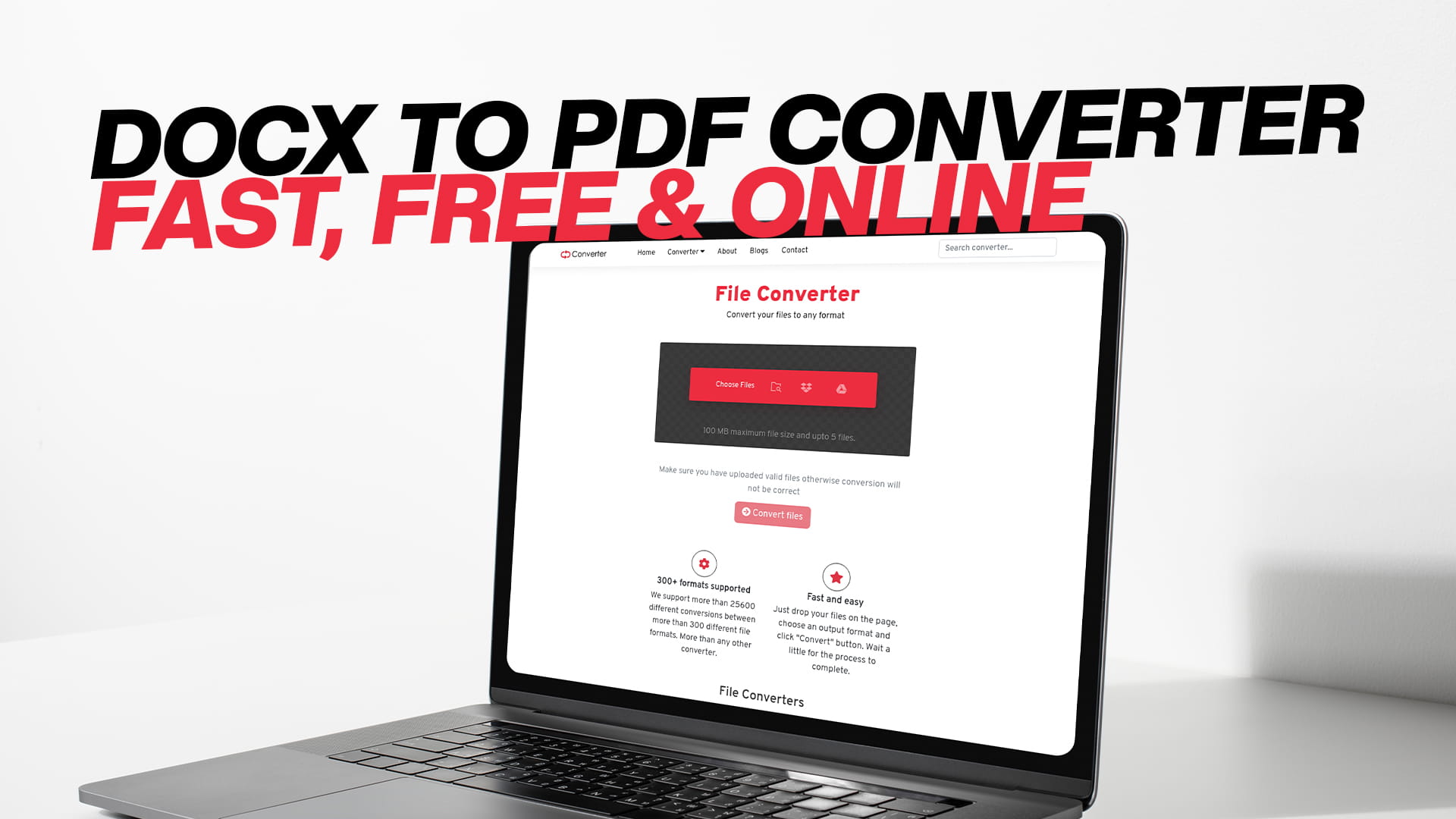
DOCX to PDF Converter — Fast, Free & Online
You finish writing a document. It looks exactly the way you want it. The fonts are right, the spacing is clean, the headings sit in the right places. Then you send it, and the person on the other end opens it to find something that looks completely different. The layout shifted. The font changed. A heading that was on one page is now at the bottom of the previous one.
This is one of the most frustrating things about sharing Word documents. DOCX files are built to be edited, which means they respond to the software and settings on whatever device opens them. Different versions of Word, different operating systems, different default printers — all of these can change how a DOCX file looks when someone else opens it. You have no control over what they see.
PDF solves this problem entirely. A PDF looks the same on every device, in every application, on every operating system. What you see when you convert is exactly what the recipient sees when they open it. That is the core reason why converting DOCX to PDF has become one of the most common document tasks in personal and professional life.
Convertio makes this conversion free, fast, and available online without any software installation. It is a file conversion platform that handles documents, images, audio, video, PDFs, eBooks, compressed files, software files, and more. Visit Convertio and you can convert your DOCX file to PDF in under two minutes at no cost.
This guide covers everything you need to know about the DOCX to PDF conversion — why it matters, how the formats differ, when you need it, and how to do it well.
What Is a DOCX File
A DOCX file is the standard document format used by Microsoft Word since Office 2007. When you write a letter, draft a report, build a resume, or put together any kind of written document in modern Word, the file you save is a DOCX file by default.
Inside a DOCX file, the content is stored using a format called Open XML. The file is essentially a compressed package containing XML files that hold your text, styles, layout instructions, images, and other elements. This structure makes DOCX files relatively lightweight, easy to work with across software, and readable by many different word processors including Google Docs, LibreOffice, and Apple Pages.
DOCX is designed for editing. The format is flexible and responsive, which is exactly what you need when you are working on a document. But that flexibility is also its weakness when it comes to sharing finished work. The way a DOCX file renders on screen depends on the software rendering it, and that software varies from person to person and machine to machine.
What Is a PDF File
PDF stands for Portable Document Format. Adobe created it in the early 1990s with a specific goal: to present documents in a way that is independent of the software, hardware, or operating system used to view them. That goal has been achieved so thoroughly that PDF has become one of the most universal file formats in existence.
When you save a document as a PDF, the visual output is locked in. The font, the layout, the spacing, the colors, the page breaks — everything is fixed. The PDF carries all the information needed to reproduce that exact visual appearance on any device. Open it on a Windows computer, a Mac, an iPhone, an Android tablet, or a Linux machine, and it will look the same every time.
PDF files can also be made searchable, can contain clickable links, can be secured with passwords, and can be compressed to reduce file size without losing visual quality. These properties make PDF the preferred format for sharing finished documents, submitting official paperwork, sending contracts, distributing reports, publishing materials, and countless other scenarios where the final presentation matters.
Why Converting DOCX to PDF Is One of the Most Common Document Tasks
The number of situations where converting a Word document to PDF is the right move is remarkably broad. It covers everyday personal tasks, professional workflows, formal submissions, and everything in between.
Resumes are one of the clearest examples. A resume written in Word looks polished on the screen where it was created. But send that DOCX file to a recruiter running a different version of Word on a different operating system, and the layout might arrive looking nothing like what you intended. Bullet points shift, fonts fall back to defaults, and spacing changes. Converting the resume to PDF before sending it means the recruiter sees exactly what you designed, nothing more and nothing less.
Contracts and agreements need to look identical for everyone who signs or reviews them. If a contract is shared as a DOCX file and different parties open it with different software, small formatting differences can create confusion about the actual content. PDF eliminates that risk. Everyone sees the same document.
Academic submissions often require a PDF. Universities, journals, and research platforms specify PDF because it guarantees consistent formatting across different reviewers and archiving systems. A thesis submitted as a DOCX might look different when the examiner opens it. As a PDF, it looks exactly as the author intended.
Business reports and proposals sent to clients should always arrive as PDFs. When a company sends a proposal that took hours to design and format, the last thing they want is for the client to open it and see a jumbled version because of a font difference. PDF makes sure the work looks professional when it lands.
Government and legal forms almost universally require a PDF for submissions. These systems are built around the assumption that documents arrive in a fixed, uneditable format. Submitting a DOCX where a PDF is required either causes an error or gets the submission rejected.
Invoices sent to customers work best as PDFs. The recipient does not need to edit the invoice, and the sender does not want the recipient to be able to edit it. PDF protects the content while ensuring a clean, consistent presentation.
Even something as simple as a flyer or an event program benefits from being shared as a PDF. The designed layout stays intact regardless of what the recipient uses to open it.
The Core Difference Between DOCX and PDF
Understanding why these two formats serve different purposes helps explain why converting between them is such a common need.
DOCX is a living format. It is built for creation and revision. The document reflows and adjusts based on the software displaying it. Change the page size, change the default font, change the printer settings, and the document responds. This is useful when you are still working on something, but it is a liability when you need to share a finished version.
PDF is a fixed format. It captures the document as a precise visual snapshot. The layout does not reflow. The fonts do not change. Page breaks stay where they are. The document is protected from accidental changes in most standard PDF viewers. This is exactly what you want for a finished, final document that you are sharing, submitting, or archiving.
Editability works in opposite directions for the two formats. DOCX is easy to edit in any word processor. PDF is not directly editable without dedicated PDF editing software. This is a feature, not a flaw, when the goal is to preserve the document as-is.
File behavior also differs. DOCX files can look different depending on the viewer. PDF files look the same everywhere. That single difference explains why so many professional, academic, and official workflows end with a conversion from DOCX to PDF.
How to Convert DOCX to PDF Free with Convertio
The process is fast, clean, and requires nothing more than a web browser and an internet connection. There is no software to install, no account to create, and no payment required for standard conversions.
Open your browser and navigate to Convertio. The interface is clear and direct. You will see the conversion tool front and center on the page, ready to use.
Upload your DOCX file by clicking the upload button and selecting the file from your computer. If you prefer, you can drag and drop the file directly onto the upload area. Convertio also allows you to upload files from cloud storage services, which is convenient if your document is stored in Google Drive or Dropbox rather than on your local device. If you have several DOCX files to convert, you can upload multiple files at once and convert them all in a single session.
After uploading, select PDF as your output format. Convertio supports many output formats for documents, so confirm that PDF is selected before you proceed.
Click the convert button. Convertio sends the file to its servers and performs the conversion. The time this takes depends on the size and complexity of the document. A standard letter or report typically converts in a matter of seconds. A longer document with many images or detailed formatting takes a little longer, but the process is still quick.
When conversion is complete, a download button appears. Click it to save the PDF file to your device. At this point, the conversion is done. The original DOCX file is unchanged. You now have a PDF version ready to share, send, or submit.
The whole process is designed to be fast. Most conversions from upload to download are finished well under two minutes. For a task that used to require specific software or a subscription to an office suite, that kind of speed and simplicity is a genuine improvement.
What Makes a Good DOCX to PDF Conversion
Not all converters handle the transition from DOCX to PDF equally well. The quality of the output matters, especially for professional or official documents. Here is what to look for in a good conversion result.
Layout preservation is the most important quality. The converted PDF should look exactly like the DOCX file when it was created. Page breaks should fall in the same places. Margins should be identical. Text should not reflow to different lines or pages.
Font accuracy matters. Fonts used in the DOCX should appear correctly in the PDF. If a font used in the original document is not available on the conversion server, the converter may substitute a different font. Good converters handle font embedding properly, locking the correct fonts into the PDF so they render accurately on any device.
Image quality should be maintained. If the DOCX contains photographs, charts, diagrams, or other images, these should appear in the PDF at full quality without blurring or compression artifacts that were not in the original.
Hyperlinks should remain functional if they were present in the DOCX. Clickable links in a document often need to remain clickable in the PDF, especially for digital documents sent by email or posted online.
Tables should retain their structure. A well-formatted table in the DOCX should look the same in the PDF, with correct alignment, borders, and spacing.
Convertio produces high-quality conversions that preserve these elements reliably for standard documents. After converting, take a minute to open the PDF and check that these aspects look right before you use the file.
Reviewing Your Converted PDF
Running a quick review after conversion is a good habit, particularly for important documents. It takes only a few minutes and gives you confidence before you send or submit.
Open the PDF in a PDF viewer — Adobe Acrobat Reader, your browser's built-in PDF viewer, or any other standard option. Scroll through the entire document rather than just checking the first page.
Compare the general layout to what you see in the DOCX. The two should look essentially identical. Page breaks, paragraph spacing, heading sizes, and overall structure should all match.
Check any tables carefully. Table formatting is one of the areas where small differences can occasionally appear during conversion. Verify that all cells are correctly populated and that column widths and borders look right.
Review images and any embedded charts. These should appear at the correct size and in the correct positions. If an image appears blurry in the PDF, it may have been low resolution in the original DOCX — that is a source file issue rather than a conversion issue.
Scroll through page by page and confirm that headers and footers appear consistently throughout. Page numbers, if present, should be correct and consistently positioned.
If anything looks off, the most common fix is to make a small adjustment in the original DOCX — simplifying a complex style or adjusting a table — and convert again. In most cases, the first conversion is clean, and the review simply confirms it.
Converting DOCX to PDF on Any Device
One of the real strengths of an online conversion tool is that it removes the restriction of being tied to one specific device or operating system.
On a Windows computer, Convertio runs in any browser without needing any additional software. Windows users have traditionally had the option to save directly to PDF from within Word, but this requires having Word installed. Convertio works whether you have Word or not.
On a Mac, the same is true. macOS includes a built-in PDF export option in many applications, but not everyone is working directly in Word on a Mac. Convertio serves as a reliable alternative that works regardless of what software you have installed.
On a Chromebook, where Microsoft Word is not natively installed, Convertio is particularly useful. Chromebook users often work with Google Docs, and exporting a DOCX to PDF through an online converter is a natural fit for that workflow.
On a smartphone or tablet, Convertio works through the mobile browser. If you need to convert a document while away from your desk — perhaps you are reviewing a file before a meeting and realize it needs to go out as a PDF — you can handle the conversion from your phone. Upload from your device storage, convert, and download the PDF, all from a mobile browser.
This cross-device availability means Convertio is available wherever you have internet access, which for most people is effectively everywhere.
DOCX to PDF in Professional Settings
The conversion from DOCX to PDF comes up in almost every professional field, and in most of them, it has become a standard part of the workflow rather than an occasional task.
In legal work, documents submitted to courts, sent to clients, or shared between firms are almost always PDFs. The fixed format is important in legal contexts where the exact presentation of a document can matter. Lawyers and legal assistants who draft work in Word convert to PDF as the final step before any formal distribution.
In finance and accounting, invoices, financial statements, audit reports, and proposals are sent as PDFs. The format prevents recipients from easily modifying figures, which is an important consideration for official financial documents. PDF also maintains the precise layout of financial tables and figures regardless of how the recipient opens the file.
In healthcare, patient-facing documents, reports, and administrative forms are distributed as PDFs. Medical documents often need to be printed by recipients, and PDF ensures the printed version looks exactly as intended without layout shifts that could affect readability or even safety.
In education, syllabi, course materials, assignment sheets, and research papers are shared as PDFs. Instructors who want students to see consistent formatting share PDFs rather than editable DOCX files. Students submitting final work for publication or formal assessment are almost always required to submit a PDF.
In marketing and communications, brochures, presentations converted to document format, product sheets, and press kits are distributed as PDFs. The format preserves design quality and ensures brand materials look professional when they reach clients, media contacts, or the public.
In HR and recruitment, job postings, offer letters, employee handbooks, and official communications are shared as PDFs to maintain consistent formatting and prevent easy modification of official documents.
Across all of these fields, the DOCX to PDF conversion is not an occasional technical task. It is a routine step that happens dozens or hundreds of times a day in active professional environments.
Why Convertio Works Well for This Conversion
There are a handful of reasons why Convertio handles the DOCX to PDF conversion particularly well for everyday users.
The quality of the conversion output is consistently reliable for standard documents. Text, images, fonts, and layout all carry over cleanly in the vast majority of cases. This reliability is important because it means you can use the tool with confidence rather than checking every conversion obsessively.
The speed is genuine. Convertio processes files on capable servers and returns results quickly. For most documents you are likely to convert, the time from clicking "convert" to having a downloadable PDF is measured in seconds rather than minutes.
The breadth of support means you do not need a different tool for different tasks. Convertio handles document conversion, but it also handles images, audio, video, PDFs going the other direction, eBooks, compressed files, and software files. Once you know and trust Convertio for DOCX to PDF conversion, the same tool is available for every other format challenge you run into.
The free access model is real and straightforward. You do not need to enter a credit card, start a trial, or sign up for anything to convert standard files. The free tier handles the conversion needs of most individual users completely.
Batch conversion support saves time when multiple files need processing. If you have ten DOCX files that all need to become PDFs, uploading and converting them together rather than one at a time is a practical convenience.
The Broader Landscape of File Conversion
The DOCX to PDF conversion is one example of a much larger challenge that everyone who works with digital files faces regularly: formats do not always match the needs of the moment.
You receive an audio file in a format your software does not support. You have a video in AVI format but need MP4 for upload to a specific platform. You downloaded an eBook in EPUB format, but own a Kindle that reads MOBI. You receive an image in TIFF format but need a JPG for a web submission. You have a compressed archive in RAR format, but your system only opens ZIP.
Each of these is a small problem with the same solution: conversion. And the best approach to that solution is a single tool that handles all of them rather than a different specialized application for each scenario.
Convertio covers images in formats including JPG, PNG, GIF, BMP, TIFF, WEBP, SVG, HEIC, and many others. It handles audio formats including MP3, WAV, FLAC, AAC, OGG, and M4A. Video conversion covers MP4, AVI, MOV, MKV, WMV, FLV, and WEBM, among others. For eBooks, EPUB, MOBI, AZW, and FB2 are all supported. Compressed file formats, including ZIP, RAR, 7Z, TAR, and GZ, are handled. And for documents, the platform converts between DOCX, DOC, PDF, ODT, RTF, TXT, HTML, and more.
Having a single trusted tool that handles this full range means you spend less time searching for converters and more time actually getting work done. Convertio is worth visiting once for a DOCX to PDF conversion and worth bookmarking for every file format challenge that comes after it.
File Security During Online Conversion
Sending a file to an online service raises a reasonable question: what happens to the file after conversion?
Convertio handles files on its servers during the conversion process and deletes them automatically after a set period. Files are not stored permanently. The platform operates at a significant scale, handling conversions for users across the world, which reflects a long track record of responsible operation.
For the types of documents most people convert — resumes, reports, proposals, articles, forms, and correspondence — using an online converter carries no greater privacy concern than sending the same file as an email attachment through a major email provider.
For documents containing highly sensitive personal information, confidential business data, or materials under strict data protection requirements, it is reasonable to consider the nature of the content and your own organization's data handling policies before using any online service. This applies to online converters, cloud storage services, and any other tool that processes files on external servers.
For most everyday conversion needs, Convertio is a sensible and trustworthy choice.
Common Situations That Require This Conversion
Putting a specific real-world context around the need helps clarify just how widely this conversion applies.
A marketing professional finishes a client proposal in Word after several rounds of revisions. Before emailing it to the client, she converts it to PDF using Convertio to make sure the designed layout arrives intact. The client opens a PDF that looks exactly like the polished version she created.
A university student completes a dissertation and needs to submit it through the university's online submission portal, which requires PDF format. The dissertation was written in Word over several years. A quick conversion through Convertio produces the PDF for submission without any issues.
A freelance translator delivers translated documents to a client in PDF format as part of the agreed deliverables. All the translation work is done in DOCX, and each document is converted to PDF before delivery. Convertio handles each conversion in seconds.
A small business owner creates invoices in a Word template each month. Before sending invoices to clients, each one is converted to PDF to prevent accidental editing and to ensure consistent presentation. The conversion takes less time than it takes to open the email client.
A job applicant has spent time carefully designing a resume in Word. Before applying to positions, he converts the resume to PDF using Convertio. Every recruiter who opens the application sees the same clean, well-formatted document.
A teacher prepares course materials and reading guides in Word throughout the semester. Before posting them to the learning management system, each document is converted to PDF so students see consistent formatting regardless of what device they use to read the materials.
These are not unusual or edge cases. They are the kinds of file tasks that happen hundreds of millions of times every day across every industry and in personal life.
Tips for the Best DOCX to PDF Conversion Results
A few simple practices make the conversion process smooth and the results consistently clean.
Finalize your DOCX file completely before converting. Once you convert to PDF, the resulting file is not easily editable. Make all revisions and corrections in the DOCX first, then convert the final version.
Use standard fonts where possible. Widely available fonts convert more reliably than obscure custom fonts. If you must use a custom font, verify after conversion that it appears correctly in the PDF.
Resolve any layout issues in the DOCX before converting. If a table is partially overflowing a page margin or an image is not positioned quite right, fix these in the source document first. What looks slightly off in DOCX will look the same or worse in the PDF.
For documents with precise page layouts — such as brochures, formatted reports, or documents with specific print margins — check the page size and margin settings in Word before converting. The PDF will reflect whatever the DOCX specifies.
After converting, open the PDF and scroll through it completely. This review catches any unexpected differences before you send or submit the file. For short documents, the review takes under a minute. For longer documents, a quick scroll through is still faster than discovering a layout issue after submission.
If you regularly convert similar document types, keep a clean DOCX template that you know converts well. Starting from a reliable template each time reduces the chance of encountering formatting issues during conversion.
Final Thoughts
The need to convert DOCX to PDF is not going away. If anything, it has grown more common as PDF has become the universal standard for sharing finished documents. Resumes, contracts, reports, invoices, submissions, forms, and publications all flow as PDFs because PDFs look right for everyone who receives them.
Convertio makes this conversion fast, free, and accessible from any device with a browser. There is no software to install, no subscription to manage, and no technical knowledge required. You upload a DOCX file, select PDF as the output, convert, and download. The process is finished in minutes, the output quality is reliable, and the tool is available whenever you need it.
Beyond DOCX to PDF, Convertio handles images, audio, video, eBooks, compressed files, software files, and all the other format challenges that come up in regular digital work. It is the kind of tool that solves today's problem and stays useful for every file format problem that comes after it.
Visit Convertio and convert your DOCX to PDF for free. The conversion takes a couple of minutes, the result looks exactly as it should, and you can move on with your day.