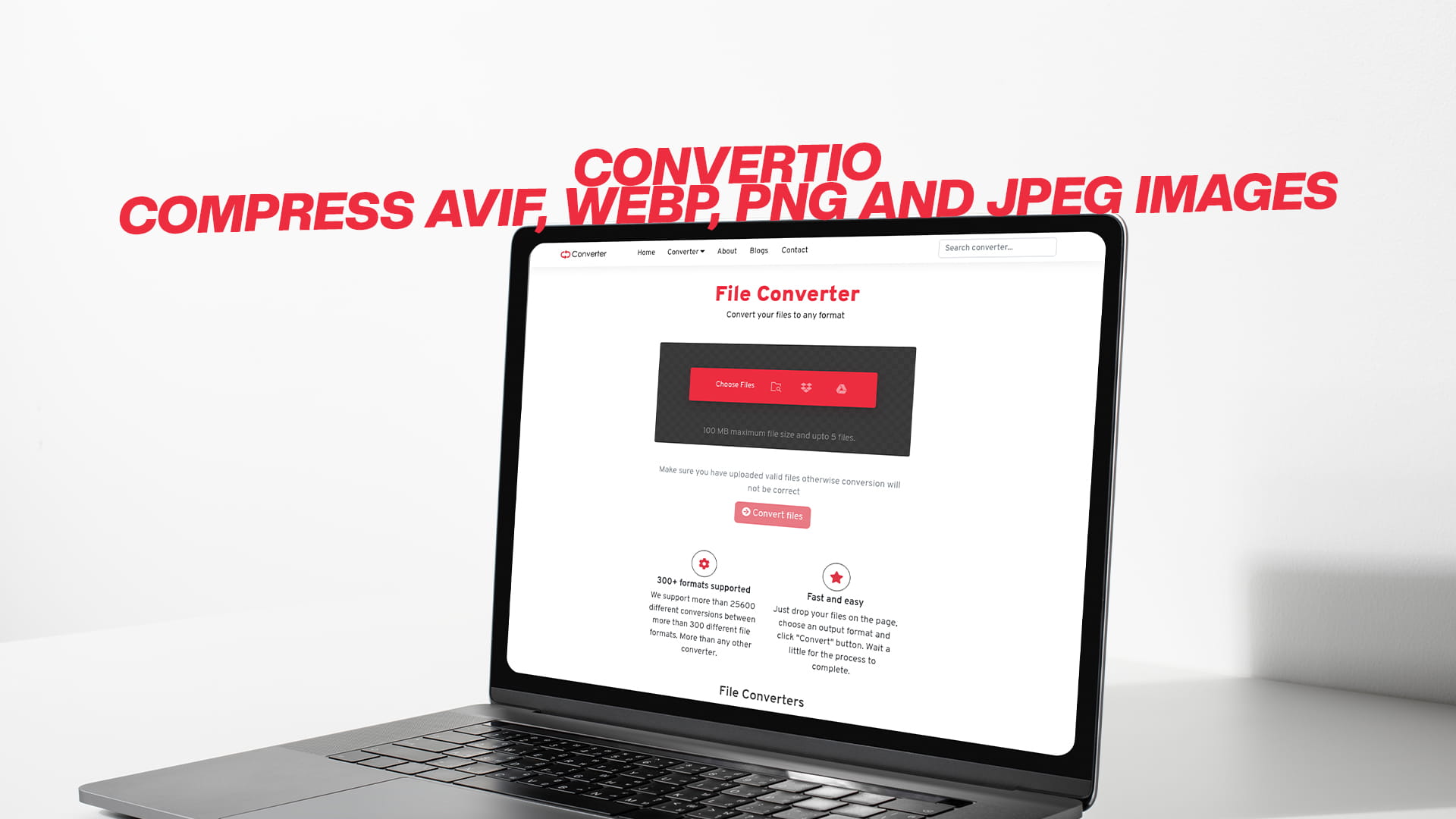
Convertio | Compress AVIF, WebP, PNG, and JPEG images
When you work with images on the internet, file size matters a lot. Big image files slow down your website and make it harder for people to visit. They also use more storage space and take longer to download. This is why image compression has become so important in today's digital world.
Convertio is a free online tool that helps you compress and convert images into different formats. Whether you have AVIF, WebP, PNG, or JPEG images, Convertio makes it super easy to reduce their size without losing quality. The best part is that you do not need to install any software or pay any money. Everything happens in your web browser, and your files stay safe and private.
In this complete guide, we will explore everything you need to know about using Convertio to compress your images. We will talk about why compression is important, what image formats mean, how to use the tool, and how to get the best results. By the end of this guide, you will be an expert at reducing image file sizes and improving your website performance.
Why Image Compression Matters
Image compression is one of the most important things you can do for your website. Let us explain why it matters so much.
First, let us talk about website speed. Google and other search engines care about how fast your website loads. When your images are too big, your website takes longer to load. This makes visitors leave your site before they even see your content. Studies show that people will leave a website if it takes more than three seconds to load. Big image files are usually the main reason websites are slow.
Second, image compression saves money. If you pay for web hosting, you usually get a certain amount of storage space. Big image files use up this space quickly, and you might have to pay extra money for more storage. By compressing your images, you can store more pictures without paying extra.
Third, compressed images help mobile users. Many people visit websites on their phones and tablets. These devices often have slower internet connections than computers. When images are compressed, they download much faster on mobile devices. This gives your mobile visitors a better experience.
Fourth, search engines rank websites higher when they load fast. This is because Google wants to show websites that work well to its users. If your images are compressed and your website loads quickly, you will rank higher in search results. This means more people will find your website.
Understanding Image Formats
Before you start compressing images, you should understand what different image formats are. Each format has its own strengths and weaknesses.
JPEG is one of the oldest and most popular image formats. It is great for photos because it can show millions of colors. JPEG files are usually smaller than PNG files, which is why photographers and web designers love them. However, JPEG does not support transparent backgrounds. If you need a transparent background, you should use PNG instead.
PNG is another very popular image format. PNG stands for Portable Network Graphic. This format is perfect for graphics, logos, and images that need transparent backgrounds. PNG files are usually bigger than JPEG files, but they keep images looking sharp and clear. Many web designers prefer PNG because of its quality and transparency support.
WebP is a newer image format created by Google. WebP images are usually much smaller than JPEG and PNG images, but they look just as good. This makes WebP perfect for websites that want fast loading times. Not all browsers support WebP yet, so you should keep this in mind. Most modern browsers support it, but older browsers might not.
AVIF is the newest image format available today. AVIF stands for AV1 Image File Format. This format offers even better compression than WebP, which means your files can be extremely small. However, AVIF is very new, and not all browsers support it yet. As time goes on, more browsers will support AVIF, and it will become more popular.
What Convertio Does Best
Convertio is designed to make image conversion and compression super simple for everyone. You do not need to be a computer expert to use it. The tool is so easy that even people who are not good with technology can use it quickly.
Convertio can convert between AVIF, WebP, PNG, and JPEG formats. You can take a JPEG image and convert it to PNG. You can take a PNG image and convert it to WebP. You can also convert images to AVIF format, which is the newest and most efficient option. No matter what format you start with, Convertio can help you convert to any other format you need.
The compression feature is what makes Convertio special. When you compress an image, Convertio reduces the file size while keeping the image looking good. The tool is smart enough to find a good balance between quality and file size. You can usually reduce file sizes by fifty percent or more without noticing any difference in quality.
Convertio is completely free to use. You do not have to pay anything or sign up for an account. Just visit the website, upload your image, choose your settings, and download the result. Everything is free and easy.
How to Use Convertio for Image Compression
Using Convertio is very simple. Even if you have never used an online converter before, you will find it easy to follow these steps.
First, open your web browser and go to Convertio. You will see a clean and simple interface that shows you exactly what to do. Look for the upload area, which is usually in the middle of the page. This area says something like "Choose Files" or "Drag and Drop Files Here."
Second, upload your image. You can do this in two ways. You can click the upload button and choose a file from your computer. Or you can drag and drop an image file directly into the upload area. Dragging and dropping is usually faster and easier.
Third, choose your output format. Convertio will ask you what format you want your compressed image to be. If your image is currently a JPEG, you can keep it as JPEG or change it to PNG, WebP, or AVIF. Think about what format is best for your needs. If you want the smallest file size, choose WebP or AVIF. If you want to keep the original quality, keep the same format.
Fourth, adjust the compression settings. Convertio usually lets you choose how much you want to compress your image. Some people want maximum compression, which means the smallest file size but possibly lower quality. Other people want to keep more quality, which means a larger file size but better-looking images. Find the right balance for what you need.
Fifth, start the conversion. Click the button that says "Convert" or "Compress." Convertio will then process your image. This usually takes just a few seconds, but it might take longer if your file is very large.
Sixth, download your result. Once the conversion is done, Convertio will show you a download button. Click this button to save your compressed image to your computer. You can now use this image on your website or anywhere else you need it.
Advantages of Using Convertio
Convertio has many advantages that make it the best choice for image compression. Let us look at the main benefits you get when you use this tool.
The biggest advantage is that Convertio is completely free. You will never have to pay money to compress images. There are no hidden fees, no premium plans that force you to pay, and no limits on how many images you can compress. You can compress unlimited images for free, which is perfect if you have a lot of pictures.
Another great advantage is that you do not need to install any software. Many image compression tools require you to download and install a program on your computer. This takes up storage space and can sometimes cause problems with your computer. Convertio works in your web browser, so you do not need to install anything. You can use it from any computer, anywhere in the world.
Speed is another major advantage. Convertio processes images very quickly. Most images are compressed in just a few seconds. This means you do not have to wait a long time to get your results. You can compress many images in just a few minutes.
Privacy and security are very important when using online tools. Convertio takes this seriously. Your images are uploaded to secure servers, and they are deleted automatically after a short time. Convertio does not keep your files, does not share them with anyone, and does not use them for any other purpose. Your images are completely private and safe.
Convertio works with many different image formats. You can compress JPEG, PNG, WebP, AVIF, and many other formats. This makes Convertio perfect for people who work with different types of images.
The quality of the compressed images is excellent. Many people worry that compression will make their images look bad. However, Convertio is designed to keep images looking good while reducing file size. Most people cannot tell the difference between the original image and the compressed image.
Getting Better Results with Convertio
If you want to get the best results when compressing images, here are some tips that will help you.
First, understand your needs. Think about how you will use the image. If it is for a website, you can compress it more because websites do not need huge file sizes. If it is for printing, you should compress less because print quality is more important. If it is for social media, you can compress it quite a bit because social media websites compress images anyway.
Second, try different formats. Sometimes one format works better than another. Try converting your image to different formats and see which one looks best and is the smallest. For example, a JPEG might look better than a WebP for one image, but a WebP might look better for another image. Experiment and find what works best.
Third, use the right compression settings. Convertio lets you choose your compression level. If you are not sure what to choose, start with the middle setting. This gives you a good balance between quality and file size. You can always compress more if you want smaller files.
Fourth, check your results before using them. After you compress an image, download it and look at it carefully. Make sure it still looks good and meets your needs. If the quality is not good enough, you can try again with different settings.
Fifth, keep your original images safe. Always keep the original, uncompressed images somewhere safe. This way, if you need a higher quality version later, you still have it. You can create a folder on your computer for original images and another folder for compressed images.
Sixth, compress images before uploading to your website. It is much better to compress images on your computer before uploading them to your website. This means your website will always have the smallest possible files, which keeps it fast.
Image Compression for Websites
If you run a website, image compression is one of the most important things you can do. Let us talk about how to use Convertio to improve your website.
Website owners face a constant challenge with image file sizes. The more images your website has, the slower it loads. Slow websites lose visitors and rank lower in search results. This is why smart website owners use Convertio to compress all their images.
When you compress images for your website, you should think about the purpose of each image. If you have images in your blog posts, you can compress them quite a bit because blog readers just want to read content, not look at huge pictures. If you have product images in an online store, you should be more careful about compression because your customers want to see the products clearly.
Different pages on your website can have different types of images. Your homepage might have large hero images, so you should compress them well. Your product pages might have many images, so compression helps a lot here too. Your blog might have small images mixed with text, so you can compress these quite a bit.
Convertio makes it easy to prepare all your images for the web. You can compress many images in just a few minutes. This will make your website much faster, which makes visitors happy and search engines happy.
Converting Images Between Formats
One of the best things about Convertio is that you can convert images between different formats. Let us talk about when and why you might want to do this.
Sometimes you receive an image in a format that is not ideal for what you need. For example, someone might send you a PNG file that is very large. You could convert this PNG to WebP format, which is much smaller. Or someone might send you a JPEG file without a transparent background, but you need one. You could convert this to PNG and add transparency.
Convertio makes format conversion incredibly simple. You just upload your image, choose the format you want, and download the result. You do not need any special knowledge or skills. The tool does all the work for you.
Different formats serve different purposes. JPEG is best for photos and images with many colors. PNG is best for graphics and images that need transparent backgrounds. WebP is best when you want small file sizes for the web. AVIF is best when you want the absolute smallest files and you do not need to support older browsers.
By understanding when to use each format and by using Convertio to convert between them, you can optimize every image on your website.
Understanding Compression Quality Settings
When you use Convertio to compress images, you will see options for compression quality. Understanding these settings helps you get better results.
Most image compression tools let you choose between different quality levels. These are often shown as numbers or percentages. Higher numbers mean better quality but larger file sizes. Lower numbers mean smaller file sizes but lower quality.
For most websites, a quality setting between 70 and 85 percent works great. At these settings, most people cannot tell the difference between the original image and the compressed image. Your file sizes will be much smaller, but your images will still look good.
Some types of images need different settings. Photos usually look good even with lower quality settings, so you can compress them more. Graphics and images with text need higher quality settings because lower compression can make text look blurry or graphics look bad.
The best way to find the right setting is to experiment. Try compressing an image at different quality levels, download the results, and compare them. You will quickly learn what quality setting works best for your needs.
Comparing Image Formats
Let us compare the four main image formats that Convertio handles: AVIF, WebP, PNG, and JPEG.
JPEG format is the oldest and most popular. It is perfect for photos because it can show millions of colors. JPEG files are usually medium-sized. They do not support transparent backgrounds. JPEG works in every single web browser that exists.
PNG format is great for graphics and images that need transparency. PNG files are usually larger than JPEG files. They support transparent backgrounds and keep images looking sharp. PNG works in every modern web browser.
WebP format is newer and made by Google. WebP files are usually much smaller than JPEG and PNG. They support both transparent and solid backgrounds. Most modern browsers support WebP, but some older browsers do not.
AVIF format is the newest. AVIF files are the smallest of all formats. They keep excellent quality even at small sizes. However, AVIF is very new, and older browsers do not support it yet.
For best results, many website experts use multiple formats. They provide AVIF for modern browsers, WebP as a backup, and JPEG as a final backup for older browsers. This way, everyone gets the best possible image for their device.
Tips for Bulk Image Compression
If you have many images to compress, Convertio can still help you, even though it compresses one image at a time.
Many website owners need to compress hundreds of images. While Convertio compresses one image at a time, you can still process many images quickly. Because Convertio is so fast, you can compress several images while you do other work.
Here is a good workflow for bulk compression. First, put all the images you want to compress into one folder on your computer. Then, open Convertio in your web browser. You can open it in multiple tabs or windows to process several images at the same time. This speeds up the process quite a bit.
Another tip is to organize your images by type before compressing. Put all your photos in one folder, all your graphics in another folder, and all your screenshots in a third folder. Then you can use the same compression settings for all images in each folder. This is faster and gives more consistent results.
If you have a huge number of images to process, you might want to make this a regular task. Set aside time each week to compress images. This keeps your website running fast and prevents image file sizes from becoming a problem.
Real World Examples
Let us look at some real examples of how image compression helps in real situations.
Imagine you are a blogger who writes about travel and nature. Your blog posts include many large photos from your trips. Each photo might be several megabytes in size. If you have ten photos per blog post and write two posts per week, your website fills up quickly. By using Convertio to compress all your images, you reduce file sizes by fifty percent or more. Now your website loads much faster, and your visitors have a better experience.
Now imagine you run an online store that sells clothing. You have thousands of product images. Your website needs to load fast or customers will go to your competitors. By using Convertio to compress all your product images, your website loads much faster. More customers stay on your site, and you sell more products.
Another example is a photographer's portfolio website. Photographers want their images to look perfect. By using Convertio to convert images to WebP or AVIF format, they can keep excellent quality while reducing file sizes. Their website loads fast, and potential clients can see their work quickly without waiting.
Common Questions About Image Compression
Many people have questions about image compression. Here are answers to the most common ones.
Can compression make my images look bad? In most cases, no. Convertio is designed to compress images while keeping them looking good. You might notice some quality loss with very high compression, but normal compression leaves images looking excellent.
Will I lose the original image? No. Convertio only creates a new compressed version. Your original image stays on your computer. You can keep both versions if you want.
Is my image safe when I upload it to Convertio? Yes. Convertio uses secure technology to protect your files. Your images are automatically deleted after processing, and they are not shared with anyone.
Can I compress different types of images? Yes. Convertio can compress JPEG, PNG, WebP, AVIF, and many other image formats.
How long does compression take? Most images are compressed in just a few seconds. Very large images might take a minute or two.
Can I compress multiple images at once? Convertio handles one image at a time, but you can process many images quickly by opening multiple browser tabs or windows.
The Future of Image Compression
Image compression technology keeps getting better. In the future, new formats will probably appear that are even more efficient than AVIF.
Search engines will continue to favor fast websites. This means image compression will become more and more important. Smart website owners should start using tools like Convertio now to stay ahead.
Browser support for new formats like AVIF will improve. Eventually, almost all browsers will support these new formats, and they will become standard on the internet.
Cloud storage and web hosting will continue to improve, but image compression will always be important. Even with better technology, people will want their websites and apps to load as fast as possible.
Conclusion
Image compression is one of the most important things you can do to improve your website and save storage space. Convertio makes this process incredibly simple, fast, and completely free.
Whether you need to compress a few images for a small project or hundreds of images for a big website, Convertio can help. The tool is so easy to use that anyone can do it, and the results are professional quality.
By taking time to compress your images today, you will have a faster website, better search engine rankings, and happier visitors. You will also save storage space and money on hosting costs.
Start using Convertio today. Visit the website and try compressing one image. You will see how fast and easy it is. Once you experience how simple image compression can be, you will probably use Convertio regularly for all your image needs.
Remember, every website needs image compression. Your competitors are probably using tools like Convertio to keep their websites fast. If you want to stay competitive and keep your visitors happy, you should start compressing your images now.
Image compression is not complicated, and it does not cost anything. With Convertio, you can have smaller images, faster websites, and better search engine rankings. There is no reason not to use this amazing free tool today.