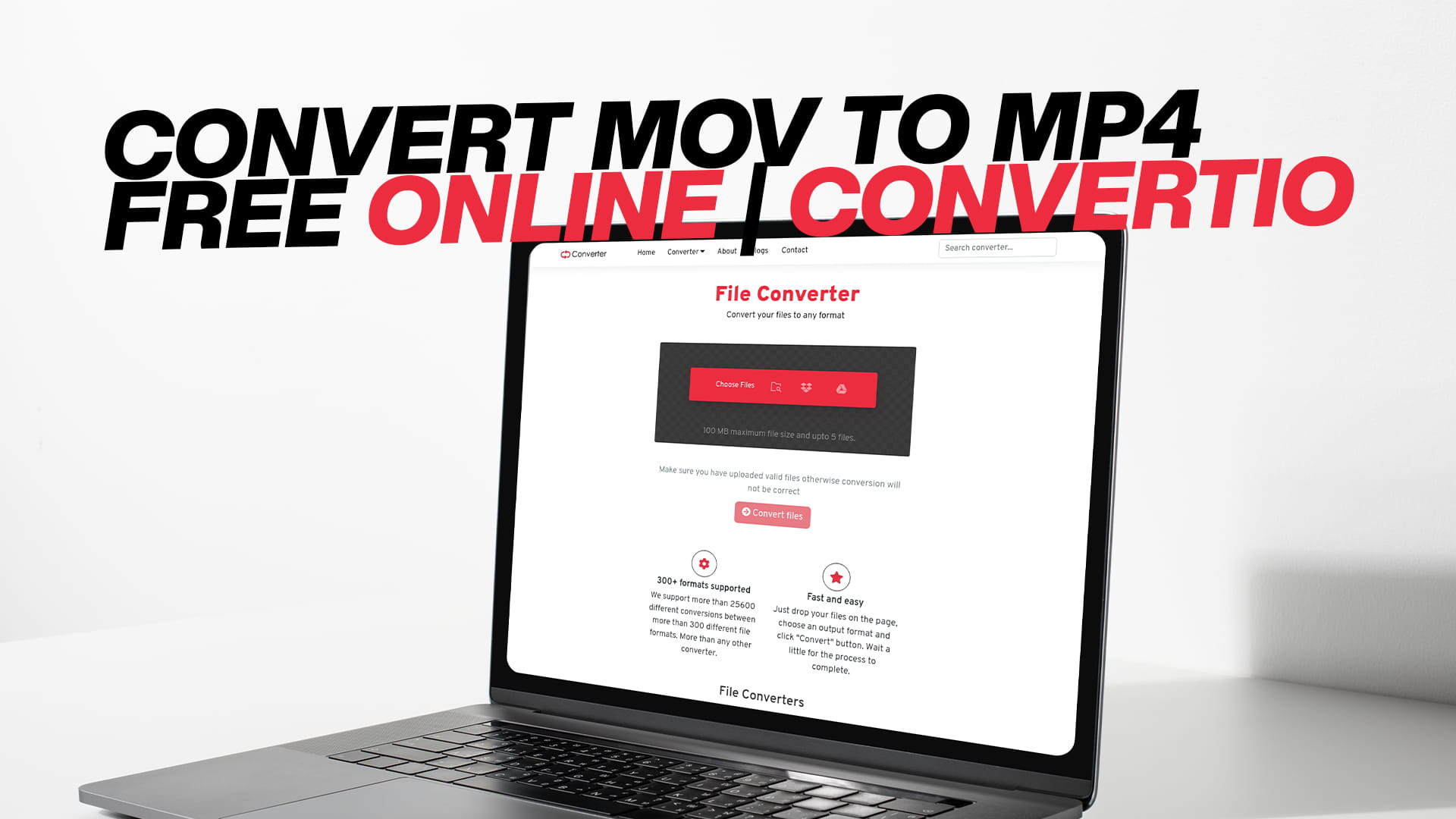
Convert MOV to MP4 Free Online | Convertio
You just recorded a video on your iPhone, and now you want to share it with a friend who uses Windows, upload it to a website, or drop it into a video editing project. The file is a MOV. Everything seems fine until it doesn't play, doesn't upload, or shows an error. This is one of the most common video problems people run into, and the fix is simple: convert the MOV to MP4.
MP4 plays everywhere. MOV doesn't. That gap causes real headaches, and Convertio is a free online tool that bridges it in seconds. You don't download anything. You don't create an account. You go to Convertio, upload your MOV file, select MP4, and download the result. The whole process takes less than a minute for most files.
This guide covers everything you'd want to know about MOV and MP4, why converting between them matters, how to do it step by step, and what else Convertio can do once you're there.
What Is a MOV File?
MOV is Apple's video format. It was created by Apple in the early 1990s as part of the QuickTime media framework. MOV files are the default format for video recordings on iPhones, iPads, and Mac computers. If you use any Apple device and record a video, there's a very good chance the file that gets saved is a MOV.
On Apple hardware, MOV works beautifully. It opens in QuickTime Player, imports smoothly into iMovie and Final Cut Pro, and syncs without issues across Apple devices. The quality is excellent because MOV supports high-efficiency codecs like H.264 and HEVC (H.265), which produce sharp, detailed video without enormous file sizes.
The problems start the moment you try to use that MOV file outside the Apple world.
Windows doesn't natively support MOV files. You can install QuickTime for Windows, but Apple stopped updating it in 2016 and officially discontinued it, leaving it a security risk most IT professionals advise against using. Some Windows users try the VLC media player, which can open many MOV files, but not all, depending on the codec inside the container.
Android devices don't support MOV either. Most smart TVs don't recognize it. Most video hosting platforms either reject it outright or silently re-encode it in a way that degrades quality. Even on platforms that technically accept MOV, you'll often get better results uploading an MP4 that you've already controlled the encoding on.
Video editing software outside the Apple ecosystem is also hit or miss with MOV. Adobe Premiere can import MOV files, but there are known issues with certain codecs. DaVinci Resolve handles some MOV files and chokes on others. If you're collaborating with someone who uses different editing software, sending a MOV can slow the whole project down.
The format is also slightly inefficient in how it manages metadata and structure compared to MP4. For professional archival or broadcast work, MOV has some advantages. For everyday video sharing, it's more trouble than it's worth.
What Is an MP4 File?
MP4 stands for MPEG-4 Part 14. It became the dominant video format in the mid-2000s and has stayed at the top ever since. Every device you can think of supports MP4. Every major video platform does. Every media player does. MP4 is what video looks like when it's designed to work everywhere.
The technical foundation of MP4 is solid. The container format is efficient and flexible. It supports multiple video codecs — H.264 and H.265 being the most common — along with several audio codec options. It also supports subtitles, metadata, multiple audio tracks, and chapter markers. You can do a lot inside an MP4 file.
H.264 inside MP4 is the most broadly compatible combination you can have for video. It plays on Windows, Mac, iPhone, Android, smart TVs, gaming consoles, car screens, digital cameras, and any web browser. When someone says "just send me a video," they almost always expect an MP4.
H.265 (HEVC) inside MP4 is newer and more efficient. It gives roughly the same quality as H.264 at about half the file size, which makes a big difference when dealing with 4K or high-frame-rate content. Not every older device supports it, but most hardware made in the last few years handles it fine.
The file size advantage of MP4 over MOV is real but subtle. Both formats can use the same codecs, so the difference isn't always dramatic. However, MOV files tend to carry extra overhead from the way QuickTime structures the container, and they sometimes hold data in less efficient ways. The same video content often ends up slightly smaller in MP4 than in MOV, especially after re-encoding.
For everyday use, MP4 is simply the right choice. It's why converting MOV to MP4 is one of the most common file conversion tasks on the internet.
Why Converting MOV to MP4 Makes Sense
The case for converting is practical and straightforward. You have a MOV file that works fine on your Apple device. You want to use it somewhere else. Converting it to MP4 removes the friction.
Sharing videos is the most obvious reason. If you record something on your iPhone and want to send it to someone who doesn't use Apple devices, an MP4 is much more likely to open without trouble. WhatsApp, Telegram, Discord, and most messaging apps handle MP4 without issues. MOV sometimes causes problems depending on the recipient's device.
Uploading to social media and video platforms is another strong reason. YouTube technically accepts MOV, but it re-encodes every video it receives anyway, and you have more control over the final result if you convert to MP4 first with your preferred settings. Instagram is stricter and works better with MP4. TikTok, Twitter, Facebook, and LinkedIn all prefer MP4. Uploading a well-prepared MP4 reduces the chance of compression artifacts from the platform's own re-encoding.
If you do any video editing on a non-Apple system, converting MOV to MP4 before you start can save you troubleshooting time. Editors like DaVinci Resolve and Kdenlive handle MP4 reliably, and the workflow is smoother when you're not dealing with codec compatibility questions.
For archiving personal videos, converting to MP4 is a wise long-term strategy. MOV is tied to Apple's QuickTime ecosystem, which has been deprioritized even by Apple itself in recent years. MP4 is an open international standard maintained by independent bodies. It's more likely to remain readable by software in 10 or 20 years.
Storage management is another angle. If you have years of iPhone videos sitting on a hard drive in MOV format, converting them to MP4 with slightly adjusted settings can reduce the total storage footprint, especially for older footage that was recorded at higher bitrates than it needed.
None of these reasons require you to be a technical person. Converting MOV to MP4 is just a practical decision for anyone who records video on Apple devices and wants those videos to work everywhere else.
How to Convert MOV to MP4 Using Convertio
Convertio handles this conversion with a clean, no-nonsense process. Here's how it works from start to finish.
Step 1: Open Convertio in Your Browser
Go to Convertio on any device. The site works on desktop computers, laptops, tablets, and phones. You don't need to download an app. Any modern browser handles it fine — Chrome, Firefox, Safari, Edge, whatever you're using.
Step 2: Upload Your MOV File
On the main page, you'll see a button to add your file. Click it and navigate to the MOV file on your device, then select it. If you prefer, you can drag and drop the file directly onto the page if you're on a desktop.
Convertio also supports importing files from Google Drive and Dropbox. If your iPhone videos are automatically backed up to iCloud and you've downloaded them to Google Drive, you can pull them directly from there without downloading them to your computer first. This is a genuinely useful feature when working with large video files.
Step 3: Select MP4 as the Output Format
After your file uploads, you'll see a dropdown to choose the output format. Open it, navigate to the video section, and select MP4. It's clearly labeled and easy to find.
Before you convert, you can also click the settings icon to adjust output parameters. You can change the video codec (H.264 or H.265), set the resolution, adjust the bitrate, change the frame rate, and modify audio settings like sample rate and channels. These options are there if you need them, but the default settings work well for almost every use case. Convertio selects sensible defaults that produce a good MP4 without any tinkering.
Step 4: Start the Conversion
Click the Convert button. Convertio processes the file on its servers, which means your device's processor isn't doing the work. The conversion happens in the cloud, and the speed depends on the size of your file and your internet connection. Short clips convert in seconds. Longer videos take a few minutes.
A progress indicator shows you where things stand. You don't need to watch it — you can go do something else and come back when it's done.
Step 5: Download the MP4 File
When the conversion finishes, a download button appears. Click it to save the MP4 file to your device. It's ready to use immediately — share it, upload it, edit it, or archive it however you need.
The whole process from upload to download is fast, clean, and requires no technical knowledge.
Quality and File Size After Conversion
One thing people reasonably worry about is whether the video quality drops after conversion. The short answer is that it doesn't, in any way you'd notice.
When you convert MOV to MP4, the video gets re-encoded. Re-encoding always involves some small amount of data being processed and recompressed. However, Convertio's default settings are optimized to preserve as much quality as possible. For everyday videos — family moments, travel clips, work recordings — the difference between the original MOV and the converted MP4 is imperceptible.
If you want to be careful about quality, you can raise the bitrate in the settings before converting. A higher bitrate means more data is used to represent the video, which means more detail is preserved. The tradeoff is a larger file. For most purposes, the default settings are fine.
File size after conversion varies. Because both MOV and MP4 can use the same underlying codecs, the size difference isn't always massive. In many cases, the MP4 ends up slightly smaller than the MOV because of how the container overhead is handled. In some cases, they come out about the same. The video quality either way remains consistent.
If reducing file size is your main goal, you can lower the bitrate or reduce the resolution in the settings. Just be aware that going too low on bitrate will start to show artifacts, especially in fast-moving footage. A moderate reduction usually works well.
Converting MOV Files from iPhone and iPad
iPhones and iPads produce MOV files by default in most recording situations. This is worth understanding because the specifics affect what you're working with.
Modern iPhones can record at resolutions up to 4K and frame rates up to 240 frames per second for slow-motion footage. The codec inside these MOV files is typically H.264 or HEVC (H.265), depending on your camera settings. HEVC gives better quality at smaller sizes but is slightly less universally compatible than H.264.
When you convert these MOV files to MP4 using Convertio, the output is still H.264 or H.265 inside the MP4 container, depending on your settings. The quality stays the same — you're just changing the wrapper that holds the video data.
One specific thing to know about iPhones is that HEVC footage from newer models can look slightly different after conversion on some older systems, simply because HEVC support is newer. If you're converting for compatibility with older devices or software, choosing H.264 as the output codec in Convertio's settings is the safer option. It plays everywhere without questions.
Slow-motion video from iPhones is another special case. iPhone slow-motion footage uses variable frame rates, meaning the footage switches between normal speed and slow speed. How conversion handles this depends on the tool. Convertio generally handles variable frame rate MOV files correctly, but if you're doing professional work with high-frame-rate footage, it's worth testing a short clip before converting a large batch.
For standard recordings — a conversation, a birthday, a vacation, anything at normal speed — converting iPhone MOV to MP4 with Convertio works perfectly every time.
MOV Files from Other Sources
MOV files don't only come from iPhones. Several other sources produce MOV files, and the same conversion process applies to all of them.
Screen recordings on Mac create MOV files. If you use QuickTime Player to record your screen, the output is a MOV file. Converting these to MP4 makes them easier to share, upload to video platforms, or include in presentations on non-Apple systems.
Video from professional cameras sometimes comes in MOV format. Canon and some other manufacturers use MOV as a recording format on certain camera models. Footage from these cameras often goes through a conversion step as part of the post-production process anyway, and converting to MP4 early on keeps things compatible throughout the workflow.
Some screen recording software on Mac also defaults to MOV. Apps like Screenflow, Quicktime, and others in the Apple ecosystem tend to produce MOV by default. Converting the output to MP4 before distributing tutorial videos or screen captures makes them more broadly useful.
Older Mac applications sometimes export to MOV by default. If you have video content produced in older versions of iMovie, Final Cut, or other Apple software, converting those files to MP4 keeps them playable long-term.
In every case, Convertio handles the conversion the same way. You upload the MOV, choose MP4, and download the result.
What Else Convertio Can Do
Convertio is not only a video converter. It handles a wide range of file types across many categories, all free and all browser-based.
For images, Convertio converts between JPG, PNG, WEBP, GIF, SVG, BMP, TIFF, and other formats. If you need to convert a PNG to JPG for a website, or turn a batch of photos into WEBP for faster loading, Convertio handles it.
For audio, Convertio works with MP3, WAV, FLAC, AAC, OGG, M4A, and more. Converting a WAV file to MP3 to reduce size, or changing an M4A voice memo to MP3 for compatibility, both take seconds.
For documents, Convertio converts between PDF, Word (DOCX), Excel (XLSX), PowerPoint (PPTX), and other office formats. Turning a DOCX into a PDF for sharing, or extracting content from a PDF into an editable Word file, are both common tasks the tool handles cleanly.
Convertio also deals with eBooks (converting between EPUB, MOBI, AZW, and PDF), compressed archives (ZIP, RAR, 7Z, TAR), and software file formats. The breadth of what it covers means it's genuinely useful as a single go-to tool for most conversion tasks, not just video.
If you've never used Convertio before for anything other than video, it's worth exploring. The image and document conversion tools are just as simple and just as fast as the video converter.
Tips for the Best MOV to MP4 Conversion Results
A few practical tips help you get the most out of the conversion.
Keep the resolution the same as the original unless you have a reason to change it. If your MOV file is 4K, keep the MP4 at 4K. If it's 1080p, keep it at 1080p. Upscaling doesn't add quality — it just wastes storage. Downscaling reduces quality, so only do it deliberately.
Use H.264 as the video codec for the widest compatibility. If the MP4 is going on a very old device, a TV, or any system where you're not sure about codec support, H.264 is the safest choice. If you're targeting modern devices and want a smaller file, H.265 works well.
Check the audio settings if sound quality matters to you. The default AAC audio at 128 kbps is fine for most videos. If you're converting music performance footage or content where audio quality is especially important, bump the audio bitrate up to 192 or 256 kbps.
If you're converting footage that will go through video editing software afterward, use a higher bitrate than you might use for direct sharing. Editing software works better with more data to work with, and you can always compress the final export.
For social media uploads, check the platform's recommended settings before converting. YouTube, Instagram, TikTok, and Facebook each have published guidelines for video specifications. Matching those settings before you upload often results in better quality on the platform because the platform's own re-encoding has less work to do.
Test with a short clip before converting a large batch. If you're converting hours of footage, do a one-minute test first to confirm the settings look right before committing to a long conversion job.
Why So Many People Record in MOV and Convert to MP4
There's a straightforward reason this workflow is so common. Apple devices are among the most popular for recording video. iPhones have better cameras than most dedicated video cameras in the same price range, and people use them constantly to record moments worth keeping.
But the world is not exclusively Apple. Most personal computers run Windows. Most messaging apps prefer MP4. Most online platforms are optimized for MP4. The gap between "recorded on iPhone" and "works everywhere" is exactly the MOV-to-MP4 gap, and millions of people hit it every day.
Convertio exists to close that gap cleanly. There's no complicated setup, no learning curve, and no cost. You encounter the problem, you use the tool, the problem goes away.
For people who regularly produce video content — social media creators, teachers who record lessons, small business owners making product videos, journalists capturing footage in the field — having a reliable conversion tool is part of the workflow. Convertio fits into that workflow without adding friction.
Common Mistakes to Avoid When Converting MOV to MP4
A few things can go wrong if you're not paying attention.
Downloading from the wrong site is probably the most common mistake. There are sites that appear to offer free video conversion but actually install software or browser extensions on your computer. Convertio is browser-based and installs nothing, so you don't face this risk.
Converting a video that's already heavily compressed can make things worse. If someone sends you a low-quality MP4 and you convert it to MOV and back to MP4, each conversion adds more degradation. Whenever possible, convert from the original recording rather than from a copy that's already been compressed multiple times.
Forgetting to check the output before deleting the original is a mistake worth avoiding. After conversion, play the MP4 file through to make sure the video and audio are in sync, the quality looks right, and nothing has been cut off. Only then delete the original MOV if you need to free up space.
Assuming all MOV files are the same can cause confusion. MOV is a container format, meaning the actual video and audio data inside can be encoded in many different ways. Some MOV files use common codecs that convert perfectly. Others use less common codecs, and the conversion might require a slightly different approach. Convertio handles the most common cases well, but if you have a very unusual MOV file, it's worth paying attention to the output quality.
About Convertio
Convertio is a free online file conversion platform that handles a wide range of formats — video, audio, images, documents, PDFs, eBooks, software files, compressed archives, and more. Everything runs in the browser, with no downloads or installations required.
The tool is designed for everyday use. Whether you need to convert one file or a batch of them, the process is the same: upload, choose the output format, convert, download. No account is needed, no payment is required for standard use, and the interface is clean enough that anyone can figure it out immediately.
You can visit Convertio directly and start converting right away. The video converter, the image converter, the document converter — everything is accessible from the same place, making it a practical first stop whenever you have a file that needs to be in a different format.
Final Thoughts
MOV is a good format for what Apple designed it to do: record and store high-quality video on Apple devices. The problems only start when you try to use those videos outside the Apple ecosystem, which happens constantly in everyday life.
MP4 solves those problems. It plays everywhere, compresses efficiently, and is the accepted standard for video across the internet, on almost every device, and in almost every application.
Converting your MOV files to MP4 doesn't mean losing quality. It doesn't require technical knowledge. It doesn't take much time. With Convertio, it takes a few clicks and a brief wait while the file processes.
If you've been stuck with MOV files that won't play where you need them, or you regularly transfer iPhone videos to other devices and want a smoother experience, converting to MP4 is the right answer. Convertio is the right tool to do it.