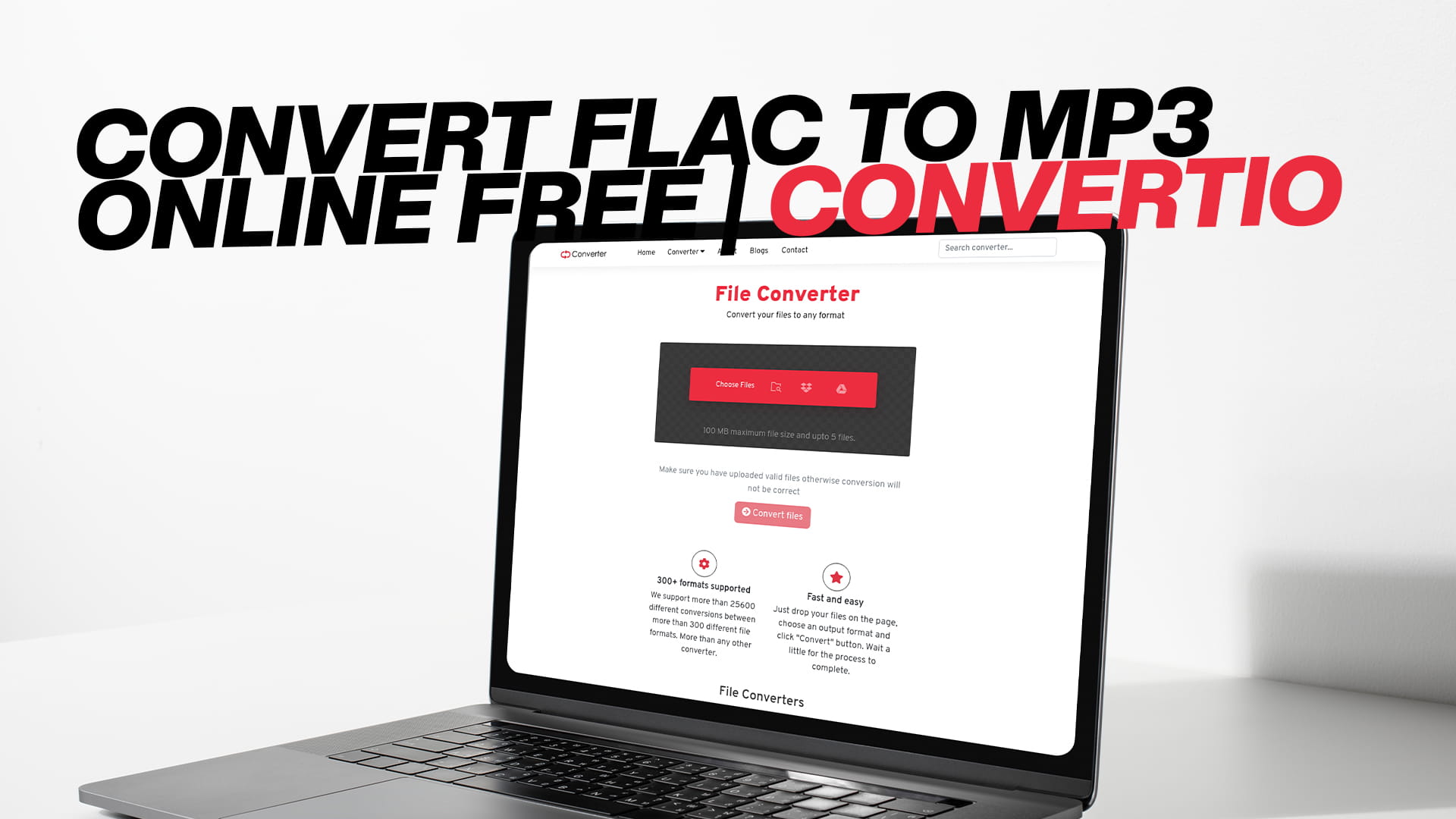
Convert FLAC to MP3 Online Free | Convertio
There is a good chance you landed here because a FLAC file is sitting on your computer or phone and it simply will not play where you need it to. Maybe your music app does not support it. Maybe the file is too large to send. Maybe you just want something simpler that works on every device without any fuss.
That is a very common problem, and the fix is straightforward. Converting FLAC to MP3 takes only a few minutes using a free online tool. No software download. No technical knowledge. No cost.
Convertio is one of the most widely used file conversion tools online, and it handles FLAC to MP3 conversion cleanly and quickly. This guide walks through everything — what these audio formats actually are, why people convert between them, how to do it step by step, what quality settings to choose, and answers to every practical question you might have along the way.
Why This Conversion Comes Up So Often
FLAC files are high-quality. They are big. They are not universally supported. MP3 files are smaller, supported everywhere, and easy to use. That combination of facts is the reason people convert FLAC to MP3 more than almost any other audio format change.
The situation usually goes like this: someone downloads a high-resolution album, records audio on professional equipment, or receives a FLAC file from a musician or producer. Then they try to put it on their phone, share it through email, upload it to a platform, or use it in a video — and run into a wall.
FLAC just does not play everywhere. Apple Music, Spotify, and most consumer apps and devices are built around compressed formats like MP3 and AAC. Even Android phones, which tend to have better FLAC support than iPhones, do not always handle the format through every app.
MP3 solves all of those problems at once. It plays on every phone, every music player, every platform, and every browser. The trade-off is some reduction in audio quality, but at high bitrates, that trade-off is barely noticeable for most people in most listening situations.
What FLAC Actually Is
FLAC stands for Free Lossless Audio Codec. The word lossless is the important part. It means the format stores audio data without removing anything. Every detail of the original recording is preserved exactly as it was.
This makes FLAC the preferred format in music communities that care about audio quality. Studio recordings, high-resolution albums, and archival audio are often stored in FLAC because nothing is lost in the process. If a recording has subtle room ambiance, a soft breath between notes, or delicate high-frequency detail, FLAC keeps all of it intact.
The cost of that quality is file size. A FLAC file for a single song typically runs between 20 and 50 MB, depending on the length and recording quality. An album in FLAC format can easily be 300 to 500 MB or more. That is manageable on a home computer with a large hard drive, but it becomes a problem when you are trying to store music on a phone, share files with someone, or work within the limits of cloud storage.
FLAC is also an open format, meaning no company owns it, and no license is required to use it. That is part of why it is so widely supported in audiophile and open-source communities.
What MP3 Actually Is
MP3 has been around since the early 1990s and is still the most recognized audio format in the world. That longevity is not accidental. MP3 works, it is small, and it plays everywhere.
The way MP3 compresses audio is through a process called lossy compression. Unlike FLAC, which keeps everything, MP3 removes parts of the audio that fall outside of what most human ears can detect under normal listening conditions. Very high frequencies that most adults cannot hear, quiet sounds masked by louder ones, and brief audio details buried beneath other sounds — all of this gets filtered out to reduce the file size.
The result is a file that is significantly smaller than the FLAC original. A song that takes up 35 MB as a FLAC might come down to 5 to 8 MB as a 192 kbps MP3. That is a dramatic reduction, and it is why MP3 became the standard for digital music distribution before streaming existed.
The quality reduction is real, but for most listeners, minor. People listening through earbuds on public transport, through laptop speakers, or through a standard car stereo system will generally not notice the difference between a well-encoded MP3 and a FLAC original. The listeners who do notice tend to be those listening in quiet environments on high-end headphones or speakers with the specific intention of critical listening.
For everyday use — and for most people in most situations — an MP3 at a reasonable bitrate is more than good enough.
The Case for Converting: What Changes and What Stays the Same
When you convert FLAC to MP3, three things change. The file format changes. The file size drops significantly. And some audio data is permanently removed during the compression process.
One thing that stays the same is the listening experience for the vast majority of use cases. The music is still the same music. The vocals, instruments, rhythm, and character of the recording all come through clearly. What changes is the degree of fine detail at the edges of human hearing — details that most people are not consciously aware of even when the FLAC file is playing.
The conversion is also irreversible in terms of quality. Once audio becomes an MP3, you cannot convert it back to FLAC and recover what was removed. The MP3-to-FLAC conversion is technically possible but it does not restore any lost data — it just wraps the MP3 audio in a FLAC container without improving the quality. This is why it is worth keeping your FLAC originals stored somewhere safe before converting.
How to Convert FLAC to MP3 Using Convertio
The process is simple enough that it does not require much technical ability at all. Here is how it works from start to finish.
Open Convertio in your browser. The interface is clear and straightforward. You will see an upload area on the main page. Click the button to choose your FLAC file, or drag and drop the file directly into the upload area if that is easier.
You can also import files from Google Drive or Dropbox if your FLAC file is stored in the cloud rather than on your device. This is useful if the file is large and already uploaded somewhere.
Once the file uploads, you choose the output format. Select MP3 from the list of available audio formats. At this point, you also have the option to adjust the quality settings before conversion starts. The most important setting is the bitrate, which controls how much audio data is kept in the output file.
When you are ready, click Convert. The tool processes your file and shows a download link when the conversion is finished. Click to download and the MP3 saves to your device.
For a typical song, the whole process — upload, convert, download — takes under two minutes with a decent internet connection.
Choosing the Right Bitrate
Bitrate is the setting that matters most when converting FLAC to MP3. It determines the balance between file size and audio quality in the output file.
Bitrate is measured in kilobits per second, written as kbps. The higher the number, the more audio data is stored per second, and the better the quality. The trade-off is a slightly larger file.
At 128 kbps, the file is compact, and the quality is acceptable for casual listening. You might notice some muddiness or a slight loss of clarity if you are paying attention, especially in music with a lot of complexity going on at once.
At 192 kbps, the quality improves noticeably, and the file remains reasonably small. This is a solid middle-ground choice for most people and most listening situations.
At 256 kbps, you are getting very good quality. Most listeners will not be able to tell this apart from the original FLAC in blind testing.
At 320 kbps, you are at the highest quality MP3 can deliver. Files at this bitrate are larger than lower settings, but still far smaller than the FLAC original. If sound quality matters to you and storage is not a concern, 320 kbps is the best choice.
For people who are not sure, 192 kbps is a safe default. It gives good quality without creating files that take up too much space.
Converting Multiple Files at Once
If you have an entire album in FLAC that you want to convert to MP3, you do not need to go file by file. Convertio supports batch conversion, which means you can upload several FLAC files at the same time and convert all of them in one go.
The process works the same way as converting a single file. You upload multiple files, set the output format to MP3 for each one, choose your quality settings, and start the conversion. The tool handles each file and gives you download links for all of them once the process is done.
Batch conversion saves a significant amount of time when working with large collections. Converting a full album of twelve or fifteen tracks takes only slightly longer than converting one track when you do it in a single batch rather than one file at a time.
Does Converting Affect the Metadata?
Metadata is the information attached to an audio file — the song title, artist name, album name, year, genre, and track number. This is what your music player reads to display the correct information when you play a song.
Good conversion tools preserve metadata during the process. When Convertio converts a FLAC file to MP3, the metadata transfers to the new file so your music library stays organized correctly. The converted MP3 shows the same track information as the original FLAC.
In most cases, you will not need to do anything about metadata after conversion. If you notice any missing or incorrect information in a converted file, you can edit it using a free tool like MusicBrainz Picard or the tag editor built into most music players.
Why Use an Online Converter Instead of Installed Software?
Dedicated audio software for conversion exists and works well. But for most people doing occasional conversions, installing software creates more friction than it solves.
Finding a trustworthy download takes research. Installing the program takes time. Learning the interface adds another step. And the software takes up space on your device after the task is done. For a one-time conversion of a few files, that entire process is disproportionate to the task.
An online converter handles everything in the browser. You do not install anything. You do not need to figure out a new interface. When the conversion is done, you close the tab and move on.
It also does not matter what operating system you are using. Windows, Mac, Linux, Chromebook, or even a tablet — an online tool works the same everywhere because it runs in the browser, not on your device.
For people who convert audio files regularly and need batch processing of large libraries, dedicated software might be worth the investment. For everyone else, a browser-based tool is the simpler and faster choice.
Privacy and File Security
Uploading audio files to an online service is something many people think about before doing so, and that is reasonable. You want to know your files are handled properly.
Convertio deletes uploaded files from its servers automatically after a short window — typically within a few hours of the conversion. Files are not stored permanently, shared with third parties, or used for any purpose beyond the conversion you requested.
Connections to the site are encrypted, so file transfer is secure. No account is required for the free service, which means you are not providing personal information just to convert a file.
For most users converting music files, the privacy approach is straightforward, and the process is safe. If you are working with sensitive or confidential audio — unpublished professional recordings, private recordings, or proprietary content — you should always evaluate whether an online tool is appropriate for your specific situation. For everyday music conversion, there is nothing to worry about.
What Convertio Handles Beyond Audio
FLAC to MP3 is one of thousands of conversion combinations that Convertio supports. The platform covers a wide range of file types beyond audio.
For other audio formats, Convertio handles WAV, AAC, OGG, WMA, AIFF, M4A, OPUS, and more. So if you need to go from MP3 to WAV, or WAV to AAC, or OGG to MP3, the same tool does it.
Beyond audio, Convertio works with images — JPG, PNG, WEBP, SVG, TIFF, BMP, and many others. It handles video formats including MP4, MOV, AVI, MKV, and more. Documents like PDF, DOCX, XLSX, PPTX, and TXT are also supported, along with eBooks, software files, and compressed archives.
This breadth of support makes Convertio useful for a lot more than audio conversion. If you regularly deal with different file formats across different types of work, having one reliable tool that handles all of them is convenient. There is no need to find a different site every time you need to convert a different kind of file.
Common Situations Where This Conversion Makes Sense
Someone downloads a high-resolution album from an independent artist's website. The files come in FLAC format. Their iPhone does not support FLAC through the native music app. They convert the album to MP3 and transfer it without any issues.
A musician records and exports a rough demo in FLAC for maximum quality. They want to email it to a producer for feedback, but the file is 45 MB and exceeds the email attachment limit. Converting to 256 kbps MP3 brings it down to around 8 MB — well within the limit — without losing meaningful quality for an informal demo review.
A podcast editor receives a raw recording in FLAC from a guest who used a professional microphone setup. Their editing software prefers MP3 for this particular workflow. A quick conversion and the file is ready to use.
A content creator downloads royalty-free background music in FLAC from a music library. Their video editing software accepts MP3 without any configuration. Converting the file takes two minutes and the project continues without interruption.
A person digitizing their vinyl record collection rips the audio to FLAC for archiving. They also want lighter files for everyday listening on their phone. They keep the FLAC originals on their home drive and convert copies to MP3 for their phone library.
These are ordinary situations. They come up regularly, the fix is simple, and a free online converter handles all of them without requiring anything beyond a browser and a few minutes.
Tips to Get the Best Results from Your Conversion
The quality of the output MP3 depends heavily on the quality of the source FLAC. A well-recorded, high-quality FLAC file will produce a noticeably better MP3 than a low-quality or poorly recorded FLAC. The conversion process does not add quality — it only reduces it to varying degrees based on your settings.
Always convert from the FLAC original when you need a new MP3, rather than converting from an existing MP3. If you have a 192 kbps MP3 and want a 320 kbps version, converting the MP3 will not restore any quality — you need to go back to the FLAC source for that.
Keep your FLAC originals somewhere safe after conversion. External hard drives, cloud storage, or a separate folder on your computer are all good options. If you ever want to convert to a different format, adjust the bitrate, or simply restore the lossless version, having the original means you can do that any time.
For music that you listen to critically — classical recordings, acoustic performances, or anything with a lot of subtle detail — choose a higher bitrate. For podcasts, audiobooks, spoken word content, or background music, lower bitrates are fine and will keep file sizes manageable.
If you are converting a large batch of files and storage space is a concern, test one or two files at your chosen bitrate first. Listen carefully before committing to converting the entire collection. This way, you can adjust the settings if needed before processing everything.
FLAC for Archiving, MP3 for Listening
One practical approach that many people settle on is keeping two versions of their music: FLAC for archiving and MP3 for everyday listening.
The FLAC files sit on a hard drive or in cloud storage, serving as permanent lossless copies of the original recordings. They take up space, but they are perfect quality and can always be converted to any format in the future.
The MP3 copies go on phones, media players, and any device where storage and compatibility matter. They are smaller, they play everywhere, and they sound excellent for everyday listening.
This approach means you never lose quality permanently. If a new audio format becomes relevant in the future, or if you want higher-quality MP3 copies than you have now, you go back to the FLAC originals and convert fresh.
Many audiophile communities and music archivists recommend exactly this workflow. It costs a bit of extra storage for the FLAC copies, but it protects the quality of your library permanently.
Is There Any Reason to Keep FLAC Over MP3?
Yes, in certain situations, FLAC is worth keeping or using over MP3.
If you are doing professional audio work — editing, mastering, mixing — you want lossless files. Repeated processing and rendering of lossy audio adds up and degrades quality over multiple generations. Working with FLAC originals keeps the audio clean throughout the production process.
If you have a high-end home audio setup with a DAC and good speakers or headphones, and you listen in a quiet environment, FLAC can sound better in ways you may actually hear. Whether that difference matters to you depends on how closely you pay attention.
For long-term archiving, FLAC is simply better. If you are storing recordings that you want to preserve in the highest possible quality indefinitely — whether your own music, recordings of family events, or a music collection — FLAC is the safer archival format.
For everything else — sharing, streaming, phone listening, platform uploads, and casual use — MP3 is the practical choice.
What Makes Convertio a Reliable Choice
Convertio has been around for years and handles millions of conversions. It supports a genuinely broad range of formats, the interface is clean and easy to navigate, and the output quality is consistent.
For FLAC to MP3 conversion specifically, it does what you need without adding unnecessary steps. Upload, set the format and quality, convert, and download. The process is exactly as simple as it should be.
The free tier is generous enough for casual use. If you convert files occasionally — a few albums, a handful of tracks — you do not need to pay anything or sign up for an account. For heavier use with larger files or more conversions per day, paid options are available, but they are not required for most people's needs.
There are other online converters out there. Some are fine. Some come loaded with ads or push you toward software downloads. Convertio is clean, functional, and honest about what it is — a file conversion tool that works.
Final Thoughts
FLAC is a great format if you care about audio quality and have the storage to accommodate it. It keeps music exactly as it was recorded and gives you a lossless foundation to work from.
MP3 is the format that the rest of the world runs on. It plays everywhere, takes up manageable space, and sounds very good at modern bitrates. For sharing, phone storage, platform uploads, and everyday listening, it remains the most practical audio format available.
When you need to move from one to the other, the conversion takes minutes and costs nothing. Convertio handles it cleanly — upload your FLAC file, select MP3, choose a bitrate, and download the result. No software, no account, no payment required.
And if you ever need to convert other types of files — images, videos, documents, PDFs, eBooks, or anything else — Convertio handles those too, all from the same place. Visit Convertio and start converting for free.