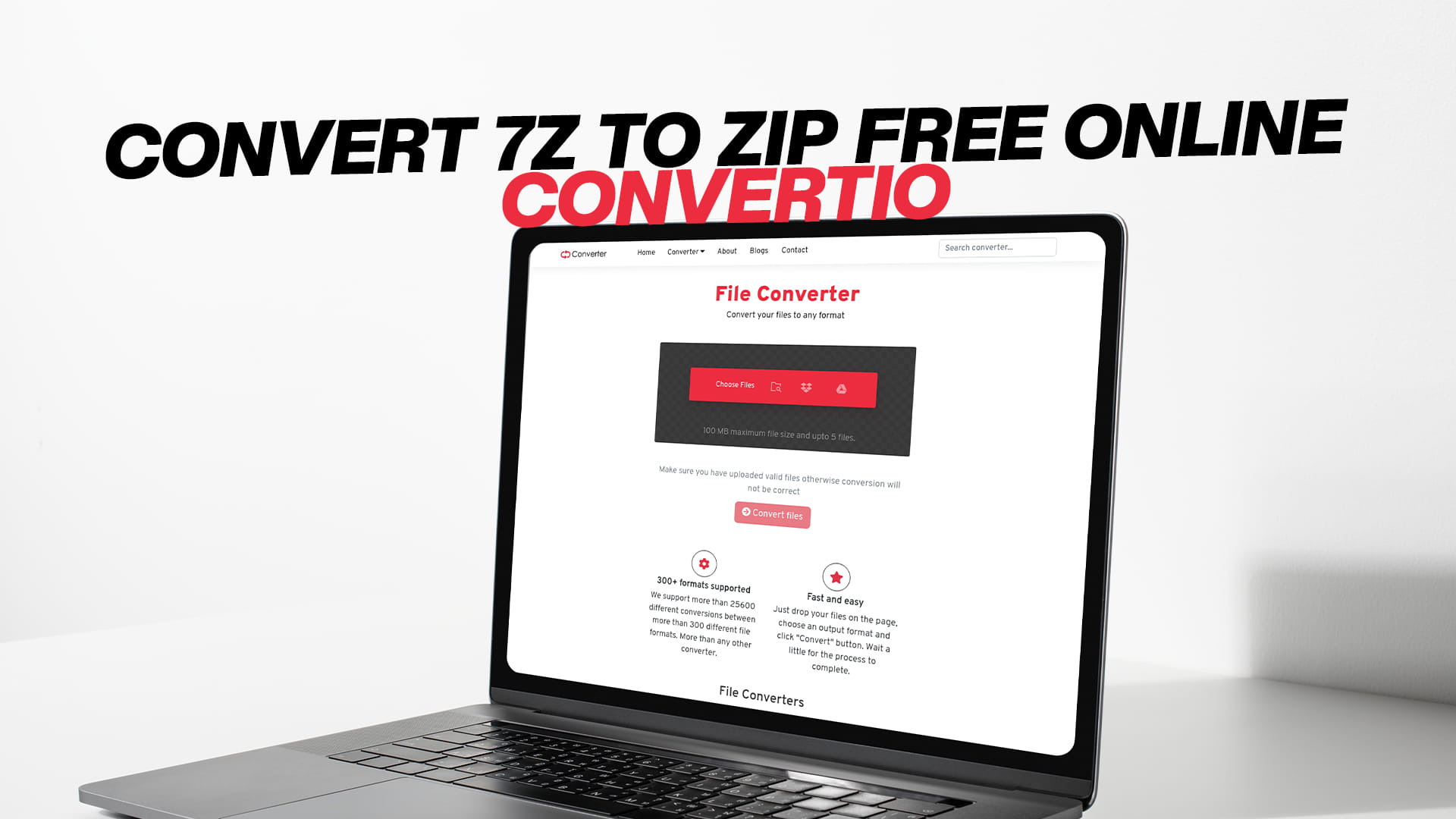
Convert 7Z to ZIP Free Online | Convertio
You downloaded a file, and it ends in .7z. Your system cannot open it. The software asking for it wants a .zip file instead. Now you are stuck trying to figure out how to make that switch without spending money on software you will probably use once and never touch again.
This situation happens more often than people expect. The 7Z format is common in a lot of corners of the internet, but ZIP is what most systems, email clients, and platforms actually accept without complaint. The gap between the two formats causes real friction for real people every single day.
This article explains what these two formats are, why you might need to convert between them, how to do it without installing anything, and why Convertio is one of the most straightforward tools available for this kind of task.
What Is a 7Z File?
A 7Z file is a compressed archive. That means it is a container that holds one or more files or folders, all squeezed down to take up less space. The .7z extension belongs to the 7-Zip format, which was developed by Igor Pavlov and released as open-source software in 1999.
The 7Z format is known for its compression efficiency. It generally compresses files smaller than most other archive formats, including ZIP. The algorithm it uses most commonly is called LZMA, which stands for Lempel-Ziv-Markov chain Algorithm — though you do not need to remember that. What matters is that LZMA is very good at squeezing files down to a small size, which is why 7Z is popular among software developers, game modders, and anyone who distributes large files over the internet.
7Z also supports strong encryption. If someone sends you a password-protected 7Z file, that encryption is serious. It uses AES-256, which is the same standard used in many banking and government systems.
The downside of 7Z is that it is not universally supported. Windows can open ZIP files natively without any extra software. It cannot open 7Z files without a third-party tool. macOS has the same limitation. For a format to be truly convenient, it needs to work without asking the recipient to install anything extra. ZIP passes that test. 7Z does not.
What Is a ZIP File?
ZIP is one of the oldest and most widely used archive formats in the world. It was created by Phil Katz in 1989, and despite being over three decades old, it remains the default compressed format across virtually every operating system and platform.
When someone sends you a compressed folder, it is almost always a ZIP. When a website offers a bundle of files for download, it is usually a ZIP. When a developer packages their software for distribution, they often use ZIP. The format is so embedded in computing that most people never think about it. They just double-click the file and it opens.
ZIP files offer decent compression, though not as efficient as 7Z. What ZIP lacks in raw compression ratio, it more than makes up for in compatibility. You can send a ZIP file to someone using Windows, macOS, Linux, Android, or iOS, and they can open it without installing anything. That universal compatibility is why ZIP has survived and thrived for so long.
ZIP also supports some encryption, though it is generally considered weaker than what 7Z provides. For most everyday uses — sharing documents, archiving photos, bundling project files — that does not matter. The security of ZIP is perfectly adequate for the vast majority of situations.
Why Would You Need to Convert 7Z to ZIP?
There are several genuine reasons why someone might need to make this conversion, and none of them are unusual.
The most common reason is compatibility. You receive or download a 7Z file, and the person or system it is going to does not support 7Z. Maybe you are submitting a file to an online platform that only accepts ZIP. Maybe you are emailing files to someone who is not technical and you do not want to walk them through installing 7-Zip just to open your attachment. Converting to ZIP solves both problems.
Another reason is workflow. If you work with files regularly and your tools, scripts, or systems expect ZIP format, receiving 7Z files creates an interruption in that workflow. Converting once, cleanly, means you can continue without changing your process.
Some content management systems and cloud storage platforms have specific requirements about file types. A system might accept ZIP archives for batch uploads but not 7Z. Converting before upload is simpler than trying to change the system settings or argue with an IT department.
There is also the issue of software access. Not everyone has 7-Zip or WinRAR installed. Not every device allows software installation. If you are on a work computer, a school device, or just a computer that is not yours, you might not be able to install extraction tools. A browser-based converter handles the job without needing any installation at all.
Finally, some people just prefer ZIP. It is simpler, more familiar, and works everywhere without question. If you are archiving something for long-term storage and want to be sure anyone can open it years from now, ZIP is the safer bet purely from a compatibility standpoint.
The Problem with Converting Locally
The traditional way to convert a 7Z file to ZIP involves a multi-step process on your own machine. You need to first extract the 7Z archive — which requires 7-Zip or similar software — and then recompress the extracted files into a new ZIP archive using your operating system's built-in tools or another application.
That process is not hard if you know what you are doing. But it has friction. You need to have the right software installed. You need enough disk space to hold the extracted files and the new ZIP simultaneously. You need to go through multiple steps without making mistakes.
For someone who converts files regularly, that routine becomes second nature. For someone who just needs to do it once or occasionally, it is an annoying amount of steps for what feels like a simple task.
Online converters remove all of that friction. You upload the file, the server handles the extraction and recompression, and you download the result. No software. No multi-step process. No worrying about disk space on your local machine.
How Convertio Makes the Conversion Simple
Convertio is a free online file conversion tool that supports an enormous range of file formats. Images, audio files, video files, documents, PDFs, eBooks, software files, and compressed archives — all covered in one place. You do not need a different tool for different tasks. Convertio handles the full spectrum of common conversion needs.
For converting 7Z to ZIP specifically, the process is about as straightforward as it gets.
You go to Convertio, select your 7Z file for upload, choose ZIP as the output format, and start the conversion. The tool processes your file on its servers and gives you a download link when it is done. The whole thing takes a few minutes at most, depending on file size and your internet connection.
There is nothing to install. You do not create an account to use the basic conversion features. You do not need to know anything about archive formats or compression algorithms. The tool handles all of that behind the scenes.
This is exactly the kind of tool that removes a technical barrier for people who are not deeply familiar with file formats. You do not need to know the difference between LZMA and Deflate compression. You do not need to understand archive structures. You just need to know that you have a 7Z file and you need a ZIP file, and Convertio takes care of the rest.
What Happens During the Conversion?
It is worth understanding what is actually going on when you convert a 7Z file to ZIP, even if you never have to manage the steps yourself.
When the conversion starts, the tool decompresses the 7Z archive. This extracts all the files and folders that were inside it. The files are now in their original, uncompressed state — or at whatever compression level they were originally stored inside the archive.
Then, the tool takes those extracted files and compresses them again using ZIP's compression method. It recreates the archive structure — preserving folder organization, file names, and file contents — inside a new ZIP container.
The result is a ZIP file that contains the same content as the original 7Z file, just packaged differently.
One thing to note: because 7Z generally achieves higher compression than ZIP, your resulting ZIP file may be slightly larger than the original 7Z. This is normal. You are not losing data; you are just switching to a compression method that is slightly less efficient in exchange for much wider compatibility.
The actual file contents — documents, images, videos, code files, or whatever was inside the archive — are completely preserved. Nothing is altered, deleted, or damaged in the process.
Convertio Beyond 7Z and ZIP
One of the most useful things about Convertio is that it is not limited to compressed archive conversion. This matters because most people have multiple file conversion needs over time, and having one reliable tool that covers many of them is more practical than hunting down a different site for each task.
Here is a sense of what else Convertio handles:
When it comes to images, you can convert between JPEG, PNG, GIF, TIFF, BMP, SVG, WEBP, HEIC, and many other formats. If you have photos in a format that a platform does not accept, or you need to reduce file size by changing format, Convertio covers it.
For audio, conversions between MP3, WAV, FLAC, AAC, OGG, M4A, and other formats are all supported. This is useful for music production, podcast editing, and general audio management.
For video, Convertio supports MP4, MOV, AVI, MKV, WEBM, and more. Converting video for different platforms or devices — from a MOV recorded on an iPhone to an MP4 that works on a Windows machine, for example — is a common need that Convertio handles without requiring video editing software.
For documents, you can convert between DOCX, PDF, ODT, TXT, RTF, and other formats. The need to convert a Word document to PDF, or a PDF to something editable, comes up constantly in professional life.
For eBooks, Convertio supports EPUB, MOBI, AZW, and other formats. This is particularly useful for people who read on multiple devices or want to load content onto an e-reader that only supports certain formats.
For software and compressed files, beyond ZIP and 7Z, Convertio also handles formats like TAR, GZ, BZ2, RAR, and others.
The breadth of supported formats means that Convertio is genuinely useful as a single go-to conversion tool, not just a one-trick utility you visit for one specific task and then forget about.
Is It Safe to Use an Online File Converter?
This is a question worth addressing directly, because people are rightfully cautious about uploading files to websites they are not familiar with.
For general use — converting file formats, not handling extremely sensitive personal or financial data — online converters are perfectly reasonable to use. The key is using a reputable one.
Convertio processes your files for the purpose of conversion and does not retain them indefinitely. Files are deleted from servers after a set period. This is standard practice for legitimate conversion services.
For particularly sensitive files — things containing confidential business information, personal identification details, or financial data — it is worth thinking twice about any online service, not just converters. If in doubt, handle sensitive material locally using installed software.
For the vast majority of conversion tasks — game files, software packages, media collections, work documents that are not confidential — using Convertio is perfectly safe and practical.
Why Free Online Tools Matter
It is worth pausing on the "free" part for a moment, because it is not incidental.
Software for file conversion has historically been either expensive, loaded with unwanted extras, or limited unless you pay for a premium version. The trial versions show you what the tool can do and then stop you from actually using it. The free versions quietly install browser toolbars or other junk alongside themselves.
Free online tools that actually work without tricks, paywalls, or hidden conditions represent a different approach. Convertio does not ask you to buy anything to do basic conversions. You can convert files without creating an account, without entering payment details, and without sitting through software installers.
For students, for freelancers working on tight budgets, for anyone in a country where software subscriptions are a significant expense relative to local wages, free tools are not just convenient — they are the difference between being able to do the work and not being able to do it.
The accessibility of tools like Convertio has a real impact on who can participate in digital work. Removing the cost barrier matters.
Practical Tips for Converting 7Z to ZIP
A few things that make the conversion process go smoothly:
Before you upload your 7Z file, check its size. Most free online converters have a file size limit. For large archives — say, files over 100MB — the upload time can be significant depending on your internet connection speed. If you have a very large archive, consider splitting it before conversion or look into whether the platform you need to submit to has alternatives.
Make sure you know what is inside the archive before converting. If the 7Z file contains thousands of small files, the ZIP output will reflect that structure. Sometimes it is worth checking whether you actually need all of those files, or whether you could selectively include only the ones you need.
If your 7Z file is password-protected, you will need to provide the password during conversion. Not all online converters handle encrypted archives. Convertio supports password-protected files, but check the specific tool you are using before assuming it will handle encryption.
After conversion, verify the resulting ZIP file by opening it and checking that the contents look correct before sending it or submitting it anywhere. This is a good habit with any file conversion, not just this one.
Who Uses 7Z to ZIP Conversion the Most?
The people who most often need to convert between these two formats tend to fall into a few groups.
Gamers and modders are one large group. Game mods, patches, and community-created content are very commonly distributed as 7Z files because of the format's efficient compression for large file collections. When a modding platform, game launcher, or installation tool only accepts ZIP, conversion is necessary.
Software developers and open-source contributors run into this regularly. Projects distributed as 7Z for download efficiency sometimes need to be repackaged as ZIP for submission to platforms with specific requirements.
Office workers and business professionals encounter it when receiving files from clients, partners, or vendors who use different tools. The sender used 7Z because it is what their software defaulted to; the recipient needs ZIP because that is what their system accepts.
Students and academics sometimes download research data, datasets, or software packages in 7Z format and need to convert them for submission to learning management systems that only accept specific archive formats.
IT teams and system administrators handle this sort of conversion as part of routine file management, software deployment, and backup processes.
None of these groups are highly technical niches. This is a mainstream need for everyday computer users.
How to Organize Files Before and After Conversion
One small but practical point that does not get mentioned often: the way your files are organized inside the archive matters.
When you convert 7Z to ZIP, the internal folder structure is preserved. If your 7Z archive contains a root folder with subfolders inside, that structure carries over to the ZIP. This is generally what you want. But if your 7Z archive contains files dumped at the root level with no folder organization, your ZIP will look the same — a flat collection of files.
If you are preparing an archive for submission to a specific system or person, it is worth organizing your files into a logical folder structure before archiving. This is easier to do before you create the archive than after, and it makes the resulting ZIP file cleaner and more navigable for whoever receives it.
This is not a Convertio-specific tip; it applies to any archive you create. But it is worth mentioning in the context of conversion, because sometimes people receive a messily organized 7Z and want to clean it up before passing it along. In that case, extract the 7Z, reorganize the files, and then create a fresh ZIP rather than converting directly. Direct conversion preserves the original structure, for better or worse.
The Difference Between Converting and Extracting
One point of confusion that comes up for people new to archive management: there is a difference between converting a 7Z to ZIP and simply extracting the 7Z.
Extracting means taking the files out of the archive. You end up with the original files in their uncompressed state, no longer inside any archive container. This is what you do when you want to actually use or access the files inside.
Converting means changing the archive format while keeping the files inside an archive. You end up with a ZIP file that contains the same files the 7Z contained.
Which one you need depends on what you are trying to accomplish. If you want to access the files inside the archive, extract it. If you need to send the files to someone or submit them somewhere as a compressed bundle, and the destination requires ZIP format, convert it.
Convertio is for conversion — you stay from a packaged 7Z to a packaged ZIP without manually handling the contents. For extraction, your operating system or a tool like 7-Zip handles that locally. Both are valid operations; they just serve different purposes.
Why Convertio Stands Out Among Free Converters
There are quite a few free online file converters available. What distinguishes a good one from a mediocre one comes down to a few things: the range of formats supported, the reliability of the conversion, the speed of the process, and the absence of frustrating limitations that push you toward paying for things.
Convertio does well on all of these. The format support is genuinely broad — most file types you are likely to encounter in everyday work are covered. The conversion process is reliable; the output files are intact and correct. The interface is clean and does not require navigating through confusing menus or multiple pages to complete a basic task.
It also does not require you to sign up before you can use it. Registration options exist for users who want features like conversion history or larger file sizes, but for basic use, you can convert without creating an account. That matters because it removes a barrier and means you can use the tool immediately, without going through an email verification process just to convert one file.
For anyone who works with files in multiple formats — whether professionally or just as a normal part of using a computer — Convertio is a practical tool to have bookmarked. It covers image conversion, audio conversion, video conversion, document conversion, eBook conversion, software files, and compressed archives including the 7Z to ZIP conversion this article is focused on.
Visit Convertio and start converting for free. No software to install, no credit card needed, no subscription required. Just upload your file, choose your output format, and get your converted file back in a few clicks.
Final Thoughts
Converting 7Z to ZIP is not a complicated technical task, but it is one that trips people up when they do not have the right tool available. The underlying reason — that 7Z is efficient but ZIP is compatible — explains why both formats exist and why switching between them is sometimes necessary.
The solution does not need to be complicated either. A free online converter that handles the conversion cleanly, quickly, and without requiring software installation covers the needs of the vast majority of users.
Convertio fits that description. It is free, it works in your browser on any device, and it covers far more than just archive conversion. Whether you need to convert a 7Z file to ZIP, a PNG to JPEG, an MP4 to MOV, or a DOCX to PDF, the tool handles it all in one place.
That kind of broad, reliable, free access to file conversion is genuinely useful. It removes a technical barrier that would otherwise slow down work, block submissions, or create unnecessary friction in what should be a simple file-sharing process.