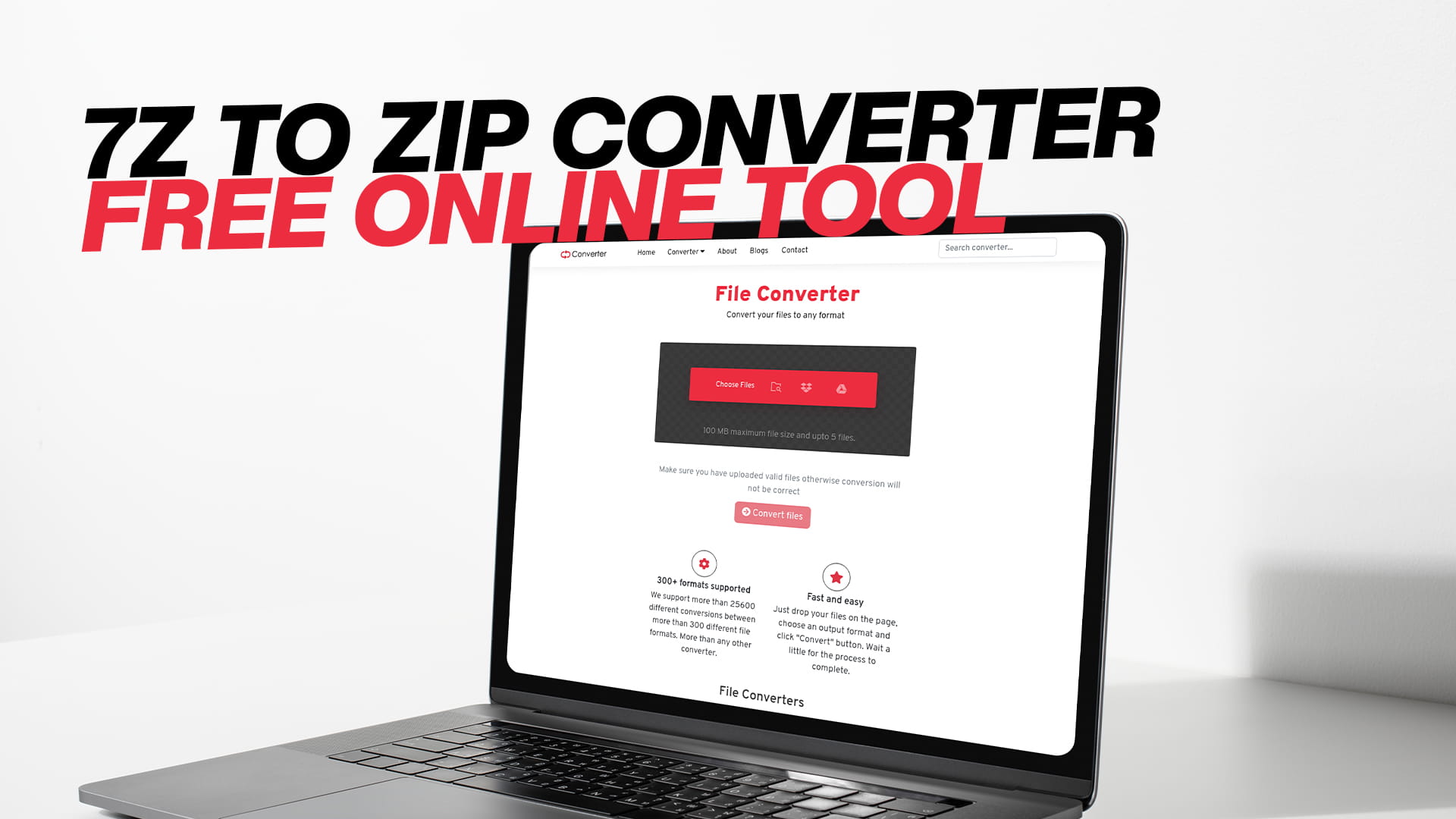
7Z to ZIP Converter — Free Online Tool
If you have a .7z file sitting on your computer and you can't open it, you are not alone. It happens to a lot of people. Someone sends you a compressed file, or you download something from a website, and it turns out to be in 7Z format. Your computer won't open it. Your phone won't open it either. And you just need a regular ZIP file that works everywhere.
That's exactly what a 7Z to ZIP converter is for. You don't need to download software, and you don't need to learn anything complicated. You just upload the file, convert it, and download the ZIP. Convertio handles all of that for free, right in your browser.
This guide covers what 7Z and ZIP actually are, why people need to switch between them, how the conversion works, and what to keep in mind before you start. By the end, you'll know exactly what to do.
What Is a 7Z File
A 7Z file is a compressed archive. It takes one or more files, squashes them down to a smaller size, and packages them all into a single file with the .7z extension. It was created by a developer named Igor Pavlov and is the default format used by a program called 7-Zip.
The reason people use 7Z is mostly about compression. It can make files smaller than older formats. If you are sending a large folder of documents or uploading something to a website with a file size limit, 7Z does a good job at reducing the size. The 7Z format also supports things like splitting an archive into smaller parts and protecting it with a password and encryption.
But there's a catch. 7Z is not a universal format. Not every system supports it out of the box. Windows and macOS both have built-in support for ZIP files, but they don't always handle 7Z files without extra software. On mobile phones, the situation is even more unpredictable. Some apps open 7Z files, some don't, and you rarely know until you try.
So 7Z is useful when you're working in an environment where everyone has the right tools. But when you need to share something with a wider audience, or open something on a device that isn't yours, ZIP is almost always the safer choice.
What Is a ZIP File
ZIP is one of the oldest archive formats around, and that's a good thing. It has been supported by nearly every operating system for decades. Windows has been able to open ZIP files natively since Windows XP. macOS does the same. Linux systems handle it. Smartphones handle it. Almost every file manager on every platform treats ZIP files as a first-class citizen.
A ZIP file works similarly to 7Z. It compresses files and groups them into one package. The compression isn't always as strong as 7Z, but the compatibility is much better. A file you create as a ZIP today will open without problems on a ten-year-old laptop, a brand-new phone, or a shared office computer where you can't install anything.
ZIP also integrates well with email. Most email services let you send ZIP files without any issues. Some block or warn about unusual file formats, and 7Z occasionally falls into that category. ZIP rarely does.
For most everyday sharing and storage purposes, ZIP is the format people reach for. It's familiar, it's supported everywhere, and it just works.
Why Convert 7Z to ZIP
The main reason is compatibility. If you receive a 7Z file from someone and need to share its contents with someone else, converting it to ZIP makes the whole process smoother. The person receiving the ZIP file won't need any special software. They can open it directly from their file manager.
Here are some of the most common situations where converting makes sense.
You received a 7Z file but can't open it. This happens more than you'd think. If you're on a work computer or a borrowed device, you might not have the right software installed and can't add any. Converting the file online means you don't need to install anything.
You want to email someone a file. Some email providers are cautious about .7z attachments. They may flag them or block them altogether. A ZIP file goes through with far less friction.
You're uploading to a platform that requires ZIP. Certain platforms, content management systems, and development tools only accept ZIP archives. If your file is in 7Z, you need to convert it before you can upload it.
You're sharing with non-technical users. If you send a 7Z file to someone who doesn't deal with compressed files often, they might not know how to open it. A ZIP file removes that barrier entirely. They just double-click it.
You're working on a device where 7-Zip isn't available. 7-Zip is primarily a Windows application. On a Mac, iPhone, or Android device, extracting a 7Z file requires finding a compatible app. Converting to ZIP sidesteps that problem.
How the Conversion Works
When you convert a 7Z file to ZIP, the process isn't just renaming the file. The two formats store and compress data differently. A converter needs to actually decompress the 7Z archive, read all the files inside it, and then repackage them into a ZIP archive with the correct structure.
Convertio does all of this on the server side. You upload your 7Z file, the system unpacks it and repackages the contents as a ZIP, and then you download the result. You don't see any of the intermediate steps. From your side, you upload one file and get back another.
Because the conversion involves decompressing and recompressing the data, the output file size may be slightly different from the input. In most cases, the ZIP will be a bit larger than the 7Z, because ZIP compression is generally less aggressive. The actual files inside are untouched. None of the content is changed, modified, or lost. Only the container changes.
If the 7Z file contains subfolders, the ZIP will preserve that same folder structure. If it contains a mix of file types, they all carry over. The ZIP you download should contain exactly what the 7Z did.
How to Convert 7Z to ZIP Using Convertio
The process is short. Here's how it goes.
Step 1 — Go to Convertio
Open your browser and head to Convertio. You can use it on any device with a browser. No account is required to start.
Step 2 — Upload Your 7Z File
Click the upload button and select your 7Z file from your device. You can also drag and drop if you're on a desktop. Convertio also lets you upload from Google Drive or Dropbox if the file is stored in the cloud.
Step 3 — Choose ZIP as the Output Format
Once the file is uploaded, set the output format to ZIP. This is usually just a dropdown or a format selector next to the file name. Make sure it says ZIP before moving on.
Step 4 — Start the Conversion
Hit the convert button. The file gets processed on Convertio's servers. For smaller files, this takes just a few seconds. Larger archives take a bit longer, depending on how many files are inside and your internet connection speed.
Step 5 — Download Your ZIP File
When the conversion is done, a download button appears. Click it and save the ZIP file to your device. That's it. You now have a regular ZIP archive you can open, share, or upload anywhere.
The whole thing usually takes under a minute for typical files. You don't need to sign in, pay anything, or install software.
What Convertio Can Do Beyond This
Converting 7Z to ZIP is one small thing in a much larger set of tools Convertio offers. The platform handles conversions across images, audio files, video files, documents, PDFs, eBooks, software files, and compressed files. If you have a file in one format and need it in another, there's a good chance Convertio can handle it.
For compressed files specifically, Convertio works with a wide range of formats. You can convert to ZIP from 7Z, RAR, TAR, GZ, BZ2, and others. You can also go the other direction, converting ZIP files into different archive formats if you ever need to. The same browser-based approach applies to everything — upload, choose your format, convert, download.
Because it's entirely web-based, Convertio works the same whether you're on Windows, macOS, Linux, iOS, or Android. There's no version to update, no license to manage, and no disk space used up by an application. You just go to the website and use it.
What Happens to Your Files
This is a reasonable thing to wonder about, especially when you're uploading files that might contain personal or sensitive content.
Convertio processes your files on its servers to complete the conversion. After conversion, the files are available for download for a limited time. They are deleted from the servers automatically after that window closes. Convertio does not sell your files or share them with third parties.
That said, as a general rule, it's good practice to avoid uploading files that contain confidential business data, personal identification, passwords, or private financial information when using any online tool. That applies here too. For ordinary documents, photos, installers, and similar content, the risk is minimal and the tool is safe to use.
Supported File Sizes and Limits
Convertio handles files up to 100MB on the free plan. That covers most everyday use cases. A compressed archive of documents, a folder of images, a batch of audio files — most of these fall well within that limit.
If you're working with very large archives, you may need to consider whether the files inside can be split into smaller batches. Some compression tools let you split an archive into multiple parts, which you can then convert individually.
For larger files and more demanding workflows, Convertio does offer paid plans with higher limits. But for typical personal and professional use, the free tier is more than enough.
Difference Between 7Z and ZIP Compression
It's worth understanding one technical point here, even if you're not a technical person.
7Z typically achieves better compression ratios than ZIP. This means a 7Z file is often smaller than the equivalent ZIP file. The 7Z format uses a compression method called LZMA (Lempel-Ziv-Markov chain algorithm), which is very efficient. It takes longer to compress and decompress than some older methods, but the output file is smaller.
ZIP uses older compression methods by default, most commonly DEFLATE. It's faster to create and open, but the resulting file tends to be larger than a 7Z with the same content.
In practice, for most files you're likely to encounter — text documents, PDFs, images, software installers — the size difference between 7Z and ZIP is noticeable but not dramatic. You might go from a 50MB 7Z file to a 55MB ZIP file. For large archives with lots of similar content, the gap can be wider.
The important thing to understand is that converting from 7Z to ZIP doesn't mean anything is lost. All your files remain intact. The only thing that changes is the archive format, not the content inside it.
Password-Protected 7Z Files
One issue that comes up occasionally is password-protected archives. If your 7Z file is encrypted with a password, you won't be able to convert it to ZIP without first providing that password.
Some online converters can handle password-protected 7Z files if you enter the password during the upload process. Others require you to decrypt the file first using a local tool before uploading.
If you're working with an encrypted 7Z file, check the specific handling on Convertio's conversion page. The interface will usually indicate if a password prompt is available or give you guidance on what to do.
For ZIP files, it's worth noting that the encryption on ZIP archives is generally considered weaker than 7Z encryption. If security is a priority and you're converting a highly sensitive encrypted archive, that's something to be aware of. For most everyday files, this doesn't matter.
Batch Converting Multiple 7Z Files
If you have several 7Z files to convert, doing them one by one can take time. Convertio supports batch conversions, meaning you can upload multiple files at once and convert them all in a single session.
The process is the same as converting a single file, but you select all the files you want to convert in the upload step. Each one gets processed and becomes available to download individually. You can then download them all when the conversions are complete.
This is useful if you've received a set of archives from a colleague or downloaded a collection of files from a service that packages things in 7Z format. You convert them all in one go rather than repeating the process over and over.
When You Might Want to Keep the 7Z Format
Converting to ZIP isn't always the right move. There are situations where sticking with 7Z makes more sense.
If you're archiving files for long-term storage and care about saving disk space, 7Z is worth keeping. Better compression means you fit more data into less space.
If everyone in your workflow already uses 7-Zip and you're comfortable with it, there's no need to change anything. The compatibility issue only matters when you're sharing files with people who might not have the right software.
If the 7Z file is encrypted and security is important, converting to ZIP reduces the encryption strength. You'd want to weigh that before converting.
For personal backups and storage where you control the tools, 7Z is perfectly fine. The conversion to ZIP is most valuable when you're moving files between people or systems where compatibility is less predictable.
Alternative Ways to Open 7Z Files Without Converting
If you just want to view or extract the contents of a 7Z file rather than share it as a ZIP, there are other options.
On Windows, you can install 7-Zip for free. It's lightweight, handles a huge range of archive formats, and integrates directly into the right-click menu in File Explorer. Once installed, opening a 7Z file is as easy as double-clicking it.
On macOS, there are several apps in the App Store that handle 7Z files. The Unarchiver is one of the most commonly recommended. It's free and handles 7Z along with many other formats.
On Android and iOS, apps like ZArchiver (Android) and iZip (iOS) can open 7Z files directly on your phone.
So if you just need to access what's inside a 7Z file once, installing a local app might be quicker than converting. But if you need to share the files as a ZIP with others, or if you're in a situation where you can't install anything, Convertio is the better path.
Common Problems and What to Do
The conversion fails. This usually happens because the file is corrupted. Try downloading the 7Z file again from the original source. If it was sent by email, ask the sender to resend it.
The ZIP file is much larger than expected. This is normal. ZIP compression is less aggressive than 7Z, so the ZIP will typically be larger. Your files are still there and intact.
The ZIP file is missing some contents. This can happen if the original 7Z was only partially uploaded. Check your internet connection and try the upload again. If it happens repeatedly, the 7Z file itself may be damaged.
The 7Z file requires a password. You'll need to provide the correct password during or before the conversion. If you don't have the password, you won't be able to extract or convert the contents.
The download link expired. Convertio's download links are available for a limited time. If yours expired, you'll need to re-upload and reconvert the file.
Is There Any Quality Loss When Converting
No. Converting a 7Z archive to ZIP doesn't affect the files inside it in any way. When you think about quality loss, it typically applies to media files like photos or videos that use lossy compression — formats where data is permanently removed to make the file smaller.
Archive formats like 7Z and ZIP don't work that way. They use lossless compression. The original data is preserved exactly, and when you extract the files from the archive, you get back exactly what went in. Converting from one archive format to another doesn't touch the actual content. A photo inside a ZIP is identical to the same photo inside a 7Z.
So whatever files are in your 7Z archive — documents, images, videos, code files, anything — they all come through the conversion to ZIP unchanged.
Tips for Working With Compressed Files
A few practical habits that make life easier when dealing with archives.
Name your archives clearly. If you're going to share a ZIP or 7Z with someone, give it a name that describes what's inside. "project-files-march.zip" is much better than "archive.zip" or just leaving it as whatever it was downloaded as.
Check the contents before sharing. Most systems let you peek inside a ZIP without extracting it. Take a quick look to make sure the right files are in there and nothing got accidentally left out.
Don't nest too many archives. Having a ZIP inside a ZIP inside a 7Z is confusing for everyone involved. If you're packaging files for someone else, keep the structure flat and simple.
Be careful with very old ZIP files. The original ZIP format had some limitations with file names, special characters, and file paths. Most modern tools handle these fine, but occasionally a very old archive can cause issues. If you run into problems, try extracting it with a dedicated tool like 7-Zip before reconverting.
Test the conversion before deleting the original. After you convert a 7Z to ZIP and download the result, open the ZIP and check that the contents are all there and accessible. Once you're happy, you can safely delete the original 7Z if you no longer need it.
Why Browser-Based Conversion Makes Sense
Not everyone wants to manage software on their devices. Installing an archiving program, keeping it updated, learning where the settings are — it's not complicated, but it is friction. When you're just trying to get one file into the right format, that friction is annoying.
Browser-based tools like Convertio remove all of that. You go to the website, do the thing you need, and move on. There's nothing to install, nothing to update, and nothing taking up space on your hard drive. The next time you need to convert something, the tool is exactly where you left it.
For people who work across multiple devices, this is especially useful. You might do most of your work on a laptop, but sometimes you're on a desktop at work or a tablet at home. A web-based converter works the same everywhere.
It's also just faster for one-off tasks. If you only need to convert a file once every few months, opening a browser is quicker than finding and installing the right application.
A Final Word
Converting a 7Z file to ZIP is a simple task, and it solves a real problem. Most people run into it because someone sent them a file in a format their computer doesn't natively handle, or because they need to share something with someone who uses different tools.
Convertio makes the whole process take about a minute. You don't need to be technical, and you don't need to install anything. Upload the file, select ZIP as the format, convert, and download. The ZIP file you get back works everywhere.
Beyond 7Z to ZIP, Convertio handles conversions across images, audio, video, documents, PDFs, eBooks, and more. If you find yourself needing to change a file from one format to another, it's worth keeping the site bookmarked. It covers a lot of ground, and the free tier handles most everyday needs without any hassle.