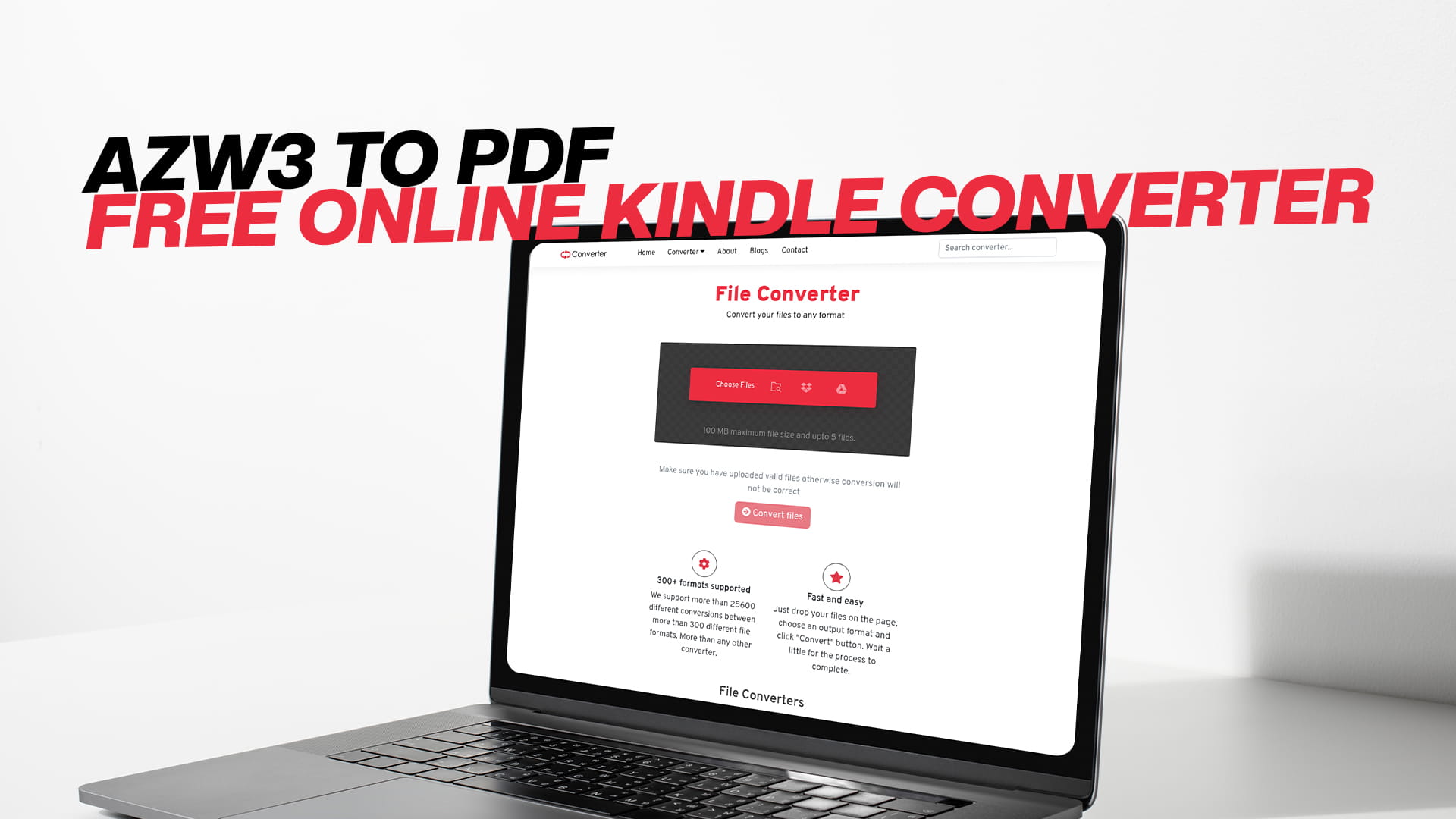
AZW3 to PDF — Free Online Kindle Converter
If you have ever tried to open a Kindle book on a device that is not a Kindle, you already know the frustration. The file just sits there, unreadable, locked behind a format that only Amazon's ecosystem understands. That is the AZW3 problem in a nutshell. The good news is that converting AZW3 to PDF is not complicated, and you do not need to install anything to do it. Convertio handles the whole job online, for free, in about a minute.
This guide covers everything you need — what AZW3 actually is, why PDF is often the better format to work with, when conversion makes sense, and how to get it done without any technical headaches.
What Is an AZW3 File?
AZW3 is an eBook format made by Amazon. It is the updated version of the older AZW format and is based on the KF8 (Kindle Format 8) standard. Amazon introduced it around 2011 to support more advanced formatting features in Kindle books — things like CSS styling, HTML5 content, and more complex layouts.
When you buy a Kindle book from Amazon, it often comes in AZW3 format. If you use a Kindle device or the Kindle app on your phone or tablet, you will never even notice the file format. Everything opens automatically. The format is invisible to you as a reader.
But the moment you step outside the Kindle ecosystem, AZW3 stops working. Open a PDF in Chrome, Firefox, or any standard document viewer, and it opens right up. Try to open an AZW3 file the same way, and nothing happens. The format is specific to Amazon's software and hardware.
This is not an accident. Amazon designed AZW3 to work within its platform. That way, you keep reading on Kindle apps and devices. From a business perspective, it makes sense. From a user perspective, it gets limiting quickly — especially if you want to read your books on devices or software that Amazon does not support, or if you want to share a file with someone, print it, or archive it in a format that will still open twenty years from now.
AZW3 files also have DRM (Digital Rights Management) protection on most purchased books. DRM is a type of lock that prevents copying or converting the file. However, not all AZW3 files have DRM. eBooks that are self-published, free, or obtained through sources that do not apply DRM can be converted normally. If a file is DRM-protected, you will need to check whether you have the right to remove that protection based on your local laws before converting it.
What Is a PDF File?
PDF stands for Portable Document Format. Adobe created it in the early 1990s, and it has been one of the most widely used document formats ever since. The whole idea behind PDF was simple: a file that looks exactly the same no matter what device, operating system, or software you open it on. A PDF you create on a Windows computer opens identically on a Mac, an iPhone, an Android tablet, a Linux machine, or a Chromebook.
That consistency is why PDF became the default format for so many things — contracts, forms, reports, manuals, academic papers, government documents, and, yes, books. Every modern operating system comes with a built-in PDF viewer. Browsers can open PDFs directly. PDF support is everywhere.
From an archival standpoint, PDF is one of the safest formats to use. There is even a specific variant called PDF/A, which is designed for long-term preservation. Libraries, law firms, universities, and government agencies use it because it practically guarantees the file will still open correctly far into the future.
PDF files can hold almost any kind of content — text, images, vector graphics, embedded fonts, hyperlinks, annotations, and even interactive form fields. For an eBook, this means the layout, the fonts, the images, and the page structure all stay exactly as the original author or publisher intended.
One important thing to understand about PDFs compared to AZW3 is how they handle text flow. AZW3 (and most eBook formats) use reflowable text. This means the text adjusts automatically depending on your screen size. Make the font bigger, and the text reflows to fit. PDF is fixed-layout, meaning the pages look the same regardless of screen size. On a small phone screen, a standard PDF can feel a bit cramped. On a tablet or desktop monitor, it tends to look great.
Why Convert AZW3 to PDF?
There are several practical reasons to convert AZW3 to PDF, and most of them come back to one thing: flexibility.
Reading on any device. Not everyone owns a Kindle or uses the Kindle app. If you want to send an eBook to a friend who uses a Kobo reader, a Sony device, a standard tablet, or just their laptop browser, PDF works everywhere. AZW3 does not.
Printing your book. AZW3 files cannot be printed directly. PDF files can be printed from virtually any device. If you have a textbook, a recipe collection, or any other book you want on paper, converting to PDF first is the only practical route.
Sharing and distribution. When you want to share a document with a group of people — a class, a team, a family — PDF is the safe choice. Everyone can open it. No one needs to download special software or own a specific device.
Archiving your library. If you have a collection of eBooks you have purchased, downloaded for free, or created yourself, converting them to PDF gives you a format that is not tied to any single company's platform. Platforms change. Companies shut down. Amazon could change its policies tomorrow and you would lose access. A PDF stored on your hard drive is yours.
Academic and professional use. Researchers, students, and professionals often need to annotate, highlight, or reference specific page numbers. PDF supports all of this natively with standard tools like Adobe Acrobat, Foxit, or even free browser-based viewers.
Editing and repurposing content. If you created the eBook yourself — say, you wrote it, published it as AZW3 for Kindle, and now want a version you can edit or present differently — converting to PDF and then to an editable format like Word opens up options.
How to Convert AZW3 to PDF Using Convertio
Convertio is a free online converter that works entirely in your browser. There is no software to install, no account required to use the basic conversion, and no steep learning curve. Here is exactly how the process works.
Step 1: Go to Convertio
Open your browser and go to Convertio. On the homepage, you will see the converter tool. It is designed to be straightforward — a large area where you can upload your file, a format selector, and a convert button.
Step 2: Upload Your AZW3 File
Click the upload area or drag your AZW3 file directly into it. Convertio also supports uploading from Google Drive or Dropbox, which is useful if your file is already stored in the cloud. If you have multiple AZW3 files you want to convert at the same time, you can upload them all at once and convert them in a batch.
Step 3: Select PDF as the Output Format
From the format dropdown menu, select PDF as your target format. Convertio supports a large number of output formats, so make sure you have selected PDF specifically. If you type "PDF" in the format search box, it comes up immediately.
Step 4: Click Convert
Hit the Convert button. Convertio will process your file on its servers. The time it takes depends on the file size and your internet connection speed, but for a typical eBook, this usually takes under a minute.
Step 5: Download Your PDF
Once the conversion is complete, Convertio will show a download button. Click it and save the PDF to your device. If you uploaded multiple files, you can download them individually or all at once as a ZIP archive.
That is the whole process. No registration wall, no watermarks, no software installation. Convertio also deletes your files from its servers after a short period, which is a good privacy practice.
What Happens to the Formatting During Conversion?
This is the question most people have, and it is a fair one. When you convert from AZW3 to PDF, the converter is essentially rendering the eBook's content into a fixed-page layout.
For most books, especially text-heavy novels or non-fiction titles, the conversion comes out cleanly. Paragraphs, chapters, headings, and basic formatting transfer well. The text is readable, the chapter breaks are in the right places, and the overall structure makes sense.
For books with more complex layouts — textbooks with multi-column content, children's picture books, heavily illustrated technical manuals — the conversion can be less perfect. Images generally transfer fine. Tables and complex positioning can sometimes shift slightly. This is not a flaw in Convertio specifically; it is just the nature of translating a reflowable format into a fixed one.
If the output is not exactly what you expected, there are a couple of things you can try. Some converters let you adjust page size and margins before conversion. Converting to an intermediate format first (like EPUB) and then to PDF can also sometimes produce better results, depending on the original file's structure.
For the vast majority of standard eBooks, though, the PDF output from Convertio is clean, readable, and ready to use immediately.
AZW3 vs. Other Kindle Formats — What Is the Difference?
Amazon has used several file formats over the years, and the names can get confusing. Here is a quick breakdown so you know what you are working with.
MOBI was Amazon's original eBook format, based on the older MobiPocket standard. It has been around since the early Kindle days and is still supported on many older Kindle devices. MOBI supports basic formatting but lacks some of the more advanced features that AZW3 introduced.
AZW was Amazon's proprietary wrapper around the MOBI format. It added DRM support and was the standard Kindle format for several years. If you have books downloaded to an older Kindle device, they are probably in AZW format.
AZW3 (also called KF8 internally) replaced AZW as the primary format. It supports HTML5, CSS3, and more sophisticated page layouts. Most newer Kindle books are in AZW3 format. If you look at the file extension and it says .azw3, this is what you have.
KFX is the newest format Amazon uses, introduced more recently to support advanced typography and layout features. It is even more locked into the Kindle ecosystem than AZW3.
EPUB is not an Amazon format — it is the open standard used by almost every other eBook platform in the world. Kobo, Apple Books, Barnes and Noble's Nook, Google Play Books, and most other platforms use EPUB. It is the format you would use if you wanted to publish an eBook outside of Amazon's ecosystem.
When you are converting from AZW3, understanding this hierarchy helps. AZW3 files are more feature-rich than older MOBI or AZW files, which means they sometimes convert with slightly more complexity. But for standard reading purposes, the conversion to PDF handles this just fine.
When Should You Use PDF Over AZW3?
Not every situation calls for conversion. AZW3 works great if you are reading on a Kindle device or the Kindle app. The format is designed for that environment, and it gives you a good reading experience with adjustable fonts, night mode, synced bookmarks, and all the features Kindle readers expect.
But there are specific scenarios where PDF is the clear choice.
If you want to print the content, use PDF. No eBook format is designed for printing the way PDF is. PDF gives you consistent page sizes, proper margins, and clean output on paper.
If you are sharing with people who may not have a Kindle, use a PDF. Most people can open a PDF without installing anything new. That is not true for AZW3.
If you are creating educational or training materials based on the content, use PDF. PDF integrates better with tools like annotation software, LMS platforms, and document management systems.
If you are backing up your digital library for long-term storage, use PDF. Formats tied to proprietary platforms (like AZW3) carry the risk of becoming unreadable if the platform changes or shuts down. PDF is a stable, open standard.
If you need to reference specific page numbers, use PDF. eBooks with reflowable text do not have fixed page numbers — they change depending on font size and screen settings. PDF has consistent, reliable pagination.
Tips for Better AZW3 to PDF Conversions
A few small things can make your conversions come out cleaner and more usable.
Check the file before converting. Open the AZW3 in your Kindle app or Kindle Previewer (a free tool from Amazon) to see what the original looks like. This gives you a reference point for comparing the PDF output.
Use a reasonable page size. Most converters default to A4 or US Letter, which are standard document sizes. These work well for most books. If you are converting a book that was designed for a specific screen size (like a graphic novel formatted for a tablet), a larger page size might preserve the layout better.
Preserve metadata when possible. Some conversion tools transfer metadata like title, author, and publication date into the PDF. This is helpful for keeping your digital library organized.
Batch convert when you have many files. If you have a backlog of Kindle books to convert, do them all at once rather than one by one. Convertio supports batch conversion, which saves a lot of time.
Keep your original AZW3 files. After converting to PDF, hold onto the original AZW3 files. If you ever need to re-convert with different settings, or if a better conversion tool comes along, you will want those originals.
Common Problems and Simple Fixes
The file will not upload. Check the file size limit for the conversion tool you are using. For very large files, you may need to split them or use a local conversion tool. Also, make sure the file extension is actually .azw3 — sometimes files are mislabeled.
The PDF comes out scrambled. This usually happens with highly formatted books that have complex layouts. Try converting to EPUB first as an intermediate step, then convert the EPUB to PDF. Sometimes a two-step process gives cleaner results.
Images are missing in the PDF. Some AZW3 files have images embedded in a way that certain converters do not handle well. Convertio handles most standard image formats correctly, but if you find images missing, check if the original AZW3 was correctly structured.
The font looks wrong. PDF conversion relies on either embedding the original fonts or substituting similar ones. If the original AZW3 used a custom font that is not available to the converter, you might see a substituted font in the PDF. This does not affect readability, but it can change the visual appearance.
The file has DRM and will not convert. If you get an error or the output is unreadable, the file likely has DRM protection. As mentioned earlier, DRM-free files convert without issue. For DRM-protected content, you will need to look into the legal options available in your region.
Why Convertio Is a Reliable Choice for File Conversion
There are a lot of file conversion tools out there. Some are desktop apps, some are browser-based, some are free, and some charge for every conversion. Convertio sits in a practical spot: it is free for standard use, works entirely online, and supports a very wide range of file formats.
The range is one of the things that makes it genuinely useful rather than just a one-trick tool. Convertio handles image formats like JPG, PNG, WEBP, TIFF, and SVG. It converts audio files including MP3, WAV, FLAC, and AAC. It works with video formats, compressed archives like ZIP and RAR, document formats including Word, Excel, and PowerPoint, and a full range of eBook formats. AZW3 to PDF is just one of hundreds of conversions it supports.
This matters because most people do not have just one conversion need. You might need to convert an AZW3 to PDF today, and next week you need to turn a batch of PNG screenshots into a single PDF, and the week after that you want to convert an audio recording to a different format. Having one reliable tool that handles all of these is more convenient than hunting for a different app every time.
Convertio is also accessible. There is no learning curve because there is nothing complex to learn. Upload, choose your output format, convert, download. The process is the same for every file type.
The Bigger Picture: Why File Format Flexibility Matters
It is easy to think of file conversion as a technical chore — something you do when a format does not work, then forget about. But there is a bigger point worth thinking about.
The files you own digitally are only as accessible as the software that reads them. Word processing documents from the 1980s are largely unreadable today because the software that created them no longer exists. The same risk applies to any format tied to a specific platform or company. AZW3 files are readable right now because Amazon exists and supports them. That may be true for a very long time. It may not.
PDF, on the other hand, is an open standard maintained by ISO (the International Organization for Standardization). It does not belong to any single company. Adobe created it, but they donated the specification to ISO in 2008. This means PDF readers can be built by anyone, and they will be for a very long time. The format is not going anywhere.
For anyone who cares about preserving their digital library — whether that is a collection of purchased books, self-published works, research materials, or anything else — having files in an open, widely supported format is a form of future-proofing. Converting your AZW3 eBooks to PDF is not just a convenience. It is a reasonable step toward making sure your library stays yours and stays readable.
Final Thoughts
AZW3 is a good format for reading on Kindle. It is not a good format for anything outside that ecosystem. When you need your eBook files to work across different devices, be printable, be shareable, or simply last a long time without depending on a specific company's platform, PDF is the better choice.
Converting from AZW3 to PDF used to require installing desktop software, going through multi-step processes, or paying for a conversion service. None of that is necessary now. Convertio makes the conversion straightforward and free. Upload the file, choose PDF, convert, download. The whole process takes a minute or two.
If you have been sitting on a collection of Kindle books you want to make more portable, now is a good time to get started. Head over to Convertio and run a few conversions. Start with a book you use regularly, check the output, and you will see how clean and simple the process actually is.
Your files, your library, your formats — it should be that simple.