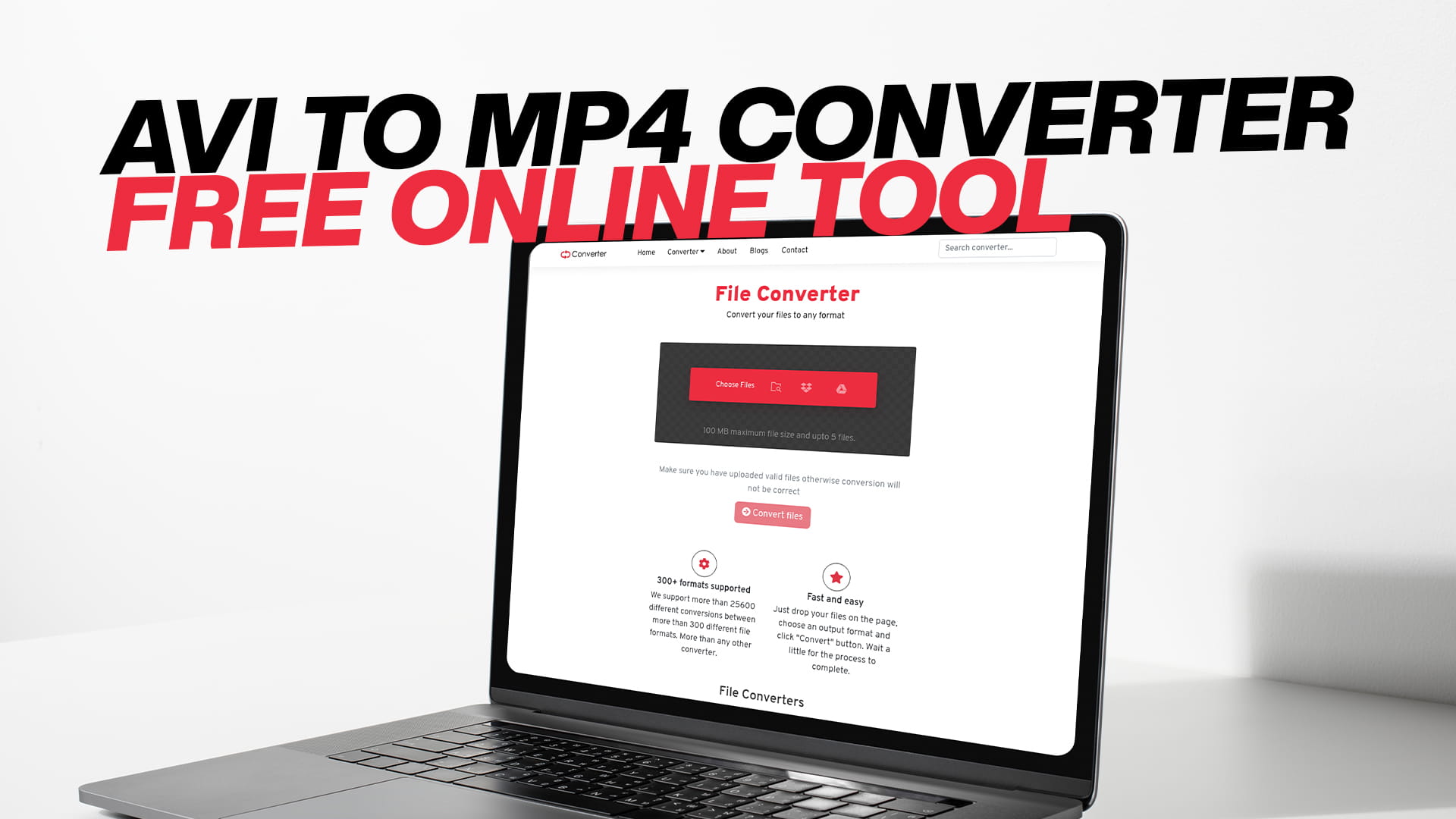
AVI to MP4 Converter — Free Online Tool
If you have an AVI file and it won't play on your phone, your TV, or a video editing app, you are not alone. AVI is one of the oldest video formats around, and while it still works fine on some devices, it fails to open on many modern ones. MP4, on the other hand, plays almost everywhere. Converting your AVI file to MP4 takes care of the problem, and you don't need to install anything to do it.
Convertio is a free online converter that handles this job quickly. You upload your AVI file, choose MP4 as the output format, and download the converted file. That's really all there is to it. No account required. No software to set up. Works on Windows, Mac, Android, iOS, and anything else with a browser.
This guide explains everything you need to know about AVI and MP4, why converting between them makes sense, and how to do it with Convertio.
What Is an AVI File?
AVI stands for Audio Video Interleave. Microsoft created this format back in 1992. At the time, it was one of the most common video formats available, and it became widely used for storing movies, clips, and recordings on Windows computers.
The way AVI works is fairly simple. It stores video and audio data in the same file, alternating between the two streams. That's where the name "interleave" comes from. This approach worked well for older systems, but it came with some limitations that became more obvious over time.
One big issue with AVI is the file size. AVI files tend to be quite large. The format was not designed with compression efficiency in mind, so a short video can take up a lot of space. For example, a few minutes of footage can easily become hundreds of megabytes or more in AVI format, while the same video in MP4 would be a fraction of that size.
Another issue is compatibility. AVI was built for Windows, and while many media players can still open AVI files, smartphones, tablets, and smart TVs often struggle with them. Apple devices, in particular, don't play AVI natively. Most video editing software also prefers other formats.
AVI files also don't support some modern features well. Things like subtitles, chapters, and multiple audio tracks are easier to manage in newer formats. The codec situation with AVI can also get tricky — an AVI file might work on one computer but fail on another if the right codec isn't installed.
Despite all this, AVI files are still around. Old camcorders and security cameras often record in AVI. Some older software still exports to AVI. If you've dug up old footage from a hard drive or received a video from an older device, there's a good chance it's in AVI format.
What Is an MP4 File?
MP4 is short for MPEG-4 Part 14. It was developed in the early 2000s and has become the most widely used video format in the world. You'll find MP4 files on YouTube, Netflix, iPhones, Android phones, Windows, Mac, gaming consoles, and virtually every video platform that exists.
The reason MP4 is so popular comes down to two things: compression and compatibility.
MP4 uses smart compression, which means it can reduce file size without a visible drop in quality. A video that weighs 500 MB as an AVI file might come out to around 80–150 MB in MP4. That matters a lot when you're dealing with storage space or uploading files online.
Compatibility is the other big advantage. When you have an MP4 file, you almost never have to worry about whether it will play. Every major media player, every modern browser, every phone, and every smart TV supports MP4. You send someone an MP4 file and they'll be able to open it, no questions asked.
MP4 also handles a wide range of codecs inside the container. The most common video codec inside an MP4 file is H.264, which gives excellent quality at small file sizes. H.265, also known as HEVC, is newer and even more efficient, though not every device supports it yet. For audio, MP4 commonly uses AAC, which sounds great at low bitrates.
In short, MP4 is flexible, efficient, and works everywhere. It's the reason converting AVI files to MP4 is such a common task.
Why You Would Want to Convert AVI to MP4
There are several reasons why someone would want to convert an AVI file to MP4 rather than keeping it in the original format.
The most common reason is playback. You have an AVI video but it won't open on your phone or TV. Converting it to MP4 solves this immediately, since MP4 plays on almost every device without any special setup.
Storage space is another reason. If you have a large collection of AVI files on your hard drive, converting them to MP4 can free up a significant amount of space. Because MP4 is more efficient, you can keep the same videos at the same quality level while using much less storage.
Uploading to social media or video platforms is another situation where MP4 wins. Instagram, TikTok, YouTube, Facebook, and Twitter all accept MP4 but may have issues with AVI. If you're trying to upload an AVI file and getting errors, switching to MP4 is usually the fix.
Editing is also easier with MP4. Most modern video editors work better with MP4 files. Adobe Premiere, Final Cut Pro, DaVinci Resolve, and other tools all handle MP4 more smoothly than AVI.
Sharing files is simpler too. When you email a video or send it through a messaging app, a smaller MP4 is easier to attach and faster to send than a large AVI file.
Finally, MP4 is simply a more future-proof format. AVI is aging out of common use, while MP4 continues to be the dominant standard. Converting your old AVI files to MP4 keeps them usable for years to come.
How to Convert AVI to MP4 Using Convertio
Convertio makes the conversion process as simple as it can be. Here's how it works step by step.
Step 1: Go to Convertio
Open your browser and go to Convertio. The site works on any device — desktop, laptop, tablet, or phone.
Step 2: Upload Your AVI File
On the Convertio homepage, you'll see an option to upload a file. You can click the button to browse your device and select the AVI file you want to convert. You can also drag and drop the file directly onto the page if you're on a desktop.
Convertio also lets you import files from Google Drive or Dropbox if your video is stored in the cloud rather than on your device. This is useful if you're working with large files that are already uploaded somewhere.
Step 3: Choose MP4 as the Output Format
After uploading, you'll see a dropdown menu to choose the output format. Select MP4. The site supports many other formats as well, but for this conversion, MP4 is what you want.
You can also adjust settings like video quality, resolution, codec, bitrate, and audio settings before converting. These options are there if you need them, but the default settings work fine for most people. Convertio picks reasonable defaults so you don't have to fiddle with anything unless you have specific needs.
Step 4: Click Convert
Hit the Convert button and Convertio will start processing your file. The time it takes depends on the size of your AVI file and your internet connection. Small files finish in a matter of seconds. Larger files take longer, but you can watch the progress bar to see how far along it is.
Step 5: Download Your MP4 File
Once the conversion is done, a download button appears. Click it to save the MP4 file to your device. The file is ready to use immediately.
That's the whole process. No sign-up, no payment, no installation. Just upload, convert, and download.
What Makes Convertio Different from Other Online Converters
There are plenty of online video converters out there, but not all of them are created equal. Some have frustrating interfaces with too many ads. Others have slow conversion speeds, poor output quality, or confusing settings. Some require you to create an account before you can do anything.
Convertio keeps things clean and straightforward. The interface is simple enough that anyone can use it without instructions. You don't need any technical knowledge about video formats or codecs. You just pick your file, pick your output format, and convert.
The quality of the output files is also good. Convertio doesn't just change the file extension — it actually re-encodes the video using proper settings. The result is an MP4 file that looks and sounds just as good as the original AVI, sometimes better, because the compression is handled well.
Convertio is not just for videos either. The site handles a wide range of file types. You can convert images between formats like JPG, PNG, WEBP, and SVG. It handles audio files like MP3, WAV, FLAC, and AAC. It converts documents between PDF, Word, Excel, and other formats. There's support for eBooks, compressed archives like ZIP and RAR, and software files too. If you ever need to convert any kind of file, Convertio is worth checking first.
Security is handled responsibly as well. Uploaded files are stored temporarily for conversion and then deleted from the servers. You're not leaving your personal videos sitting on someone's server permanently.
The tool is free to use. There are options to upgrade if you need to convert larger files or process many files at once, but for everyday use, the free version does everything most people need.
Common Questions About AVI to MP4 Conversion
Will the video quality get worse after conversion?
Not in any noticeable way. When you convert AVI to MP4, there's technically some re-encoding happening, which means the video is compressed again. However, the quality loss is minimal when you use good settings, and Convertio's default settings are designed to preserve quality. For most everyday videos, you won't be able to tell the difference between the original AVI and the converted MP4.
If you're working with professional footage or doing archival work where every pixel matters, you can adjust the bitrate settings in Convertio to maximize quality. Setting a higher bitrate will give you a better-looking MP4 but a slightly larger file size.
Will the file size get smaller after conversion?
Usually, yes. MP4 uses more efficient compression than AVI, so the converted file is typically smaller. How much smaller depends on the original file. In many cases, an AVI file can drop to 30–50% of its original size when converted to MP4 without any visible quality change.
Can I convert multiple AVI files at once?
Yes. Convertio supports batch conversion, meaning you can upload and convert multiple files at the same time. This is useful if you have a whole folder of AVI files you want to convert to MP4 in one go.
Do I need to install anything?
No. Convertio works entirely in the browser. There's nothing to download, no plugins, no extensions. It works on any operating system and any device.
Is it safe to upload my videos?
Yes. Convertio deletes uploaded files from its servers after the conversion is complete. Your files are not stored permanently or shared with anyone.
What if my AVI file is very large?
The free version of Convertio has a file size limit. If your AVI file is very large, you may need to check whether it falls within the limit. For very large files, you can either upgrade to a paid plan or compress the video slightly before uploading. Convertio's video settings allow you to reduce resolution or bitrate if needed.
Tips for Getting the Best MP4 Output
If you want to make sure your converted MP4 file looks and works as well as possible, here are a few things to keep in mind.
Keep the resolution the same as the original. If your AVI file is 1080p, keep the MP4 at 1080p. Upscaling to a higher resolution doesn't add quality — it just makes the file larger.
Use H.264 as the video codec if you want the widest compatibility. H.264 plays on everything. H.265 gives smaller file sizes but not every older device can play it.
For audio, AAC is the best choice inside an MP4 container. It's efficient and widely supported.
If the video is going on social media, check the recommended settings for the platform you're using. Instagram, YouTube, TikTok, and others have specific guidelines for video uploads, and matching those settings before uploading can prevent quality loss caused by the platform re-encoding your video.
If you're converting old home videos or archival footage, set a higher bitrate to preserve as much quality as possible. Storage is cheap, and you'll appreciate having the better-quality version years from now.
Other Video Conversions You Can Do on Convertio
AVI to MP4 is one of the most common video conversions, but it's far from the only one. If you work with video regularly, you'll probably run into other format situations where Convertio can help.
MOV to MP4 is another popular one. MOV is the default video format on iPhones and Mac computers. It plays fine on Apple devices but can be difficult to work with on Windows or on video platforms.
MKV to MP4 comes up a lot too. MKV files are commonly used for movies and TV shows because they support multiple audio tracks and subtitle streams. Converting to MP4 often makes these files smaller and easier to share.
WMV to MP4 is a conversion Windows users frequently need. WMV was Microsoft's video format before MP4 became the standard. Older recordings and video files on Windows computers are often in WMV.
FLV to MP4 is useful for anyone who has downloaded old video content from the internet. FLV was the format Flash Player used, and there are still many FLV files floating around on hard drives from the early YouTube era.
WebM to MP4 is needed when you download video content from modern websites. WebM is a browser-friendly format, but it doesn't always play well in media players or on TVs.
Convertio handles all of these and more. The process is the same regardless of the format: upload the file, choose your output, and convert.
Why MP4 Has Become the Universal Video Format
It's worth understanding why MP4 ended up as the dominant video format, because the reasons are practical and interesting.
When streaming video started to take off in the 2000s, there were many competing formats: RealMedia, Windows Media, Flash Video, QuickTime, and others. Each had its own player, its own limitations, and its own set of problems. Nothing worked everywhere.
MPEG-4 was developed as an open standard with broad backing from the industry. It wasn't owned by a single company, which meant it could be adopted widely without licensing issues slowing things down. H.264, the codec most commonly used inside MP4 files, gave a huge improvement in compression efficiency over what had come before, which mattered enormously when bandwidth was limited.
As smartphones became the dominant way people consumed video, MP4's efficiency became even more valuable. Smaller files mean less mobile data usage, faster loading times, and more videos fitting on a phone's storage. These practical advantages pushed MP4 into universal adoption.
Today, MP4 is effectively the default video format for everything outside of specialized professional workflows. When a device says it can play video, it almost certainly means it can play MP4. When a platform says it accepts video uploads, MP4 is the first format they support.
AVI had its time as the dominant format, but that time has passed. Converting old AVI files to MP4 is a straightforward way to make old content usable in the modern world.
About Convertio
Convertio is a free online file conversion tool that handles a wide range of file types. Beyond video, it converts images, audio files, documents, PDFs, eBooks, software files, compressed archives, and more. If you need to convert any kind of file, Convertio is a reliable option that works directly in your browser.
You don't need an account to start converting. Just visit the site and upload your file. The process is the same for every file type: choose your file, pick the output format, convert, and download. It's free, fast, and requires no installation.
Whether you're converting an old AVI file to MP4, turning a PDF into a Word document, or changing an image from PNG to JPG, Convertio gets the job done without making you jump through hoops.
Final Thoughts
AVI files were useful for a long time, but MP4 has replaced them as the practical choice for almost every situation. If you have AVI files sitting on your hard drive that won't play properly, converting them to MP4 is the right move. The process is quick, the results are good, and you won't lose any meaningful quality in the conversion.
Convertio makes this conversion as easy as it should be. Upload your AVI file, select MP4 as the output, and download the result. No software, no account, no fuss. The converted file will play on your phone, your TV, your computer, and anything else you point it at.
If you've been holding onto old AVI files because you weren't sure what to do with them, now you know. Convert them to MP4 and you'll have no more playback issues, smaller file sizes, and videos that work everywhere. Convertio is the tool to use.