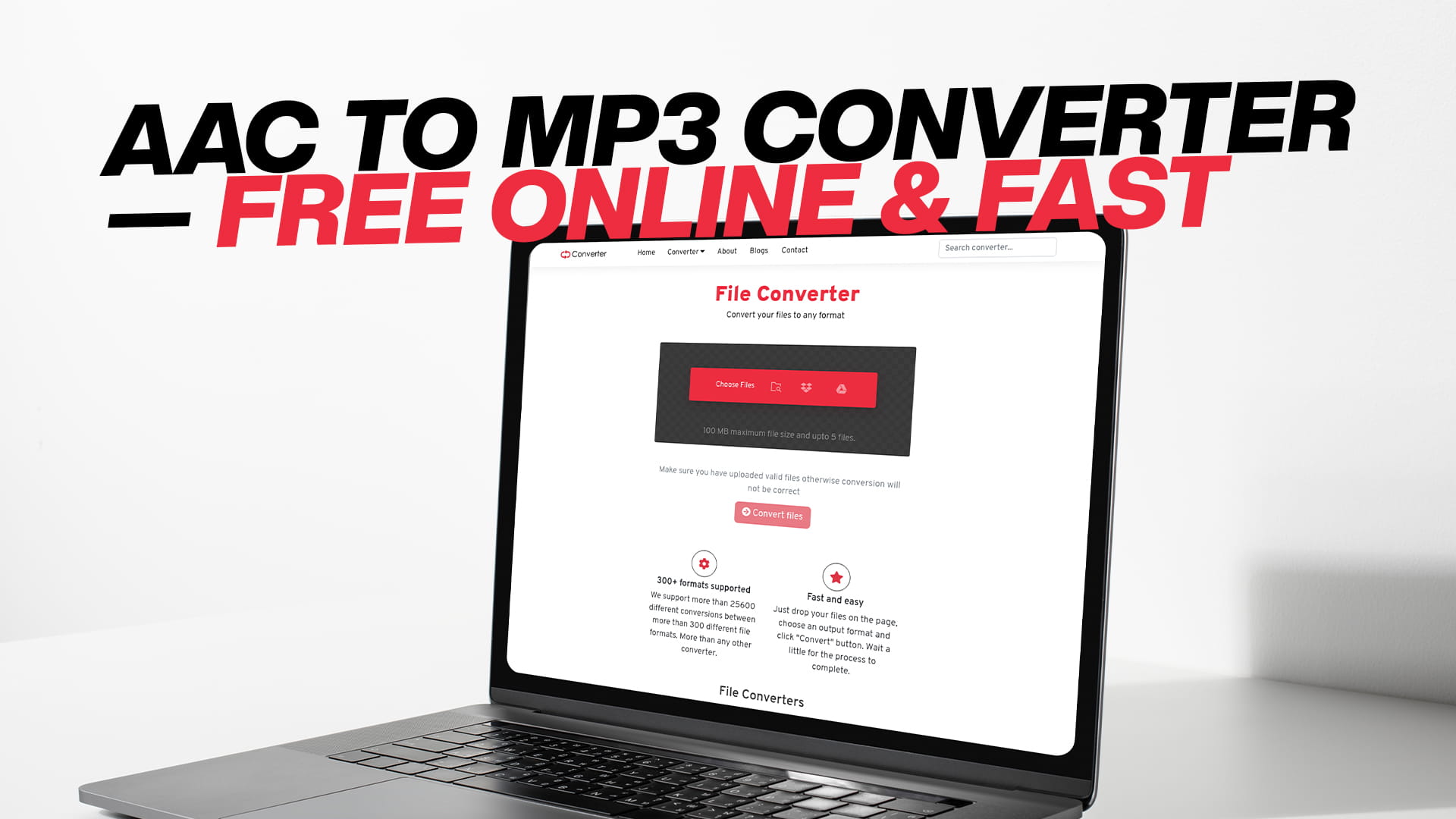
AAC to MP3 Converter — Free Online & Fast
You have an AAC file, and you need an MP3. Maybe your media player does not support AAC. Maybe you are uploading audio to a platform that only accepts MP3. Maybe you just want something that plays everywhere without any compatibility issues. Whatever the reason, you are in the right place.
Converting AAC to MP3 is one of those tasks that sounds technical but is actually very simple. With the right tool, it takes under two minutes. No software to install. No account to create. No money to spend.
Convertio is a free online file conversion tool that handles AAC to MP3 conversion quickly and reliably. This guide explains everything you need to know — what these audio formats are, why you might need to convert between them, how to do it step by step, and how to get the best possible result from your conversion.
Understanding the Problem: Why AAC Files Do Not Always Work Everywhere
AAC is a high-quality audio format. In many ways, it sounds better than MP3 at similar file sizes. But better quality does not always mean better compatibility, and that is where the problem starts.
AAC was developed partly by Apple, and while it is not exclusive to Apple products, the format is most commonly associated with the Apple ecosystem. iTunes used AAC as its default format for years. Apple Music still uses it. iPhones handle AAC files natively with no issues at all.
Outside of Apple's world, however, things get less consistent. Some Android devices support AAC well. Others do not. Older media players and car stereos often skip AAC entirely. Many online platforms, video editors, and audio tools default to MP3 and either do not accept AAC or produce errors when you try to use it.
MP3 does not have this problem. It is the most universally supported audio format in existence. Every device, every platform, every browser, every media player, every car stereo system — all of them handle MP3 without any issues. Converting AAC to MP3 eliminates compatibility problems in a single step.
What Is AAC?
AAC stands for Advanced Audio Coding. The name refers to its design goal: a more efficient compression method than MP3, capable of delivering better audio quality at the same or smaller file size.
The format was developed in the mid-1990s as part of the MPEG-4 standard. It was designed to be the successor to MP3, addressing some of the technical limitations of the older format. AAC can handle more audio channels, uses a more efficient compression algorithm, and tends to produce cleaner sound at lower bitrates.
Apple adopted AAC as the default format for the iTunes Store when it launched in 2003, which gave the format a massive boost in visibility. Hundreds of millions of songs were sold in AAC format through iTunes over the following decade. YouTube also uses AAC for audio in many of its video files.
Despite its technical advantages over MP3, AAC never fully replaced it. MP3 had too much momentum, too much existing infrastructure, and too much universal support to be displaced. AAC became very popular in specific contexts — Apple devices, YouTube, streaming — but MP3 remained the dominant format for general-purpose audio.
AAC files typically use the file extension .aac, though they can also appear as .m4a, .m4p, or .mp4 in some contexts. The .m4a extension is particularly common for music files downloaded from the iTunes Store or exported from Apple software.
What Is MP3?
MP3 is the most recognizable audio format in the world. It has been the dominant digital audio format since the late 1990s and remains widely used today despite the existence of newer and technically superior alternatives.
The format compresses audio by removing sound data that falls outside the range most human ears can detect clearly under typical listening conditions. Very high frequencies that most adults have difficulty hearing, quiet sounds masked by louder ones playing simultaneously, and brief audio details buried beneath more prominent sounds — all of this gets filtered out to reduce the file size.
The result is a compressed audio file that is significantly smaller than an uncompressed WAV or AIFF source, and somewhat smaller or similar in size to an AAC file at equivalent quality. More importantly, the result plays on everything.
MP3 works on Windows, Mac, Linux, Android, iOS, every web browser, every streaming platform, every video editor, every audio editor, every car stereo made in the past twenty years, every Bluetooth speaker, and every media player ever sold. That universal compatibility is the main reason people still use MP3 when other formats technically perform better.
For most real-world listening — through earbuds, car speakers, laptop speakers, or Bluetooth devices — a well-encoded MP3 sounds excellent and indistinguishable from AAC to the vast majority of listeners.
AAC vs. MP3: The Honest Comparison
Technically speaking, AAC has the edge. At the same bitrate, AAC generally produces better audio quality than MP3. A 128 kbps AAC file tends to sound noticeably better than a 128 kbps MP3, with more clarity and less compression artifacts. At higher bitrates, the difference narrows significantly.
In practical terms, the difference is hard to hear for most people. If you are listening through earbuds in a noisy environment, on standard laptop speakers, or through a typical car stereo, you are unlikely to notice any meaningful difference between a 192 kbps AAC and a 192 kbps MP3. Both sound good. Both sound like the music you want to hear.
Where MP3 wins entirely is compatibility. AAC is good, but not universal. MP3 is universal without exception. If you need audio that will definitely work wherever it is played, an MP3 is the safer choice every time.
That is the core reason for this conversion. It is not about getting better quality from AAC. It is about getting broader compatibility from MP3.
Why People Convert AAC to MP3
The reasons people look for this conversion are consistent and practical.
A person downloads music purchased years ago from iTunes and wants to play it on a non-Apple device. The files are in AAC format. Their device does not support it. Converting to MP3 solves the problem immediately.
Someone receives an audio file from a friend or colleague who uses Apple devices. The file is .m4a, which is AAC. Their media player, their editing software, or their platform does not recognize it. MP3 conversion fixes it.
A content creator records voiceover audio on a Mac and exports it in AAC format. Their video editing software on a different machine or platform asks for an MP3. A quick conversion and the file is ready to use.
A musician exports a demo from GarageBand, which saves in AAC by default. They want to share it on a platform that only accepts MP3. Converting takes two minutes.
A podcast producer receives audio submissions from guests using different devices and recording setups. Some submit AAC files. The editing workflow requires everything in MP3. Batch conversion handles the whole pile.
An older car stereo or home audio device only reads MP3s from a USB drive. The music collection has AAC files. Converting everything to MP3 makes it all work.
These are not unusual situations. They happen constantly, and the fix is always the same: convert to MP3.
How to Convert AAC to MP3 Using Convertio
The process is genuinely simple. You do not need to understand audio formats, codecs, or compression algorithms. You just follow a few steps.
Open Convertio in your browser. You can use any browser on any device — Chrome, Firefox, Safari, Edge, or anything else works fine. The main page has an upload area front and center.
Click to select your AAC file, or drag the file directly into the upload area. If your file is stored in Google Drive or Dropbox rather than on your local device, you can import it directly from there. This is useful when the file is large or when you are working from a device that does not have the file downloaded locally.
Once the file finishes uploading, you select the output format. Choose MP3 from the available audio formats. Before starting the conversion, you have the option to adjust settings — specifically the bitrate, which controls the quality and file size of the output.
When the settings are where you want them, click Convert. The tool processes your file and prepares the output. When it is done, a download link appears. Click to download the MP3 file to your device.
The whole process for a typical audio file takes about one to two minutes from start to finish, depending on your internet speed and the size of the file.
Choosing the Right Bitrate for Your Converted MP3
Bitrate is the single most important setting when converting audio to MP3. It determines how much audio information is stored per second of playback, which in turn controls both the quality and the size of the output file.
Bitrate is measured in kilobits per second, or kbps. A higher number means more data per second, which means better audio quality but a larger file. A lower number means smaller files but more quality reduction.
At 128 kbps, you get a compact file that sounds acceptable for casual listening. The compression is noticeable if you listen carefully, particularly in complex music with a lot happening at once. For background listening, podcasts, or audio where quality is not a priority, 128 kbps is workable.
At 192 kbps, the quality is considerably better, and the file size remains reasonable. Most people listening in typical conditions will not be able to distinguish a 192 kbps MP3 from the original AAC source. This is a solid default choice for general-purpose use.
At 256 kbps, the quality is very good. The difference between this and the original file is minimal even for careful listeners.
At 320 kbps, you are at the ceiling of what MP3 can do. The quality is excellent and nearly indistinguishable from lossless sources for most people in most listening environments. Files are larger than lower settings but still much smaller than uncompressed audio.
Since AAC is already a lossy compressed format, you are converting from one compressed format to another. No conversion of this type can add quality — it can only reduce it by varying degrees. Choosing a higher bitrate reduces the quality loss and produces a better-sounding output file.
If the original AAC was encoded at a particular bitrate, there is generally no benefit in setting the MP3 bitrate higher than the original. Matching or slightly reducing the bitrate is usually the right approach unless you are unsure of the original settings, in which case choosing 192 or 256 kbps is a safe choice.
Converting Multiple AAC Files at Once
If you have more than one AAC file to convert — a full album, a collection of voice recordings, or a folder of audio files in various formats — you do not need to convert them one at a time.
Convertio supports batch conversion. Upload multiple AAC files in one session, set the output format to MP3 for all of them, adjust the quality settings as needed, and convert everything together. The tool processes each file and gives you download links for all of them when the batch is complete.
This is especially useful for converting large music collections. An album with twelve tracks can be converted in a single session instead of twelve separate ones. A folder of recordings that all need to go to MP3 can be handled together without any extra effort.
Batch conversion saves meaningful time when working with more than a handful of files.
What Happens to Song Information After Conversion?
Metadata is the information embedded in an audio file that tells your music player what the song is called, who the artist is, what album it belongs to, what year it was released, what genre it is, and what track number it holds. This is what populates your music library with the correct details.
When converting from AAC to MP3, a good conversion tool carries the metadata from the source file to the output file. Convertio preserves this information during conversion so your converted MP3 files show the same artist, title, album, and other details as the original AAC files.
In most cases, the metadata comes through correctly and your music library stays organized without any extra work. If you notice any missing or incorrect tags after conversion, free tools like MusicBrainz Picard, Mp3tag, or the tag editor built into most music players can fix them quickly.
Is It Safe to Upload Audio Files to an Online Converter?
This is a fair thing to think about before uploading personal files to any website. The answer depends on the service and what you are uploading.
Convertio handles uploaded files responsibly. Files are automatically deleted from their servers after a short period — typically within a few hours of the conversion completing. They are not stored permanently, used for any other purpose, or shared with third parties.
Connections use encryption, so files transfer securely between your device and the service. No account creation is required for the free service, which means you are not giving up personal information to use it.
For music files, podcast audio, voice recordings, and similar content, using Convertio is safe in the same sense that using any major online service is safe. The risk profile is low and the files are not retained.
If you are working with sensitive audio — confidential business recordings, private conversations, unpublished professional material — you should assess whether an online tool is appropriate for your specific situation. For general music and audio conversion, there is nothing to be concerned about.
What Other Audio Formats Does Convertio Support?
AAC to MP3 is one of many audio conversions Convertio handles. If you work with audio regularly, you are likely to encounter other format situations where the same tool is useful.
Convertio supports MP3, AAC, FLAC, WAV, OGG, WMA, AIFF, M4A, OPUS, and several other audio formats. Any combination of these — converting from one to another — is available through the same straightforward process.
So if you need WAV to MP3, or MP3 to AAC, or FLAC to WAV, or OGG to MP3, or any other audio format conversion, the same tool handles it. You do not need to find a different service for each format.
Convertio Beyond Audio
Audio conversion is just one part of what Convertio does. The platform handles file conversion across a wide range of categories.
For images, it works with JPG, PNG, WEBP, SVG, BMP, TIFF, GIF, and many other formats. For video, it handles MP4, MOV, AVI, MKV, FLV, and more. For documents, it converts between PDF, DOCX, XLSX, PPTX, TXT, and other common office formats. It also handles eBooks, software files, and compressed archive formats like ZIP and RAR.
Convertio provides free conversion for images, audio, videos, documents, PDFs, eBooks, software files, compressed files, and more. If you regularly deal with different file types in your work or personal life, having one tool that handles all of them saves time and removes the need to track down a different service for each conversion task.
Practical Situations This Conversion Solves
It helps to see these situations written out clearly because the use cases are so varied.
You bought music years ago through iTunes and downloaded it in AAC format. You now have an Android phone and want to play those files. The phone does not handle AAC well through your preferred music app. Converting to MP3 makes everything play without issues.
You are a teacher recording lecture audio on an iPhone. You export the recordings in AAC. Your institution's learning management system only accepts MP3 uploads. Conversion takes a couple of minutes per file.
You are editing a video project and need to add background music. The music file you want to use is in AAC format. Your video editing software works better with MP3. A quick conversion and you are back to working on the project.
You run a podcast and use a platform that requires MP3 submission. Your recording software or microphone interface exports in AAC. Converting before upload is a standard part of your workflow.
You have a collection of audiobooks downloaded from a service that uses AAC. You want to listen on a device that supports MP3 but not AAC. Converting the files lets you load them and listen without problems.
You produce music and share demos with collaborators. Some of them use tools or devices that do not play AAC correctly. Sending MP3 copies eliminates compatibility complaints.
Each of these situations is ordinary. Each has the same solution.
Tips for Getting Good Results
A few simple practices make the conversion process smoother and produce better output files.
Keep the original AAC files. After conversion, do not delete the source files until you are confident the MP3 versions work correctly and sound as expected. If something goes wrong or you want to reconvert at a different bitrate, having the original saves you the trouble of tracking it down again.
Match the bitrate to the intended use. High-bitrate MP3 for music you listen to carefully on good headphones or speakers. Lower bitrate for voice content, background audio, or anything where quality is less critical. There is no reason to create a large 320 kbps file for a podcast episode that will be listened to on phone speakers.
Do not reconvert between lossy formats repeatedly. Every time audio goes from one compressed format to another, quality is lost. One conversion from AAC to MP3 is fine. Converting that MP3 to OGG, then back to MP3, then to AAC — each step removes more data. Start from the best source available and convert once.
Test one file first when doing batch conversions. If you are converting a large collection, convert a single file first and listen to the result. Make sure the quality sounds right and the metadata is transferred correctly. Then convert the rest of the batch with confidence.
Check the output before deleting the originals. Play the converted MP3 through to the end if possible, or at least spot-check a few sections. Confirm the metadata is correct in your music player. Only then, archive or delete the originals.
Free Versus Paid: What the Free Version Covers
Convertio offers a free service without requiring an account or payment. For casual users who need to convert audio files occasionally, the free tier covers everything. You can upload files, convert them, and download the results without spending anything or creating any kind of profile.
The free version does have limits on file size. If you are working with very large audio files or very large batches, paid plans with higher limits are available. But for converting standard songs, albums, podcast episodes, or voice recordings, the free tier handles it without any issues.
There are no trials, no expiring credits, and no hidden charges for the basic conversion service. You use it when you need it and leave when you are done.
Why MP3 Is Still the Right Choice for Compatibility
Some people assume that because AAC is technically better than MP3, they should be converting in the other direction — from MP3 to AAC, not from AAC to MP3. That thinking makes sense from a pure quality standpoint but misses the practical reality.
AAC quality advantages are meaningful at low bitrates. At the bitrates most people use for everyday listening — 192 kbps and above — the perceptible difference between AAC and MP3 is small for most listeners in most environments. The quality argument for AAC is strongest when file size must be kept very small, which is less of a concern than it once was.
MP3 compatibility advantages, on the other hand, are absolute and unconditional. MP3 works everywhere, always, without exception. No device, platform, or software supports AAC but not MP3. The reverse is not true. AAC has compatibility gaps that MP3 simply does not have.
For sharing audio widely, distributing to mixed audiences, uploading to platforms, or using audio in tools and workflows where format requirements are outside your control, MP3 is the safer format. The conversion from AAC to MP3 trades a small quality advantage for total reliability — and in most practical situations, that is the right trade to make.
Final Thoughts
AAC is a good format. It was designed to deliver better audio quality than MP3 and it largely succeeds at that technical goal. But good quality and broad compatibility are two different things, and in the real world, compatibility often matters more.
MP3 is not technically superior to AAC. It is just universally accepted in a way that AAC is not. When you need audio that works everywhere without question, MP3 is the answer. And when you need to get there from AAC, the conversion is fast, free, and simple.
Convertio handles it in a few clicks. Upload your AAC file, select MP3, choose a bitrate that fits your needs, and download the result. No software, no account, no payment required.
Beyond audio, Convertio also handles images, videos, documents, PDFs, eBooks, software files, and compressed archives — all from the same place, all free to use. Visit Convertio whenever you have a file that needs converting, and the tool will take care of the rest.