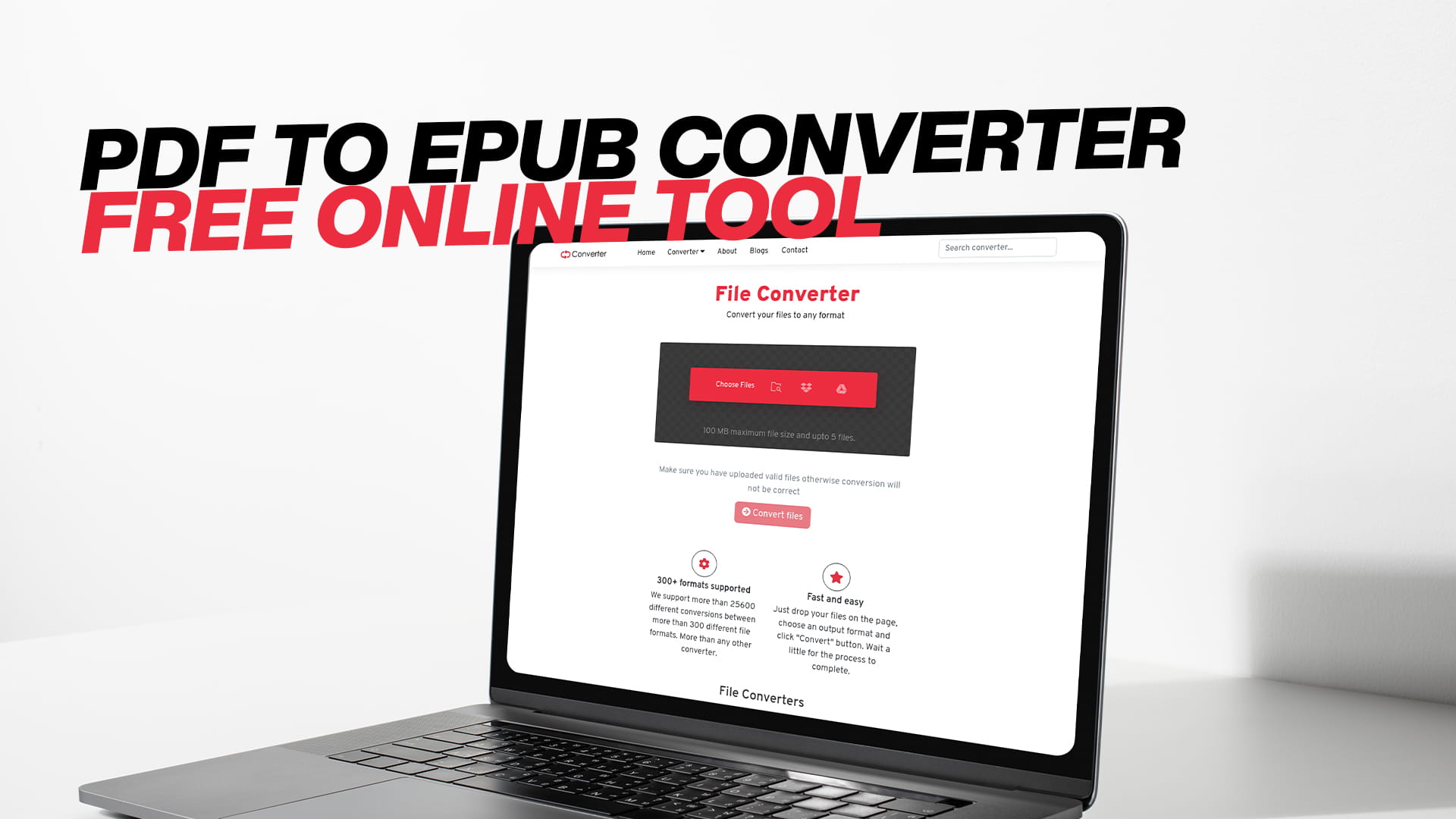
PDF to EPUB Converter — Free Online Tool
Most people run into this problem the same way. You have a PDF — maybe a book, a research paper, a report, or something you downloaded years ago — and you want to read it comfortably on your phone, your tablet, your Kobo, or your Kindle app. You open the PDF, and the text is tiny. You zoom in, and now you are scrolling sideways just to finish a single sentence. The reading experience is genuinely bad, and it does not have to be.
Converting a PDF to EPUB fixes this. EPUB is a format built for reading. The text adjusts to your screen, your font size preference, and your device. It is what most eReaders expect and what most reading apps are designed to handle. And converting between the two is not complicated — Convertio does it online, for free, without any software to install.
This guide covers the full picture: what these two formats actually are, why the difference between them matters for reading, when conversion makes sense, and how to do it in a few straightforward steps.
What Is a PDF and Why Does It Have Limitations for Reading?
PDF stands for Portable Document Format. Adobe created it in the early 1990s with one primary goal: to make a document look the same on every device, in every environment, no matter what software or operating system is used. Open a PDF on Windows, Mac, iPhone, Android, or Linux, and the layout is identical every time. That consistency is why PDF became one of the most trusted formats in the world.
For documents where appearance matters — contracts, forms, invoices, official reports, academic papers, instruction manuals — PDF is excellent. The page layout is locked in. Every heading, every image, every table, every margin sits exactly where the author put it.
That fixed layout is also the core limitation when it comes to casual reading, especially on smaller screens.
PDF pages are designed for specific paper sizes — usually A4 or US Letter. When you display those pages on a phone screen, the text becomes small enough to strain your eyes. You can zoom in, but then you lose the full line of text and have to scroll horizontally to read. It breaks the natural reading flow completely. On a tablet or large monitor, PDFs are fine. On a phone or smaller eReader, they can be genuinely uncomfortable.
There is also the font-size problem. With a standard book or article on a phone, you can bump up the font size and the text simply reflows to accommodate it. With a PDF, there is no reflow. Increase the zoom and the page just gets bigger — everything shifts, nothing adapts.
This is not a flaw in PDF as a format. It was designed for a different purpose. But for modern reading across multiple devices of different sizes, its rigidity becomes a genuine obstacle.
What Is EPUB and Why Is It Better for Reading?
EPUB stands for Electronic Publication. It is the open standard eBook format, developed and maintained by the W3C (World Wide Web Consortium) and the International Digital Publishing Forum. Unlike PDF, which is tied to a fixed page layout, EPUB is built around the idea that content should adapt to whatever device it is displayed on.
The technical foundation of EPUB is essentially HTML and CSS — the same building blocks used to create web pages. This means EPUB content flows and reflows just like a webpage does. If you have a wide tablet screen, the text fills it comfortably. If you switch to a smaller phone, the text adjusts. If you increase the font size, the paragraphs restructure themselves to fit. If you prefer a dark background with white text, most EPUB readers support that too.
This flexibility is why EPUB became the standard format for eBooks across the industry. Apple Books uses it. Kobo uses it. Google Play Books uses it. Barnes and Noble's Nook uses it. Libraries that lend digital books use it. Calibre, the most popular desktop eBook management software, uses it as its primary format. Even Amazon's Kindle, which historically pushed its own proprietary formats, now supports EPUB directly on newer devices.
EPUB files are also relatively small. The format is efficient, and because it handles text as actual text rather than a rendered image of text, the file sizes tend to be much more manageable than equivalent PDFs.
One thing EPUB does not do as well as PDF is handle complex visual layouts. If a document has intricate multi-column formatting, precise image positioning, or a design where the exact location of every element matters, PDF is better at preserving that. But for reading — especially long-form text like books, articles, reports, or essays — EPUB gives you a more comfortable, flexible experience.
Why Convert PDF to EPUB?
The core reason is comfort. Reading a flowing EPUB on an eReader or phone is a noticeably better experience than navigating a fixed PDF on the same screen. But there are more specific reasons people make this conversion.
eReader compatibility. Most dedicated eReaders — Kobo, PocketBook, older Nook devices, and many others — do not handle PDF well. They can open the file, but the reading experience is poor because of the fixed layout problem described earlier. These devices are designed for EPUB. Converting your PDFs to EPUB makes them work properly on the hardware you bought for reading.
Kindle compatibility. Amazon's Kindle ecosystem has historically used its own formats (MOBI, AZW, AZW3), but newer Kindle devices and the Kindle app now support EPUB natively. If you have a collection of PDFs you want to read in the Kindle app, converting to EPUB is a clean solution.
Adjustable reading experience. Once a file is in EPUB format, you control the reading experience. You can change the font size, choose a different typeface, switch between light and dark modes, adjust line spacing, and change the background color. None of this is possible with a standard PDF.
Better for long reading sessions. PDF reading on small screens tends to cause eye strain faster because of the scrolling and zooming. EPUB's clean, flowing text is easier on the eyes over long reading sessions.
Organizing your eBook library. If you manage a personal digital library using software like Calibre, EPUB integrates much more smoothly than PDF. Calibre's metadata management, library organization, and device syncing features all work best with EPUB files.
Accessibility. EPUB supports accessibility features better than PDF in most reading apps. Screen readers, text-to-speech functions, and other assistive technologies work more reliably with well-formed EPUB files.
How to Convert PDF to EPUB Using Convertio
Convertio is a free online conversion tool that works directly in your browser. You do not need to create an account, download software, or go through a complicated setup. Here is the process from start to finish.
Step 1: Open Convertio in Your Browser
Go to Convertio on any browser — Chrome, Firefox, Safari, Edge, it does not matter. The tool works the same everywhere. The homepage gives you direct access to the converter.
Step 2: Upload Your PDF File
Click the upload area or drag your PDF file directly into it. If your file is stored in Google Drive or Dropbox, Convertio lets you pull it from there directly without downloading it to your device first. This is useful if you are working from a tablet or phone where managing downloaded files is less convenient.
If you have several PDFs to convert, you can upload them all at the same time and process them in a batch. This is much faster than converting one file at a time.
Step 3: Choose EPUB as the Output Format
Select EPUB from the format dropdown. Convertio supports a wide range of formats, so it is worth confirming the output is set to EPUB specifically. You can also type "EPUB" in the format search box if you want to find it faster.
Step 4: Start the Conversion
Click the Convert button. Convertio processes the file on its servers. For a typical PDF — a book, a report, or a long document — the conversion usually takes under a minute. Larger files with many images take a bit longer, but the process is still fast.
Step 5: Download Your EPUB
When the conversion is done, a download button appears. Click it and save the EPUB to your device. If you converted multiple files, you can download them individually or grab them all at once as a ZIP archive.
Once you have the EPUB, you can transfer it to any reading device, import it into a reading app, or open it in Calibre for further management. The file is yours to use however you like.
After a short period, Convertio deletes uploaded files from its servers. This is a reasonable approach to privacy — your documents are not stored indefinitely on someone else's server.
What Happens to the Content During Conversion?
Understanding what the conversion actually does helps set reasonable expectations for the output.
When Convertio converts a PDF to EPUB, it extracts the text content from the PDF and restructures it into EPUB's HTML-based format. For text-heavy PDFs — novels, non-fiction books, academic papers, long articles — this process works well. The text comes through cleanly, paragraphs are preserved, and the resulting EPUB reads naturally on any device.
For PDFs that contain mainly images rather than actual text, the conversion is different. Scanned documents, for example, are not really text — they are photographs of text. A converter cannot extract real text from an image without optical character recognition (OCR). If your PDF is a scanned document, the EPUB output may contain images of pages rather than real flowing text. This means you lose the flexibility that makes EPUB useful in the first place.
If you have a scanned PDF and want a proper text-based EPUB, you need OCR processing first to convert those images into actual text. Many PDF tools include OCR as a feature, and there are dedicated OCR converters available online. Once the scanned PDF has been OCR-processed and the text is extractable, conversion to EPUB will work much better.
For PDFs that are a mix of text and images — like a textbook with both written content and diagrams — the text converts well, and images are typically included in the EPUB output. The layout may not be identical to the original PDF (since EPUB is reflowable and PDF is fixed), but the content is all there.
Complex formatting elements like multi-column layouts, sidebars, footnotes, and tables may convert with varying degrees of fidelity depending on how the original PDF was structured. For most standard reading material, the conversion output is clean and readable. For heavily designed documents, some manual cleanup may be needed after conversion.
PDF vs. EPUB — Choosing the Right Format
Neither format is universally better. They serve different purposes, and the right choice depends on what you are doing with the file.
Use PDF when you need the layout to be exact. Legal documents, official forms, reports that must look the same for all recipients, printed materials, academic submissions with specific formatting requirements — these all belong in PDF. When the visual structure is part of the point, PDF is right.
Use EPUB when you want a comfortable reading experience across different devices. Fiction, non-fiction, essays, research you want to read on the go, textbooks you plan to read on an eReader — these are better as EPUB. The flexibility to adjust fonts, sizes, and display modes makes reading easier, and the text flows properly regardless of screen size.
The practical reality for most people is that PDFs come from the internet, from work, from official sources. They are the default output format for a lot of content. EPUB is what you want to read on an eReader or reading app. So conversion bridges the gap between where files come from and where you want to read them.
Tips for Getting Better EPUB Output
A few things you can do to improve the quality of your conversions.
Check the PDF before converting. Open it and scroll through it. Is it a text-based PDF where you can highlight and select text? Or is it an image-based scanned document? If you can select and copy text in the PDF, conversion will work well. If you cannot, you likely need OCR first.
Keep your PDF files organized before batch converting. Give your files clear, descriptive names before uploading. When the EPUB files come back, the names make it easier to sort and organize them in your library.
Test with a single file before converting a large batch. Run one conversion, open the EPUB on your device or reading app, and check the output quality. If it looks good, go ahead with the rest. If the formatting needs adjustment, you can make changes before processing everything.
After conversion, open the EPUB in Calibre if you want to clean it up further. Calibre has a built-in editor that lets you adjust metadata, fix minor formatting issues, and tweak the file before adding it to your library or sending it to a device.
Consider the file size. PDFs with many high-resolution images can be quite large. EPUB files tend to be smaller, but image-heavy conversions can still produce large files. If size is a concern, check whether image quality settings can be adjusted before converting.
Common Issues and How to Handle Them
The EPUB text is garbled or displays incorrectly. This usually means the PDF used embedded fonts or non-standard character encoding that the converter could not fully interpret. Try opening the EPUB in a different reading app — sometimes a different renderer handles the encoding better. Alternatively, Calibre's ebook editor allows you to fix encoding issues directly.
Images are missing from the EPUB. Some PDFs embed images in a format that is not directly transferable. If images are important to the content, check whether the converter supports the image formats used in that specific PDF. Convertio handles the most common image formats correctly.
The conversion takes too long or times out. Very large PDFs can take longer to process. If a file is timing out, check whether there is a file size limit for the conversion tool. Breaking a large PDF into smaller sections before converting can also help.
The text is split across lines oddly. This happens when a PDF was created with hard line breaks at the end of each line rather than flowing paragraphs. It is a common issue with PDFs that were exported from word processors with specific page sizes in mind. After converting to EPUB, you can use Calibre's text cleaning tools to merge these broken lines into proper paragraphs.
Chapter headings do not appear as headings. In a well-structured PDF, headings are tagged with proper styles. In a poorly structured one, all text looks the same to a converter. If your EPUB does not have a working table of contents or headings, you can add them manually in Calibre's editor.
The scanned PDF produces an unreadable EPUB. As mentioned, scanned PDFs are essentially images. Run the PDF through an OCR tool first, then convert the OCR-processed version to EPUB. The output will be far more usable.
EPUB Versions — EPUB 2 vs. EPUB 3
You may have seen references to EPUB 2 and EPUB 3 and wondered what the difference is. Here is a quick explanation.
EPUB 2 is the older version of the standard, published around 2010. It covers the basics well — reflowable text, embedded fonts, images, and a table of contents. Most eReaders support it without any issues, and for straightforward books and documents, it does everything you need.
EPUB 3 is the current standard, introduced in 2011 and updated several times since. It adds support for more advanced features including audio and video embedding, MathML for mathematical notation, Ruby annotations for East Asian typography, and better accessibility features. It is based on HTML5 and CSS3, making it closer to modern web standards.
For most conversion purposes — taking a standard PDF and making it readable as an eBook — the version distinction does not matter much. Both EPUB 2 and EPUB 3 files read well on all modern eReaders and apps. If you are converting academic content with complex notation, or multimedia-rich material, EPUB 3 is preferable. For general reading, either works.
How Convertio Fits Into a Broader File Management Workflow
File conversion is often not a one-time task. If you download a lot of content, maintain a digital reading library, or work with documents regularly, conversion becomes a recurring part of your workflow. Having one reliable tool that handles many different conversions is more efficient than piecing together multiple specialized apps.
Convertio handles a genuinely broad range of formats. Beyond PDF and EPUB, it works with a wide variety of image formats including JPG, PNG, WEBP, TIFF, and BMP. It converts audio files across formats like MP3, WAV, FLAC, OGG, and AAC. It handles video conversions, compressed archive formats like ZIP and RAR, document formats including Word, Excel, and PowerPoint, and other eBook formats like MOBI, AZW3, LIT, and FB2.
This breadth matters for practical use. You might convert PDF to EPUB today. Next week you want to turn a batch of images into a PDF to send to someone. The week after, you need to convert a video to a format your editing software accepts. Having Convertio already in your browser history and knowing how it works means you are not searching for a new tool every time a new format comes up.
The interface is the same regardless of what you are converting. Upload, select format, convert, download. That consistency makes it easier to use because there is no relearning needed each time.
The Case for Open Formats
There is a broader reason to think about PDF to EPUB conversion beyond immediate convenience, and it has to do with the long-term accessibility of your files.
PDF is a well-supported open standard, which is good. But PDF readers on small devices have always handled the format with varying degrees of quality. EPUB's openness is slightly different in character — it was designed from the beginning for software to render flexibly, which means it works consistently across a wider range of devices and apps.
When you convert your PDFs to EPUB, you are taking documents that were designed for a fixed display and making them adaptable. You are taking content that works on certain devices and making it work on almost all of them. That is not just a format conversion — it is making your content more portable and more future-proof.
For people building personal digital libraries, this matters. A collection of EPUBs works with Calibre, with Apple Books, with Kobo, with the Kindle app, with PocketBook, with any browser-based EPUB reader, and with any future reading software that follows the open standard. Your library is not locked to any single platform or company.
PDF has its permanent place — for documents where the layout is the point. But for reading material, EPUB gives you more. Converting the PDFs in your collection that are meant to be read (not just filed or printed) is a reasonable investment of a few minutes.
Final Thoughts
The gap between PDF and EPUB comes down to purpose. PDF holds layout. EPUB enables reading. Both are useful, but they are useful for different things, and knowing the difference helps you use both formats well.
If you have a backlog of PDFs you want to read on an eReader, a tablet, or your phone without the zooming and horizontal scrolling, converting them to EPUB is the most direct fix. Convertio makes that process free and simple. There is no software to install, no account required, and no technical knowledge needed to get a clean conversion.
Upload your PDF, select EPUB as the output, click convert, and you have a reading-ready file in under a minute. If you are managing a larger collection, the batch conversion feature means you can process dozens of files at once rather than working through them one by one.
The files you want to read deserve to be readable. PDF to EPUB conversion is how you get there.